> ## Documentation Index
> Fetch the complete documentation index at: https://stytch.com/docs/llms.txt
> Use this file to discover all available pages before exploring further.

# Theming

> How to configure styling for Stytch's pre-built UI components

export const StytchCode = ({subPackage, imports, children, ...codeBlockProps}) => {
  const {pathname} = location;
  let packageName;
  if (pathname.includes('/nextjs')) packageName = 'nextjs';
  if (pathname.includes('/react')) packageName = 'react';
  if (pathname.includes('/vanilla-js')) packageName = 'vanilla-js';
  if (!subPackage && pathname.includes('/b2b/')) subPackage = 'b2b';
  const importPath = "@stytch/" + packageName + (subPackage ? '/' + subPackage : '');
  let code = children;
  const lines = children.trim().split('\n');
  if (lines[lines.length - 1].startsWith('    ')) {
    code = lines.map(l => l.replace(/^\s{0,4}/, '')).join('\n');
  } else if (lines[lines.length - 1].startsWith('  ')) {
    code = lines.map(l => l.replace(/^\s{0,2}/, '')).join('\n');
  }
  return <CodeBlock {...codeBlockProps}>{`
import { ${imports} } from '${importPath}';

${code}`}</CodeBlock>;
};

<Note>The following applies to @stytch/vanilla-js v6, @stytch/react v20, or @stytch/nextjs v22. If you are on an older version, see [documentation here](../../vanilla-js/resources/v5-config#styles).</Note>

To theme Stytch UI components, use the `presentation` property.

You can use one of our pre-built themes, override specific tokens, or create an entirely new theme to match your app's look and feel.

```js theme={null}
const presentation = {
  theme: { ... },
  options: { ... },
  icons: { ... },
};
```

## Pre-built themes

You can use our default themes as a basis for your own theme.

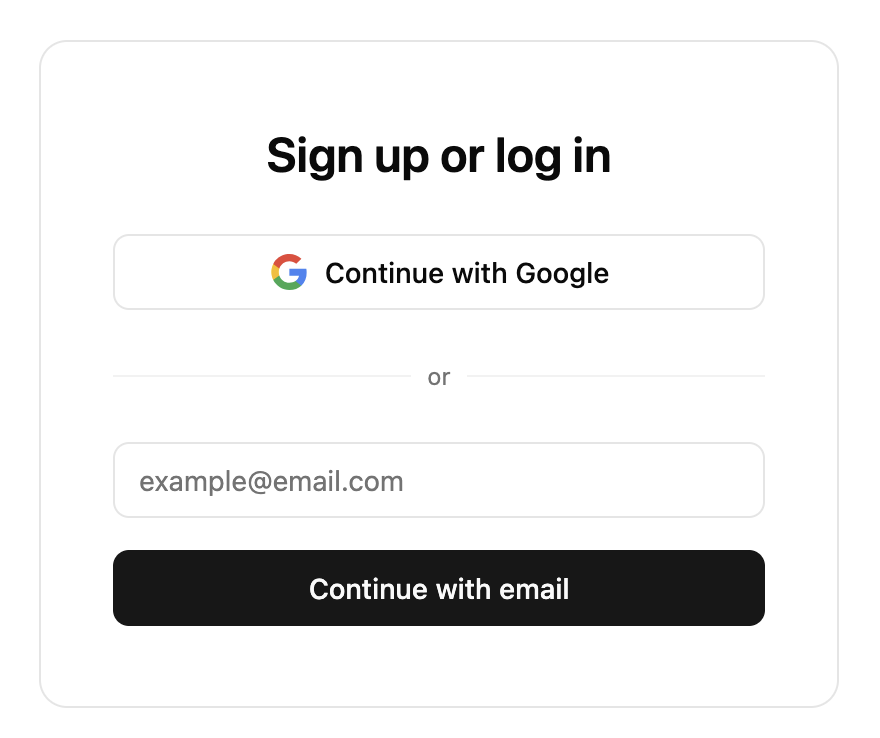
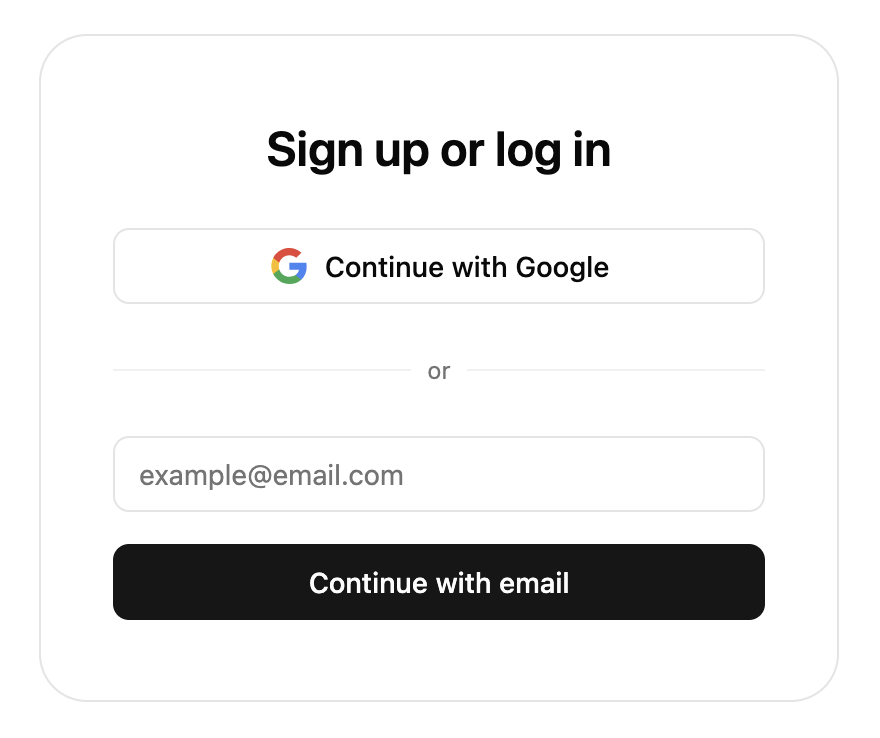
### Light theme

<img src="https://mintcdn.com/stytch-34ca0595/j0ZekfcvTA5toQr8/images/api-reference/shared/sdk/stytch-ui-light.png?fit=max&auto=format&n=j0ZekfcvTA5toQr8&q=85&s=3fd77cd65972557b104a1620e189ab7f" alt="" style={{ maxWidth: "500px" }} width="880" height="738" data-path="images/api-reference/shared/sdk/stytch-ui-light.png" />

The light theme is the default and can be imported as `defaultTheme`.

<StytchCode imports="defaultTheme" language="js">
  {`
    const presentation = {
      theme: defaultTheme,
    };`}
</StytchCode>

<Expandable title="colors">
  <Color variant="compact">
    <Color.Item name="background" value="oklch(1 0 0)" />

    <Color.Item name="foreground" value="oklch(0.14 0 0)" />

    <Color.Item name="primary" value="oklch(0.2 0 0)" />

    <Color.Item name="primary-foreground" value="oklch(0.99 0 0)" />

    <Color.Item name="secondary" value="oklch(0.97 0 0)" />

    <Color.Item name="secondary-foreground" value="oklch(0.2 0 0)" />

    <Color.Item name="muted" value="oklch(0.97 0 0)" />

    <Color.Item name="muted-foreground" value="oklch(0.56 0 0)" />

    <Color.Item name="accent" value="oklch(0.97 0 0)" />

    <Color.Item name="accent-foreground" value="oklch(0.2 0 0)" />

    <Color.Item name="border" value="oklch(0.92 0 0)" />

    <Color.Item name="input" value="oklch(0.92 0 0)" />

    <Color.Item name="ring" value="oklch(0.72 0 0)" />

    <Color.Item name="destructive" value="oklch(0.577 0.245 27.325)" />

    <Color.Item name="destructive-foreground" value="#fff" />

    <Color.Item name="warning" value="oklch(0.67 0.16 58)" />

    <Color.Item name="success" value="oklch(0.6 0.13 163)" />
  </Color>
</Expandable>

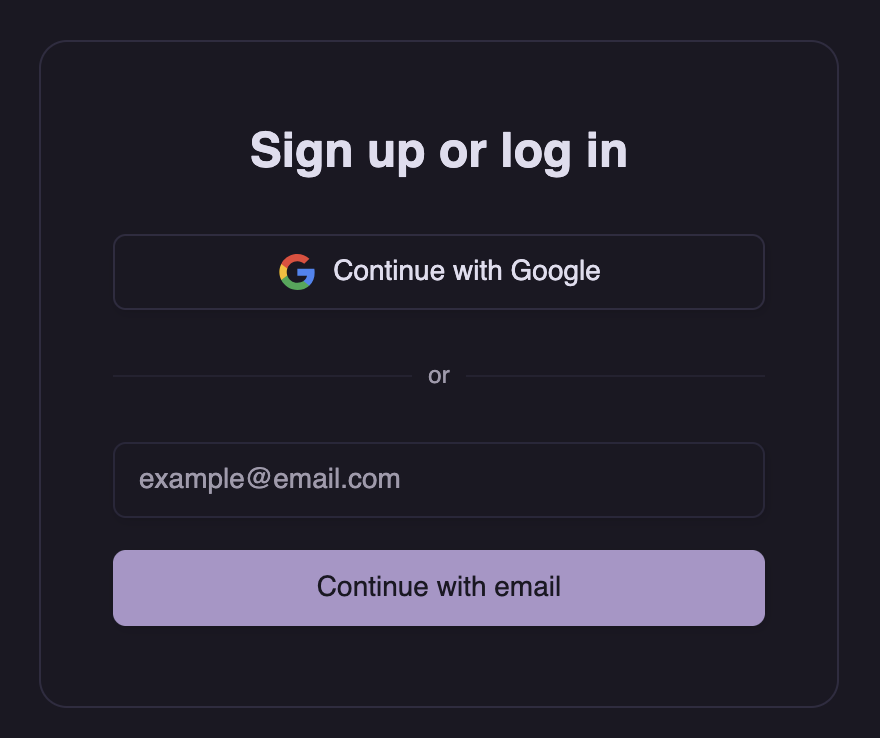
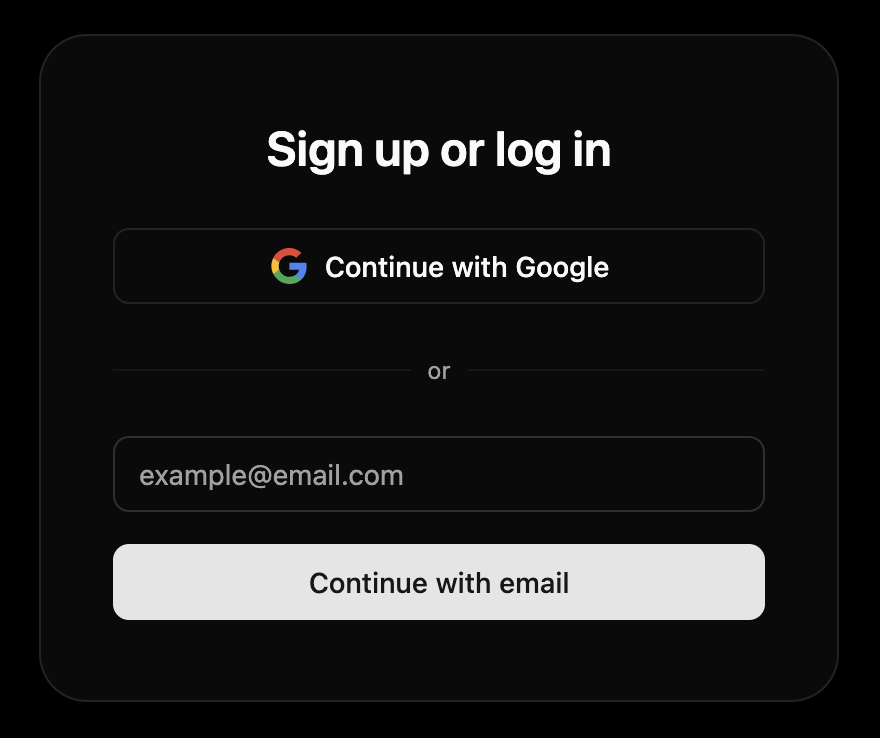
### Dark theme

<img src="https://mintcdn.com/stytch-34ca0595/j0ZekfcvTA5toQr8/images/api-reference/shared/sdk/stytch-ui-dark.png?fit=max&auto=format&n=j0ZekfcvTA5toQr8&q=85&s=c4d3f4109be48605d1d2e82d44677c6d" alt="" style={{ maxWidth: "500px" }} width="880" height="738" data-path="images/api-reference/shared/sdk/stytch-ui-dark.png" />

The default dark theme can be imported as `defaultDarkTheme`.

<StytchCode imports="defaultDarkTheme" language="js">
  {`
    const presentation = {
      theme: defaultDarkTheme,
    };`}
</StytchCode>

<Expandable title="colors">
  <Color variant="compact">
    <Color.Item name="background" value="oklch(0.145 0 0)" />

    <Color.Item name="foreground" value="oklch(0.985 0 0)" />

    <Color.Item name="primary" value="oklch(0.922 0 0)" />

    <Color.Item name="primary-foreground" value="oklch(0.205 0 0)" />

    <Color.Item name="secondary" value="oklch(0.269 0 0)" />

    <Color.Item name="secondary-foreground" value="oklch(0.985 0 0)" />

    <Color.Item name="muted" value="oklch(0.269 0 0)" />

    <Color.Item name="muted-foreground" value="oklch(0.708 0 0)" />

    <Color.Item name="accent" value="oklch(0.269 0 0)" />

    <Color.Item name="accent-foreground" value="oklch(0.985 0 0)" />

    <Color.Item name="border" value="oklch(1 0 0 / 10%)" />

    <Color.Item name="input" value="oklch(1 0 0 / 15%)" />

    <Color.Item name="ring" value="oklch(0.556 0 0)" />

    <Color.Item name="destructive" value="oklch(0.704 0.191 22.216)" />

    <Color.Item name="destructive-foreground" value="#fff" />

    <Color.Item name="warning" value="oklch(0.754 0.16 58)" />

    <Color.Item name="success" value="oklch(0.704 0.13 163)" />
  </Color>
</Expandable>

### shadcn theme

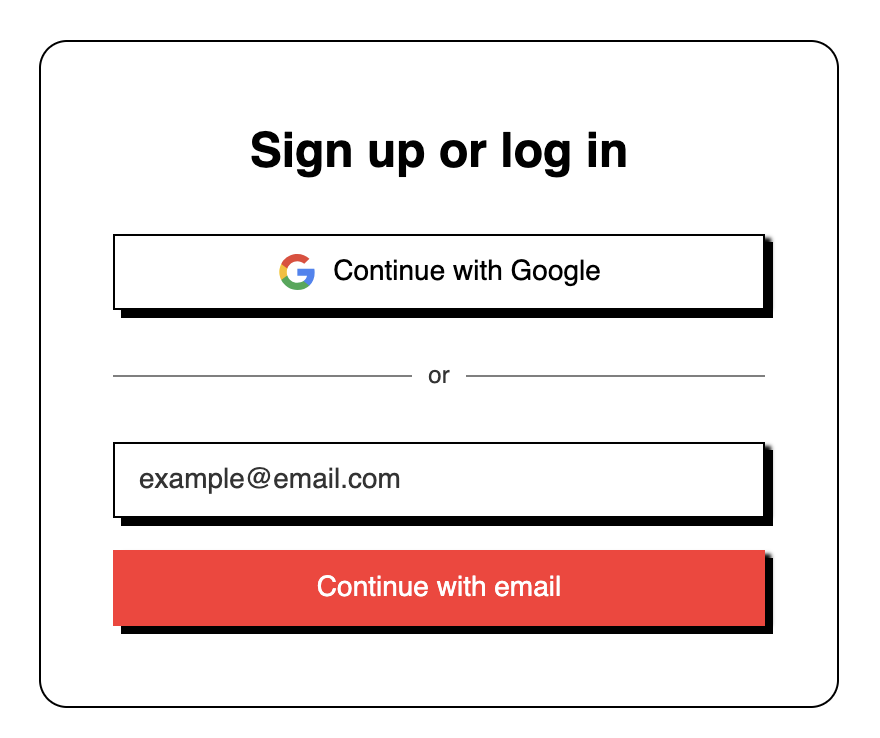
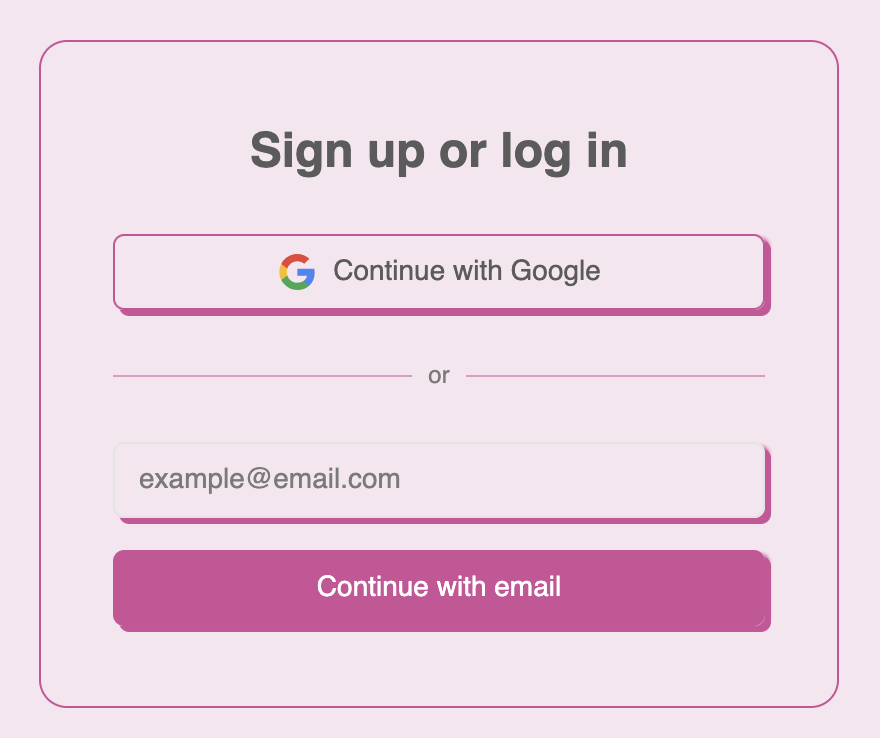
If you use shadcn/ui, you can use `shadcnTheme` to automatically match Stytch UI to your theme. Here are some examples of how Stytch UI appears with different shadcn/ui themes.

<Tabs>
  <Tab title="Default">
    <img src="https://mintcdn.com/stytch-34ca0595/j0ZekfcvTA5toQr8/images/api-reference/shared/sdk/stytch-ui-shadcn.png?fit=max&auto=format&n=j0ZekfcvTA5toQr8&q=85&s=6a6af4f3af96bd541321e1c0e5082385" alt="" style={{ maxWidth: "500px" }} width="880" height="738" data-path="images/api-reference/shared/sdk/stytch-ui-shadcn.png" />
  </Tab>

  <Tab title="Neobrutalism">
    <img src="https://mintcdn.com/stytch-34ca0595/j0ZekfcvTA5toQr8/images/api-reference/shared/sdk/stytch-ui-shadcn-neobrutalism.png?fit=max&auto=format&n=j0ZekfcvTA5toQr8&q=85&s=e783ee450a8756f3b1fb61b24fe72ed3" alt="" style={{ maxWidth: "500px" }} width="880" height="738" data-path="images/api-reference/shared/sdk/stytch-ui-shadcn-neobrutalism.png" />

    [From tweakcn](https://tweakcn.com/editor/theme?theme=neo-brutalism)
  </Tab>

  <Tab title="Bubblegum">
    <img src="https://mintcdn.com/stytch-34ca0595/j0ZekfcvTA5toQr8/images/api-reference/shared/sdk/stytch-ui-shadcn-bubblegum.png?fit=max&auto=format&n=j0ZekfcvTA5toQr8&q=85&s=72bc5abc759db017c276f8761f80505a" alt="" style={{ maxWidth: "500px" }} width="880" height="738" data-path="images/api-reference/shared/sdk/stytch-ui-shadcn-bubblegum.png" />

    [From tweakcn](https://tweakcn.com/editor/theme?theme=bubblegum)
  </Tab>

  <Tab title="Amethyst dark">
    <img src="https://mintcdn.com/stytch-34ca0595/j0ZekfcvTA5toQr8/images/api-reference/shared/sdk/stytch-ui-shadcn-amethyst-dark.png?fit=max&auto=format&n=j0ZekfcvTA5toQr8&q=85&s=0a89a21ce9ba4b38522149d9faa09759" alt="" style={{ maxWidth: "500px" }} width="880" height="738" data-path="images/api-reference/shared/sdk/stytch-ui-shadcn-amethyst-dark.png" />

    [From tweakcn](https://tweakcn.com/editor/theme?theme=amethyst-haze)
  </Tab>
</Tabs>

<StytchCode imports="shadcnTheme" language="js">
  {`
    const presentation = {
      theme: shadcnTheme,
    };`}
</StytchCode>

You will also need to add these lines to your CSS:

```css theme={null}
@import 'tailwindcss';
/* Or @stytch/nextjs, @stytch/vanilla-js */
@import '@stytch/react/theme/shadcn.css'; /* [!code ++] */
```

For dark mode to work, add these lines to your `.dark` class.

```css theme={null}
.dark {
  color-scheme: dark; /* [!code ++] */
  --st-dark-mode: 1; /* [!code ++] */
}
```

### Customization

You can override any property in these theme objects. See the [reference below for all available properties](#presentation-theme).

<StytchCode imports="defaultDarkTheme" language="js">
  {`
    const presentation = {
      theme: {
        ...defaultDarkTheme,
        primary: '#ef223a',
      },
    };`}
</StytchCode>

## Automatic light/dark themes

You can also provide an array of two themes, and Stytch UI will automatically switch between them based on the user's OS color scheme.

<StytchCode imports="defaultTheme, defaultDarkTheme" language="js">
  {`
    // Stytch UI's default theme is a light theme
    const presentation = {
      theme: [defaultTheme, defaultDarkTheme],
    };`}
</StytchCode>

## Creating your own theme

You can create your own theme using this template. The template contains the default value for each property. Feel free to delete any properties where you want to use the default.

```js theme={null}
const myTheme = {
  'color-scheme': 'light',

  // Fonts
  'font-family': 'system-ui, sans-serif',
  'font-family-mono':
    "ui-monospace, 'Cascadia Code', 'Source Code Pro', Menlo, Consolas, 'DejaVu Sans Mono', monospace",

  // Sizes
  spacing: '4px',
  'text-base': '1rem',
  'container-width': '400px',
  'mobile-breakpoint': '768px',
  'rounded-base': '4px',

  // Durations
  'transition-duration': '0.15s',

  // Shadows - no shadow is used by default
  shadow: '',

  // Colors
  background: 'oklch(1 0 0)',
  foreground: 'oklch(0.14 0 0)',

  primary: 'oklch(0.2 0 0)',
  'primary-foreground': 'oklch(0.99 0 0)',

  secondary: 'oklch(0.97 0 0)',
  'secondary-foreground': 'oklch(0.2 0 0)',

  muted: 'oklch(0.97 0 0)',
  'muted-foreground': 'oklch(0.56 0 0)',

  accent: 'oklch(0.97 0 0)',
  'accent-foreground': 'oklch(0.2 0 0)',

  border: 'oklch(0.92 0 0)',
  input: 'oklch(0.92 0 0)',
  ring: 'oklch(0.72 0 0)',

  destructive: 'oklch(0.577 0.245 27.325)',
  'destructive-foreground': '#fff',

  warning: 'oklch(0.67 0.16 58)',
  success: 'oklch(0.6 0.13 163)',
};
```

### Additional properties

These properties are usually derived from base tokens but can be overridden if your theme needs different values.

```js theme={null}
const additionalThemeProperties = {
  // Defaults to font-family
  'header-font': '',

  // Container defaults to 6x base radius
  'container-radius': '',

  // Defaults to border
  'container-border': '',

  // Button and input defaults to 2x base radius
  'button-radius': '',
  'input-radius': '',

  // Default to shadow
  'shadow-button': '',
  'shadow-input': '',
};
```

### CSS variables

You can also use CSS custom properties (a.k.a. CSS variables) as values. This is useful if you are using Tailwind or another framework that provides them.

```js theme={null}
const theme = {
  primary: 'var(--color-primary)',
};
```

### TypeScript

Themes are typed as `Theme`. This object has every non-derived property marked as required. If you only intend to override a few properties from default, you can use `Partial<Theme>` instead.

<StytchCode imports="Theme" language="ts">
  {`
    const overrideTheme: Partial<Theme> = {
      // Only overriding font
      'font-family': 'Arial, sans-serif',
    };

    const fullTheme: Theme = {
      // All values need to be filled
    };`}
</StytchCode>

## Playground

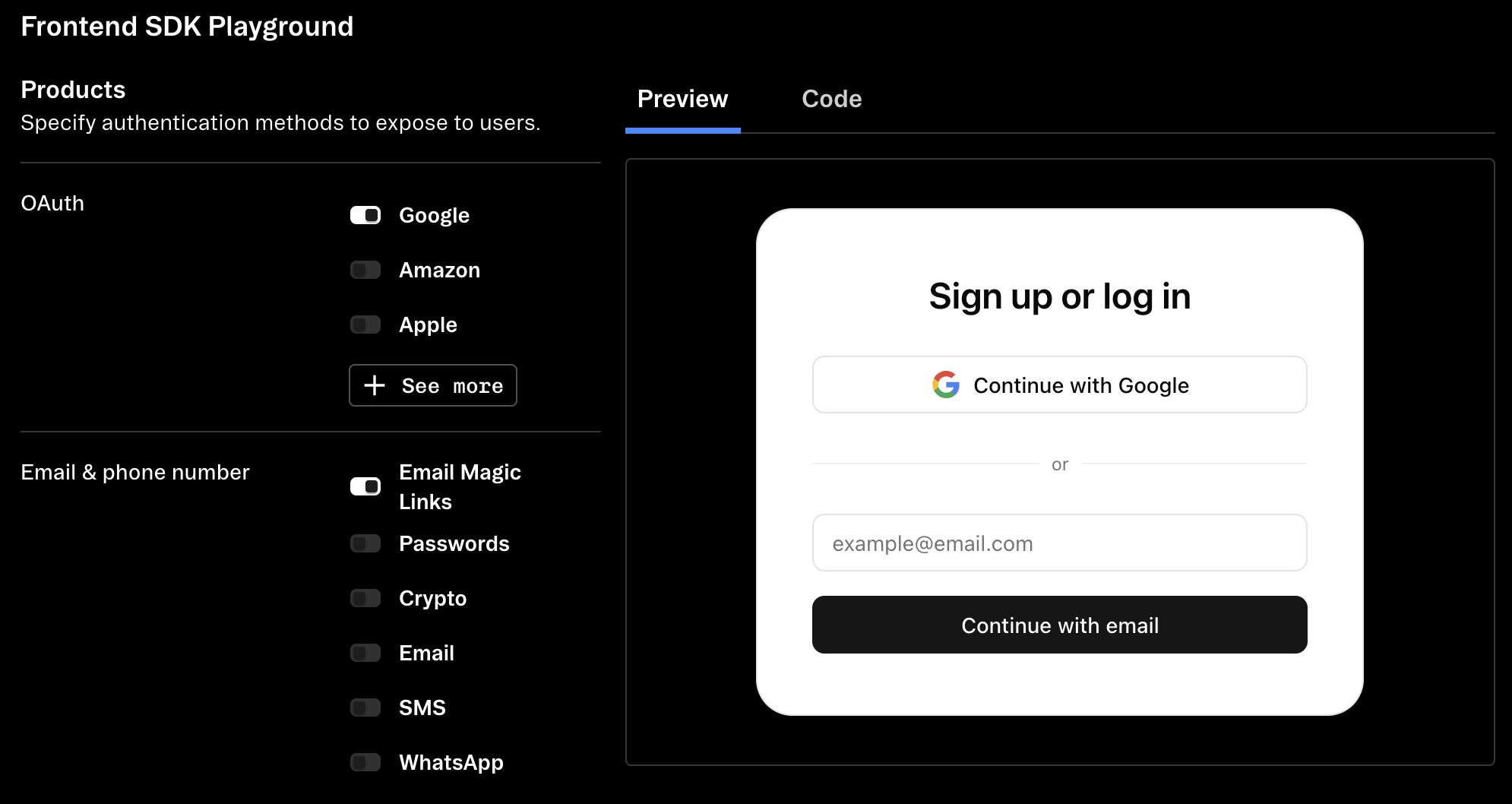
<Frame caption="Use the [dashboard SDK playground](https://stytch.com/dashboard/sdk-playground) to preview and customize your config and theme.">
  [  <img src="https://mintcdn.com/stytch-34ca0595/cI5IQb77W90o8fqR/images/api-reference/shared/sdk/dashboard-playground.png?fit=max&auto=format&n=cI5IQb77W90o8fqR&q=85&s=797ab58b62a4674d425b64350d1ac114" alt="You can preview theme and config changes in the playground" width="1990" height="1058" data-path="images/api-reference/shared/sdk/dashboard-playground.png" />](https://stytch.com/dashboard/sdk-playground)
</Frame>

## Additional options

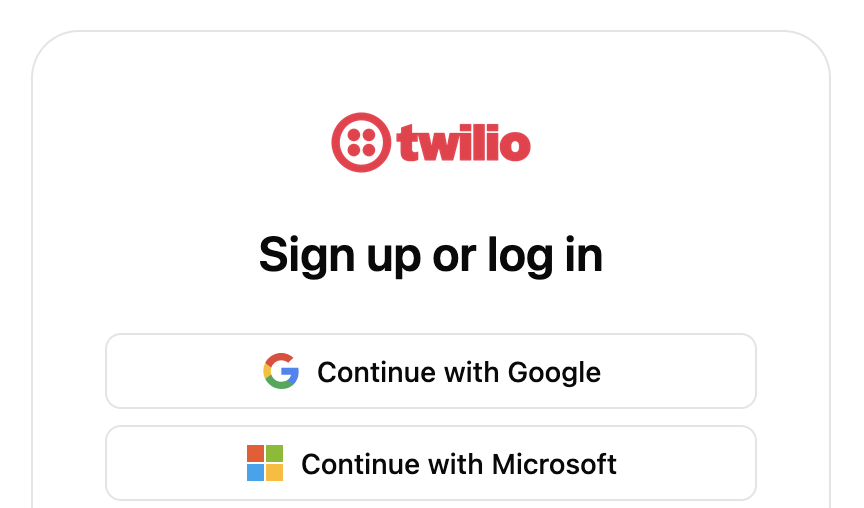
### Logo and header customization

<img src="https://mintcdn.com/stytch-34ca0595/j0ZekfcvTA5toQr8/images/api-reference/shared/sdk/sdk-logo-example.png?fit=max&auto=format&n=j0ZekfcvTA5toQr8&q=85&s=26a56020de5b2767575b9021ef44a8d7" alt="" style={{ maxWidth: "500px" }} width="864" height="508" data-path="images/api-reference/shared/sdk/sdk-logo-example.png" />

Use `options.logo` to configure the logo displayed at the top of the components. The logo will be resized to a maximum of 100×50px, but we recommend using an image at least 200×100px to support users with hi-dpi displays.

```js theme={null}
const presentation = {
  options: {
    url: 'https://example.com/logo.png',
    alt: 'Your company name',
  },
};
```

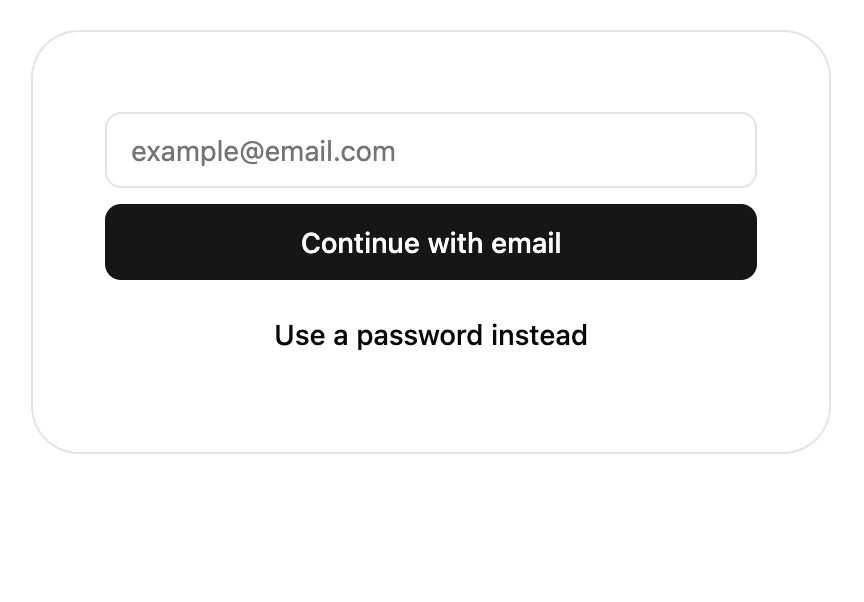
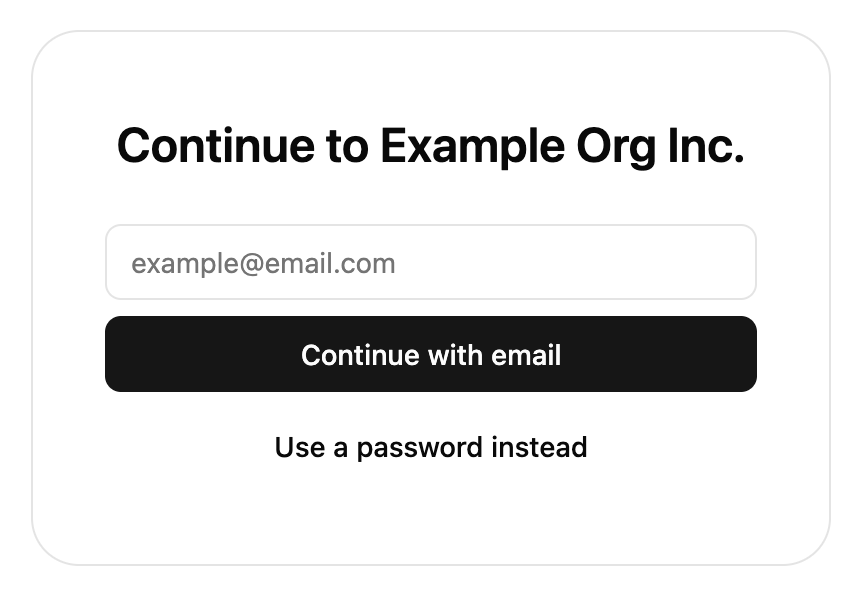
Use `options.hideHeaderText` to hide the heading and instruction text on some screens. This can be useful to avoid duplicating existing headings on the page and can be combined with setting `theme['container-border']` to 0 to blend the components into the page.

```js theme={null}
const presentation = {
  options: {
    hideHeaderText: true,
  },
};
```

<Tabs>
  <Tab title="hideHeaderText">
    <img src="https://mintcdn.com/stytch-34ca0595/j0ZekfcvTA5toQr8/images/api-reference/shared/sdk/sdk-hide-header-text.png?fit=max&auto=format&n=j0ZekfcvTA5toQr8&q=85&s=9d1d0c54f825de92574037ab16615bac" alt="" style={{ maxWidth: "500px" }} width="864" height="602" data-path="images/api-reference/shared/sdk/sdk-hide-header-text.png" />
  </Tab>

  <Tab title="Without hideHeaderText">
    <img src="https://mintcdn.com/stytch-34ca0595/j0ZekfcvTA5toQr8/images/api-reference/shared/sdk/sdk-no-hide-header-text.png?fit=max&auto=format&n=j0ZekfcvTA5toQr8&q=85&s=9c2ce47ee8dfdd6ca3ca1c6d45a019d3" alt="" style={{ maxWidth: "500px" }} width="864" height="602" data-path="images/api-reference/shared/sdk/sdk-no-hide-header-text.png" />
  </Tab>
</Tabs>

### Icon customization

Icons can be customized by passing an object to `presentation.icons` where the keys are icon IDs and the value is a React component (not element) rendering the icon.

A monochrome black and white logo set is available as an alternative to the default color one.

<StytchCode imports="iconsWhite, iconsBlack" language="js">
  {`
    // Override specific icons
    const presentation = {  
      icons: {
        google: iconsWhite.google,
      },
    };

    // Using the full set
    // Not recommended in production since this will include icons that are unused,
    // but this is useful in development to preview how the two icon sets will look.
    const presentation = {  
      icons: iconsBlack,
    };`}
</StytchCode>

Currently, we only allow customizing logos used in OAuth, SSO, email, or crypto products. These logos can be customized:

* amazon
* apple
* bitbucket
* coinbase
* discord
* facebook
* figma
* github
* gitlab
* google
* linkedin
* microsoft
* salesforce
* slack
* snapchat
* tiktok
* twitch
* xTwitter
* yahoo
* phantom
* metamask
* binance
* gmail
* outlook

You can also pass in a React component to replace the logo completely. The component should take a `size` prop and spread the rest of the props onto the root element.

```jsx theme={null}
const OutlookLogo = ({ size, ...props }) => (
  <svg width={size} height={size} {...props}>...</svg>
);

const presentation = {
  icons: {
    outlook: OutlookLogo,
  },
};
```

### Shadow DOM style isolation

Use `options.enableShadowDOM` to use [shadow DOM](https://developer.mozilla.org/en-US/docs/Web/API/Web_components/Using_shadow_DOM) to isolate outer page styles. Use this option if you find Stytch UI's styling are being overrode by the page's stylesheet. In `@stytch/react` and `@stytch/nextjs`, this will also create an additional wrapper `<div>` to act as the shadow root for the component.

## Compatibility

Our themes use the [`color-mix` CSS function](https://caniuse.com/wf-color-mix) and the oklch color space to generate variant colors. If you need to support older browsers that do not support either of these, use `addColorFallback()` imported from `/compat` to generate the colors in JavaScript instead.

<StytchCode language="js" subPackage="compat" imports="addColorFallback">
  {`
    const myTheme = { primary: '#ef223a' };
    const theme = addColorFallback(myTheme);

    // We recommend saving the output from addColorFallback and adding it to
    // your theme to avoid including the function in your production bundle
    console.log(theme);

    const config = {
      presentation: { theme },
    };`}
</StytchCode>

## TypeScript

Types are available for all parts of `presentation`.

<StytchCode language="ts" imports="PresentationConfig, Theme, PresentationOptions, IconRegistry">
  {`
    const theme: Partial<Theme> = { primary: '#ef223a' };
    const options: PresentationOptions = { ... };
    const icons: IconRegistry = { ... };

    const presentation: PresentationConfig = {
      theme,
      options,
      icons,
    };`}
</StytchCode>

## Reference

### `presentation.theme`

<ParamField path="color-scheme" type="'light' | 'dark'">
  The color scheme for the theme.
</ParamField>

<ParamField path="transition-duration" type="string" default="0.15s">
  Duration for transitions.
</ParamField>

#### Fonts

<ParamField path="font-family" type="string" default="system-ui">
  Base font for all text.
</ParamField>

<ParamField path="font-family-mono" type="string" default="ui-monospace">
  Font for monospace code, such as TOTP setup and recovery code.
</ParamField>

<ParamField path="header-font" type="string">
  Header font override. Defaults to base font-family.
</ParamField>

#### Sizes

<ParamField path="spacing" type="string" default="4px">
  Base sizing variable. Changing this makes most spacing between elements larger or smaller.
</ParamField>

<ParamField path="container-width" type="string" default="400px">
  Max width for outer container.
</ParamField>

<ParamField path="mobile-breakpoint" type="string" default="768px">
  UI components are larger to accommodate touch screens below this size.
</ParamField>

<ParamField path="rounded-base" type="string" default="4px">
  Base border radius.
</ParamField>

<ParamField path="text-base" type="string" default="1rem (16px)">
  Base font size.
</ParamField>

<ParamField path="button-radius" type="string">
  Override for button border radius. Defaults to 2× rounded-base or 8px.
</ParamField>

<ParamField path="input-radius" type="string">
  Override for input border radius. Defaults to 2× rounded-base or 8px.
</ParamField>

<ParamField path="container-radius" type="string">
  Override for outer container border radius. Defaults to 6× rounded-base or 24px.
</ParamField>

#### Shadows

<ParamField path="shadow" type="string">
  Base box shadow, used for both buttons and inputs. Defaults to none.
</ParamField>

<ParamField path="shadow-button" type="string">
  Box shadow override for buttons.
</ParamField>

<ParamField path="shadow-input" type="string">
  Box shadow override for inputs.
</ParamField>

#### Colors

<ParamField path="background" type="string">
  Background color of the SDK container.
</ParamField>

<ParamField path="foreground" type="string">
  Default font color for text in the SDK container.
</ParamField>

<ParamField path="primary" type="string">
  Your primary brand color. This will be applied to primary action buttons such as form submit buttons.
</ParamField>

<ParamField path="primary-foreground" type="string">
  Text color contrasting with primary.
</ParamField>

<ParamField path="secondary" type="string">
  Your secondary brand color.
</ParamField>

<ParamField path="secondary-foreground" type="string">
  Text color contrasting with secondary.
</ParamField>

<ParamField path="muted" type="string">
  A neutral, subtle color for areas such as the unfilled part of a progress bar.
</ParamField>

<ParamField path="muted-foreground" type="string">
  Text color contrasting with muted, and also the color used for helper and other secondary text.
</ParamField>

<ParamField path="accent" type="string">
  Your accent brand color. This will be applied to backgrounds to draw the user's attention, such as the backup code for TOTP registration.
</ParamField>

<ParamField path="accent-foreground" type="string">
  Text color contrasting with accent.
</ParamField>

<ParamField path="border" type="string">
  Border color for the outer container and dividers.
</ParamField>

<ParamField path="input" type="string">
  Border color for inputs.
</ParamField>

<ParamField path="ring" type="string">
  Input and button focus ring color.
</ParamField>

<ParamField path="destructive" type="string">
  Background and font color for destructive actions and error states. Defaults to red.
</ParamField>

<ParamField path="destructive-foreground" type="string">
  Text color contrasting with destructive.
</ParamField>

<ParamField path="warning" type="string">
  Background and font color for warning states. Defaults to dark yellow.
</ParamField>

<ParamField path="success" type="string">
  Background and font color for successful states. Defaults to green.
</ParamField>

<ParamField path="container-border" type="string">
  Border color only for the outer container. Defaults to the value of border.
</ParamField>

### `presentation.options`

The `presentation.options` object customizes non-style-related aspects of the SDK's appearance.

You can specify some of them or none at all. We'll use our defaults for the ones you don't specify.

<ParamField path="hideHeaderText" type="boolean">
  When this value is true, the title and description text will not show in the SDK.
</ParamField>

<ParamField path="logo" type="object">
  The configuration object for your custom logo.

  <Expandable title="properties">
    <ParamField path="url" type="string">
      The URL of your custom logo.
    </ParamField>

    <ParamField path="alt" type="string">
      The alt text for the logo for non-visual users. This is required for accessibility.
    </ParamField>
  </Expandable>
</ParamField>

<ParamField path="enableShadowDOM" type="boolean">
  When true, the UI components will mount itself in a [shadow DOM](https://developer.mozilla.org/en-US/docs/Web/API/Web_components/Using_shadow_DOM). In `@stytch/vanilla-js`, use the `shadow` attribute on the custom elements or the `{ shadow: true }` option on the component constructor instead of this option. This defaults to false.
</ParamField>

### `presentation.icons`

See [icon customization](#icon-customization).