> ## Documentation Index
> Fetch the complete documentation index at: https://stytch.com/docs/llms.txt
> Use this file to discover all available pages before exploring further.
# Add Stytch Connected Apps to an existing authentication system
> Make your application an OIDC/OAuth2.1 provider without migrating your entire authentication system.
You can use Connected Apps to make your application an OIDC/OAuth2.1 provider without migrating your entire authentication system to the Stytch platform. Any authentication system that issues a JWT `access_token` or `id_token` with an `email` claim can be used here with the help of [Trusted Auth Tokens](/multi-tenant-auth/authentication/trusted-auth-tokens).
When used in this manner, Stytch will be responsible for all OAuth client management, user consent, and token issuance. Your existing authentication system will remain in control of the user's login experience and account information.
## Demo Apps
Follow along with our demo apps to learn how Stytch can be used to add MCP-compliant OAuth flows to an existing identity provider that doesn't support OAuth.
Check out our [Firebase Demo App](https://github.com/stytchauth/stytch-all-examples/tree/main/advanced_auth/connected_apps/b2b-standalone/firebase-express-access-management) for multi-tenant auth.
For consumer authentication, check out our [Supabase Demo App](https://github.com/stytchauth/stytch-all-examples/tree/main/advanced_auth/connected_apps/consumer-standalone/supabase-nextjs-user-management).
## **Integrating with an Existing Auth System**
Learn how to add Stytch Connected Apps to any Auth system, including Supabase, Firebase, AWS Cognito, or Auth0.
Create a [Trusted Auth Token Profile](/multi-tenant-auth/authentication/trusted-auth-tokens) to configure Stytch to accept JWTs issued by your existing Identity Provider. The Trusted Auth Token Profile tells Stytch how to validate these JWTs, and how to map claims like the user's role information to constructs in the Stytch platform.
Keep track of the `profile_id` created from this step.
Install the Javascript SDK to access the Stytch UI component used to handle the OAuth consent flow. The OAuthAuthorize component shown below wraps either the [B2BIdentityProvider](/api-reference/b2b/frontend-sdks/react/prebuilt-ui/identity-provider/configuration) React component for multi-tenant auth or the [IdentityProvider](/api-reference/consumer/frontend-sdks/react/prebuilt-ui/identity-provider/configuration) React component for consumer auth. This component will take in a JWT issued by your existing authentication system matching the profile you created above.
The styling and copy of the IdentityProvider UI component can be customized to match your existing application. See available options in the [B2BIdentityProvider](/api-reference/b2b/frontend-sdks/react/prebuilt-ui/identity-provider/configuration) or [IdentityProvider](/api-reference/consumer/frontend-sdks/react/prebuilt-ui/identity-provider/configuration) API reference.
```javascript B2B theme={null}
import { useMemo } from 'react';
import { createStytchClient, StytchB2BProvider, B2BIdentityProvider } from '@stytch/react/b2b';
const stytch = createStytchClient('PUBLIC_TOKEN');
// The Trusted Auth Token Profile ID created in Step 1
const tokenProfileID = "trusted-token-profile-...";
export const OAuthAuthorizeComponent = ({ trustedAuthToken }) => {
const tokenParams = useMemo(() => ({ trustedAuthToken, tokenProfileID }),
[trustedAuthToken]);
return (
)
}
```
```javascript Consumer theme={null}
import { useMemo } from 'react';
import { createStytchClient } from '@stytch/vanilla-js';
import { StytchProvider, IdentityProvider } from '@stytch/react';
const stytch = createStytchClient('public-token-test-61a44e32-7950-4b43-80a3-e1e493dbf321');
// The Trusted Auth Token Profile ID created in Step 1
const tokenProfileID = "trusted-token-profile-...";
export const OAuthAuthorizeComponent = ({ trustedAuthToken }) => {
const tokenParams = useMemo(() => ({ trustedAuthToken, tokenProfileID }),
[trustedAuthToken]);
return (
)
}
```
The OAuth Authorization page takes in numerous arguments from OAuth clients in the form of query parameters. If the user is not logged in, your application should redirect them to your existing login implementation. After login, your application should redirect the user back to the *exact same URL* - preserving the OAuth query parameters for Stytch to handle.
Your existing auth and routing libraries likely have first-class functionality to do this already - consult their documentation for details.
```javascript theme={null}
// If the user is unauthenticated, store the full location to return to
// query parameters and all
export const redirectToLogin = (returnState) => {
localStorage.setItem('returnTo', returnState);
window.location.href = '/login'
}
// After the user has authenticated, redirect them back
// into the previous OAuth flow
const onLoginComplete = () => {
const returnTo = localStorage.getItem('returnTo')
if (returnTo) {
localStorage.deleteItem('returnTo');
window.location.href = returnTo;
} else {
window.location.href = '/home';
}
}
```
Define a new page in your application for handling OAuth Authorization. Most commonly, this page lives at `${yourDomain}/oauth/authorize`. OAuth clients will redirect the user to this page to kick off an OAuth login flow.
This page should retrieve the JWT from your existing authentication system and pass it in to the `OAuthAuthorizeComponent` we defined earlier.
```javascript Supabase theme={null}
import { useState, useEffect } from 'react';
import { createClient } from '@supabase/supabase-js';
import { OAuthAuthorizeComponent } from './components';
const supabase = createClient(
'https://.supabase.co',
'',
);
export default function OAuthAuthorizePage() {
const [session, setSession] = useState(null);
useEffect(() => {
supabase.auth.getSession().
then(({ data: { session } }) => {
if(!session) {
// Redirect to login page
return redirectToLogin(window.location.href)
}
setSession(session);
});
}, []);
return session
?
: null;
}
```
```javascript Firebase theme={null}
import { useState, useEffect } from 'react';
import { getAuth } from "firebase/auth";
import { OAuthAuthorizeComponent } from './components';
const auth = getAuth();
export default function OAuthAuthorizePage() {
const [token, setToken] = useState(null)
useEffect(() => {
if (!auth.currentUser) {
// Redirect to login page
return redirectToLogin(window.location.href)
}
auth.currentUser.getIdToken().
then((token) => setToken(session));
}, []);
return session
?
: null;
}
```
```javascript AWS Amplify (Cognito) theme={null}
import { useState, useEffect } from 'react';
import { fetchAuthSession } from 'aws-amplify/auth';
import { OAuthAuthorizeComponent } from './components';
export default function OAuthAuthorizePage() {
const [token, setToken] = useState(null);
useEffect(() => {
fetchAuthSession()
.then((session) => setToken(session.tokens.idToken))
// Redirect to your login page if the user is not logged in
.catch(err => redirectToLogin(window.location.href));
}, []);
return session
?
: null;
}
```
```javascript Auth0 theme={null}
import { useState, useEffect } from 'react';
import { Auth0Client } from '@auth0/auth0-spa-js';
import { OAuthAuthorizeComponent } from './components';
const auth0 = new Auth0Client({
domain: '{yourDomain}',
clientId: '{yourClientId}'
});
export default function OAuthAuthorizePage() {
const [token, setToken] = useState(null)
useEffect(() => {
auth0.getIdTokenClaims()
then((claims) => setToken(claims.__raw))
// Redirect to your login page if the user is not logged in
.catch(err => redirectToLogin(window.location.href))
}, []);
return session
?
: null;
}
```
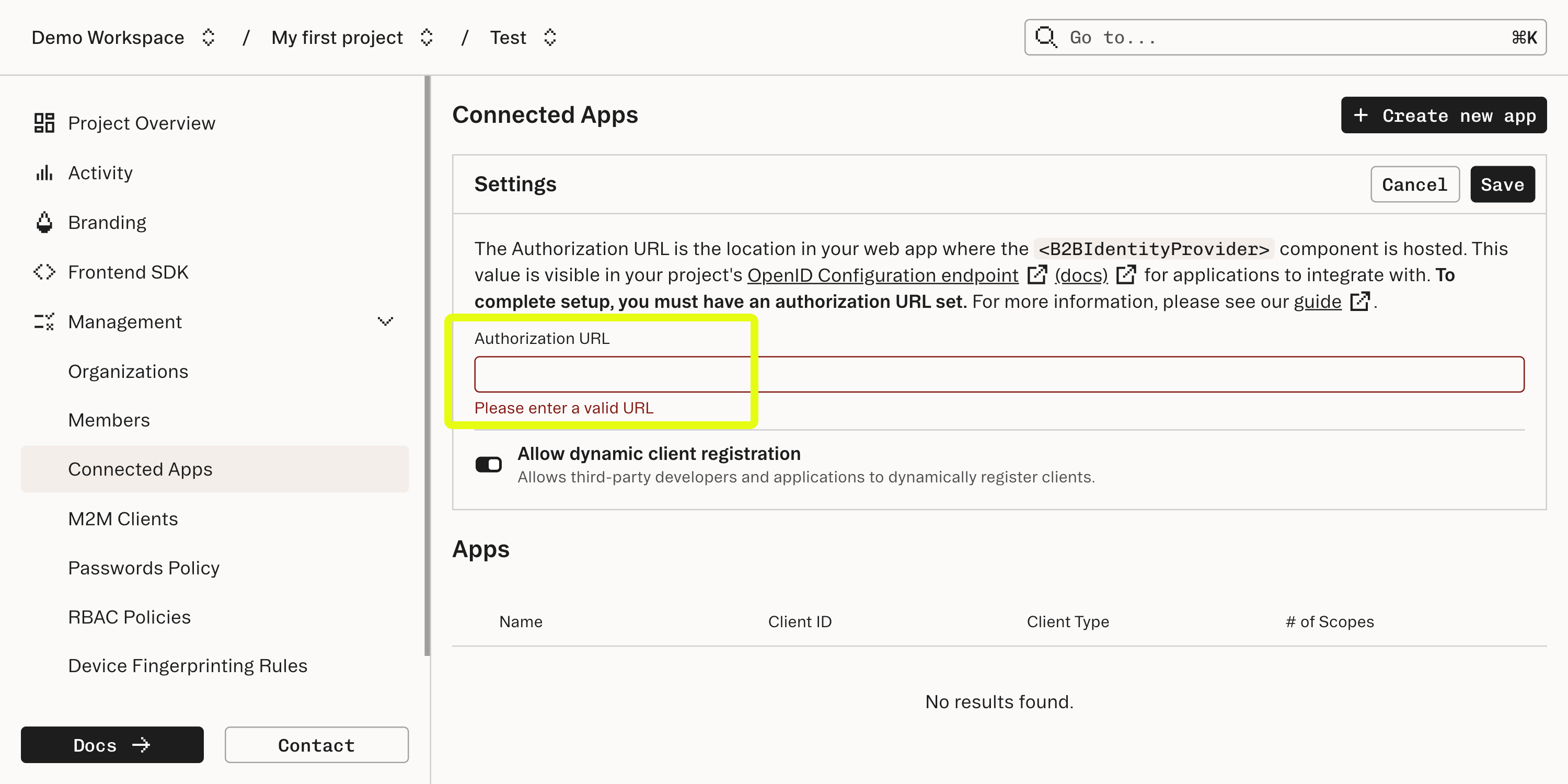
In the Connected Apps section of the [Stytch Dashboard](https://stytch.com/dashboard/connected-apps), set the Authorization URL to the URL of the page where OAuthAuthorizeComponent is mounted. This will allow Stytch to broadcast the URL to clients using your project's [OpenID Connect Endpoint](/api-reference/b2b/api/connected-apps/configuration/get-openid-configuration).
After completion of an OAuth flow, the OAuth client will be granted a Stytch-issued Access Token (for [B2B](/api-reference/b2b/api/connected-apps/tokens/connected-app-access-token-object), for [Consumer](/api-reference/consumer/api/connected-apps/tokens/connected-app-access-token-object)), and optionally an ID Token (for [B2B](/api-reference/b2b/api/connected-apps/tokens/connected-app-id-token-object), for [Consumer](/api-reference/consumer/api/connected-apps/tokens/connected-app-id-token-object)). The OAuth client can now use this access token to invoke API endpoints hosted by your application. Use the Stytch Backend SDKs - or any JWT-compatible library - to validate the access token within your existing codebase. Refer to the Authenticate Access Token API docs (for [B2B](/api-reference/b2b/api/connected-apps/methods/authenticate-access-token-local), for [Consumer](/api-reference/consumer/api/connected-apps/methods/authenticate-access-token-local)) for a complete reference.
```python B2B Python theme={null}
from stytch import B2BClient
client = B2BClient(
project_id="PROJECT_ID",
secret="SECRET",
custom_base_url="${projectDomain}",
)
resp = client.idp.introspect_access_token_local(
access_token="eyJ...",
)
```
```javascript B2B Node theme={null}
import * as stytch from 'stytch';
const client = new stytch.B2BClient({
project_id: 'PROJECT_ID',
secret: 'SECRET',
custom_base_url: '${projectDomain}',
});
client.idp.introspectTokenLocal({ token: 'eyJ...' })
.then((resp) => {
console.log(resp);
})
.catch((err) => {
console.log(err);
});
```
```python Consumer Python theme={null}
from stytch import Client
client = Client(
project_id="PROJECT_ID",
secret="SECRET",
custom_base_url="${projectDomain}",
)
resp = client.idp.introspect_access_token_local(
access_token="eyJ...",
)
```
```javascript Consumer Node theme={null}
import * as stytch from 'stytch';
const client = new stytch.Client({
project_id: 'PROJECT_ID',
secret: 'SECRET',
custom_base_url: '${projectDomain}',
});
client.idp.introspectTokenLocal({ token: 'eyJ...' })
.then((resp) => {
console.log(resp);
})
.catch((err) => {
console.log(err);
});
```
## What's next
Your application is now an OAuth 2.1 / OIDC Compliant identity provider!
* Read about OAuth for MCP for [B2B](/connected-apps/guides/remote-mcp-servers) and for [Consumer](/connected-apps/guides/mcp-servers-cloudflare)
* Learn more about [OAuth Scopes](/connected-apps/oauth-learn-more/oauth-scopes) in the Stytch platform