> ## Documentation Index
> Fetch the complete documentation index at: https://stytch.com/docs/llms.txt
> Use this file to discover all available pages before exploring further.
# Consent management
> Learn how consent is requested, tracked, enforced, and revoked using Stytch.
Stytch's Connected Apps infrastructure allows your application to serve as an Identity Provider (IdP), letting end users authenticate with first-party and third-party applications using OAuth. Consent management is a critical part of this flow, ensuring secure and auditable access control across users and applications.
## **Consent**
Consent is the explicit authorization an end user gives to a Connected App to access specific data or perform actions on their behalf. This happens during the OAuth authorization flow and is recorded and enforced by Stytch.
Explicit consent is not always required for an application to receive access to an end user's data. The rules for when consent can be bypassed are different for First Party and Third Party clients.
### **First Party Client Consent**
In Stytch's Connected Apps model, first-party applications are those that are developed and managed by you, the developer. These apps are considered **trusted by default**, and the consent flow is typically streamlined to reduce unnecessary friction. Consent is often not required for first-party applications, depending on your configuration and scopes. However, the consent management endpoints can still be used to view how an end user's data is shared and to revoke access and refresh tokens issued to a particular client.
### **Third Party Client Consent**
Third-party applications are external services not developed or maintained by you. Because these apps introduce new trust boundaries, Stytch enforces stricter consent and policy checks to ensure data is shared securely. These apps are considered **untrusted by default** and an end user must grant access via a consent screen before tokens can be issued. After consent has been granted, future OAuth flows will skip the consent screen unless the set of scopes being requested changes.
### **Shared Consent Requirements**
Certain OAuth flows will always require consent, regardless of the client type or whether consent has been previously granted. The scenarios where consent is always required are as follows:
1. The OAuth request passes the `?prompt=consent` query parameter, which always forces a consent screen even if one wouldn't normally be shown.
2. The OAuth request asks for the `offline_access` scope in order to retrieve a `refresh_token`. Requiring consent to obtain a `refresh_token` is recommended by the [OIDC spec](https://openid.net/specs/openid-connect-core-1_0.html#OfflineAccess). This case can be bypassed by enabling the `Bypass user consent for offline_access scope` flag on that client's page in the Dashboard. This flag is only available for first-party applications.
3. The `redirect_uri` uses a non`https://` scheme, such as `myapp://oauth-callback`. Explicit consent and user interaction is required for custom schemes to avoid [impersonation of native apps](https://datatracker.ietf.org/doc/html/draft-ietf-oauth-v2-1-13#section-7.3.1). Developers are recommended to make use of schemes such as Apple's [Universal Links](https://developer.apple.com/documentation/xcode/allowing-apps-and-websites-to-link-to-your-content/) or Android's [App Links](https://developer.android.com/training/app-links) instead of custom schemes when possible.
4. The `redirect_uri` uses a loopback address like `127.0.0.1` or `[::1]`, which are similarly at risk for impersonation.
## Granting Consent
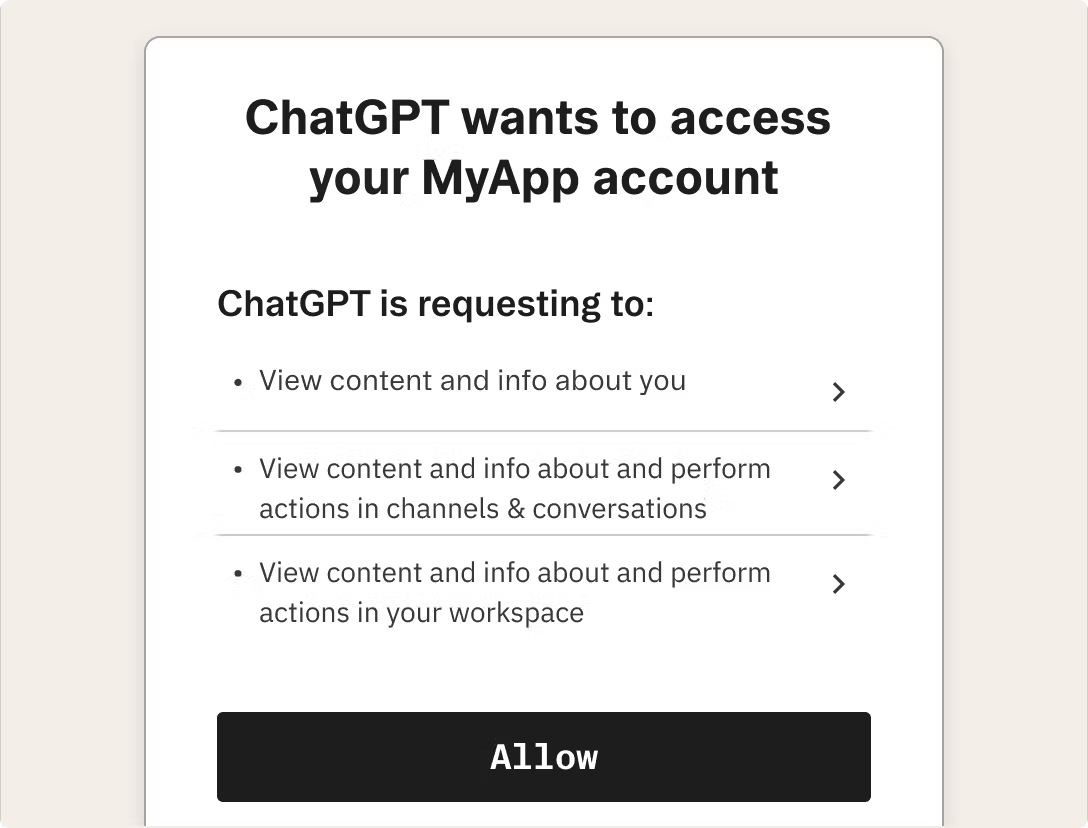 End users are prompted to grant consent through the `` UI Component for B2B applications or the `` UI Component for Consumer applications.
This screen presents:
* The application name and branding
* The scopes (permissions) being requested
* A binary choice to approve or deny the request
Once explicitly granted, Consent is tracked and future login attempts will proceed automatically when possible.
## Managing Consent
### **Managing Individual User/Member Access**
Connected App consent grants can be managed programmatically.
Use the [Get Connected Apps](/api-reference/b2b/api/connected-apps/application-management/get-connected-app) endpoint to retrieve all Connected Apps a member has authorized. Unwanted grants can then be revoked programmatically via the [Revoke Connected App](/api-reference/b2b/api/connected-apps/consent-management/revoke-connected-app-access-to-member) endpoint
Developers can also view and manage consent grants at both the member and the organization level from the Dashboard UI.
Use the [Get Connected Apps](/api-reference/consumer/api/connected-apps/consent-management/get-connected-apps-user) endpoint to retrieve all Connected Apps a user has authorized. Unwanted grants can then be revoked programmatically via the [Revoke Connected App](/api-reference/consumer/api/connected-apps/consent-management/revoke-connected-app-access) endpoint
Developers can also view and manage consent grants for a user from the Dashboard UI.
When a consent grant has been deleted, all access and refresh tokens issued to that connected app on behalf of the user/member will be revoked. A new OAuth flow must be completed in order to receive a new set of tokens.
### **Organization App Policies**
Only applicable for multi-tenant auth uses of Connected Apps
Admins of B2B organizations can configure an organization-wide app access policy under Connected Apps settings with the following options:
* **Allow all Connected Apps** – All apps may be authorized by members.
* **Restrict to an allowlist** – Only apps explicitly approved by the admin can be authorized.
* **Deny all Connected Apps** – Prevent all third-party apps from being used within the org.
Separate policies can be configured for first-party and third-party clients. For example, an organization can allow all first-party applications while restricting third-party applications to an allowlist.
These policies are driven by the following fields on the [Organization](/api-reference/b2b/api/connected-apps/consent-management/get-connected-apps-organization) object:
* `first_party_connected_apps_allowed_type`
* `allowed_first_party_connected_apps`
* `third_party_connected_apps_allowed_type`
* `allowed_third_party_connected_apps`
End users are prompted to grant consent through the `` UI Component for B2B applications or the `` UI Component for Consumer applications.
This screen presents:
* The application name and branding
* The scopes (permissions) being requested
* A binary choice to approve or deny the request
Once explicitly granted, Consent is tracked and future login attempts will proceed automatically when possible.
## Managing Consent
### **Managing Individual User/Member Access**
Connected App consent grants can be managed programmatically.
Use the [Get Connected Apps](/api-reference/b2b/api/connected-apps/application-management/get-connected-app) endpoint to retrieve all Connected Apps a member has authorized. Unwanted grants can then be revoked programmatically via the [Revoke Connected App](/api-reference/b2b/api/connected-apps/consent-management/revoke-connected-app-access-to-member) endpoint
Developers can also view and manage consent grants at both the member and the organization level from the Dashboard UI.
Use the [Get Connected Apps](/api-reference/consumer/api/connected-apps/consent-management/get-connected-apps-user) endpoint to retrieve all Connected Apps a user has authorized. Unwanted grants can then be revoked programmatically via the [Revoke Connected App](/api-reference/consumer/api/connected-apps/consent-management/revoke-connected-app-access) endpoint
Developers can also view and manage consent grants for a user from the Dashboard UI.
When a consent grant has been deleted, all access and refresh tokens issued to that connected app on behalf of the user/member will be revoked. A new OAuth flow must be completed in order to receive a new set of tokens.
### **Organization App Policies**
Only applicable for multi-tenant auth uses of Connected Apps
Admins of B2B organizations can configure an organization-wide app access policy under Connected Apps settings with the following options:
* **Allow all Connected Apps** – All apps may be authorized by members.
* **Restrict to an allowlist** – Only apps explicitly approved by the admin can be authorized.
* **Deny all Connected Apps** – Prevent all third-party apps from being used within the org.
Separate policies can be configured for first-party and third-party clients. For example, an organization can allow all first-party applications while restricting third-party applications to an allowlist.
These policies are driven by the following fields on the [Organization](/api-reference/b2b/api/connected-apps/consent-management/get-connected-apps-organization) object:
* `first_party_connected_apps_allowed_type`
* `allowed_first_party_connected_apps`
* `third_party_connected_apps_allowed_type`
* `allowed_third_party_connected_apps`