> ## Documentation Index
> Fetch the complete documentation index at: https://stytch.com/docs/llms.txt
> Use this file to discover all available pages before exploring further.
# Facebook
> Set up Facebook OAuth for Consumer Authentication.
## Setup
*Follow these steps if you have not created a Facebook OAuth client yet.*
1. Navigate to your Facebook (Meta) [applications](https://developers.facebook.com/apps/).
2. Click **Create App**.
3. Enter a name for the app and click **Next**.
4. Choose **Other** from the app type list and click **Next**.
5. Select **Consumer** and click **Next**, then click **Create app**.
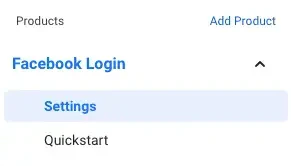
6. In the list of products, find the **Facebook Login** product and click **Set up**. 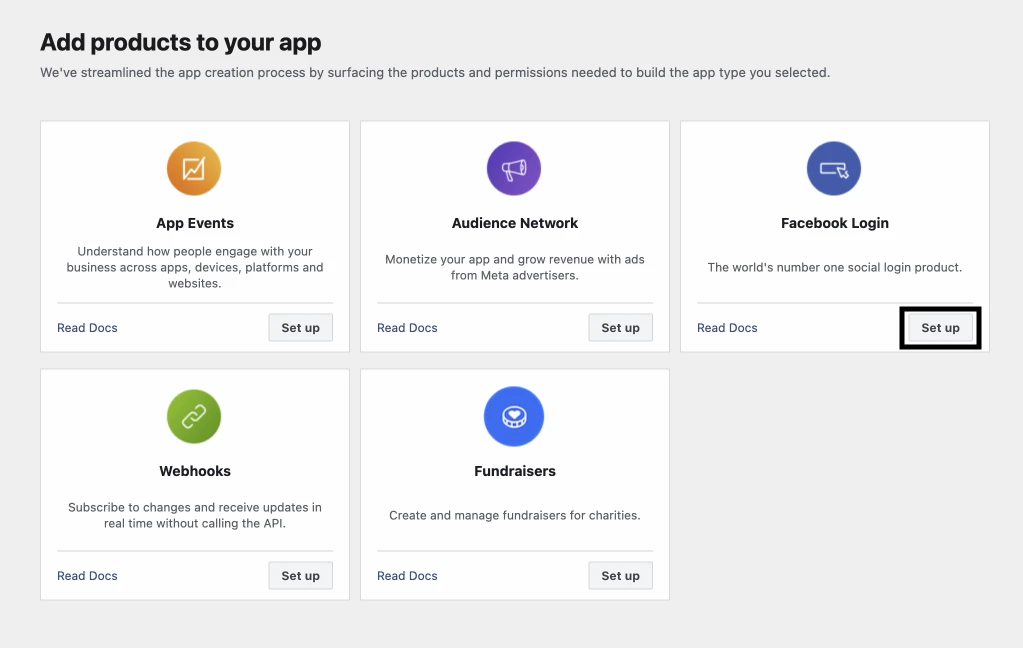 7. Ignore the quickstart menu. Instead, on the left pane under **Facebook Login**, click on **Settings**.
  8. Copy-paste the Redirect URI from the [Dashboard](https://stytch.com/dashboard/oauth) into the list of Valid OAuth Redirect URIs. Fill in remaining fields. Then click **Save changes**.
9. In the left pane under **App Review**, navigate to **Permissions and Features**.
10. Click **Request advanced access** for both email and `public_profile` and follow the instructions shown.
8. Copy-paste the Redirect URI from the [Dashboard](https://stytch.com/dashboard/oauth) into the list of Valid OAuth Redirect URIs. Fill in remaining fields. Then click **Save changes**.
9. In the left pane under **App Review**, navigate to **Permissions and Features**.
10. Click **Request advanced access** for both email and `public_profile` and follow the instructions shown.  ***
*Follow these steps if you already have an existing Facebook OAuth client.*
1. Navigate to your Facebook (Meta) [applications](https://developers.facebook.com/apps/).
2. Click on the application you'd like to use.
3. In the list of products, find the **Facebook Login** product and click **Set up**.
4. Ignore the quickstart menu. Instead, on the left pane under **Facebook Login**, click on **Settings**.
5. Copy-paste the Redirect URI from the [Dashboard](https://stytch.com/dashboard/oauth) into the list of Valid OAuth Redirect URIs. Fill in remaining fields. Then click **Save changes**.
6. In the left pane under **App Review**, navigate to **Permissions and Features**.
7. Click **Request advanced access** for both email and `public_profile` and follow the instructions shown.
***
*Follow these steps if you already have an existing Facebook OAuth client.*
1. Navigate to your Facebook (Meta) [applications](https://developers.facebook.com/apps/).
2. Click on the application you'd like to use.
3. In the list of products, find the **Facebook Login** product and click **Set up**.
4. Ignore the quickstart menu. Instead, on the left pane under **Facebook Login**, click on **Settings**.
5. Copy-paste the Redirect URI from the [Dashboard](https://stytch.com/dashboard/oauth) into the list of Valid OAuth Redirect URIs. Fill in remaining fields. Then click **Save changes**.
6. In the left pane under **App Review**, navigate to **Permissions and Features**.
7. Click **Request advanced access** for both email and `public_profile` and follow the instructions shown.