> ## Documentation Index
> Fetch the complete documentation index at: https://stytch.com/docs/llms.txt
> Use this file to discover all available pages before exploring further.
# Microsoft
> Set up Microsoft OAuth for Consumer Authentication.
## Setup
*Follow these steps if you have not created a Microsoft OAuth client yet.*
1. Create a [Microsoft Azure account](https://login.microsoftonline.com/) if you have not already done so.
2. Navigate to [Azure Active Directory](https://portal.azure.com/#blade/Microsoft%5FAAD%5FIAM/ActiveDirectoryMenuBlade/RegisteredApps) to create a Microsoft application.
3. Click **New registration**.  4. Enter a name for your OAuth client.
5. Select "Accounts in any organizational directory (Any Azure AD directory - Multitenant) and personal Microsoft accounts (e.g. Skype, Xbox)".
4. Enter a name for your OAuth client.
5. Select "Accounts in any organizational directory (Any Azure AD directory - Multitenant) and personal Microsoft accounts (e.g. Skype, Xbox)". 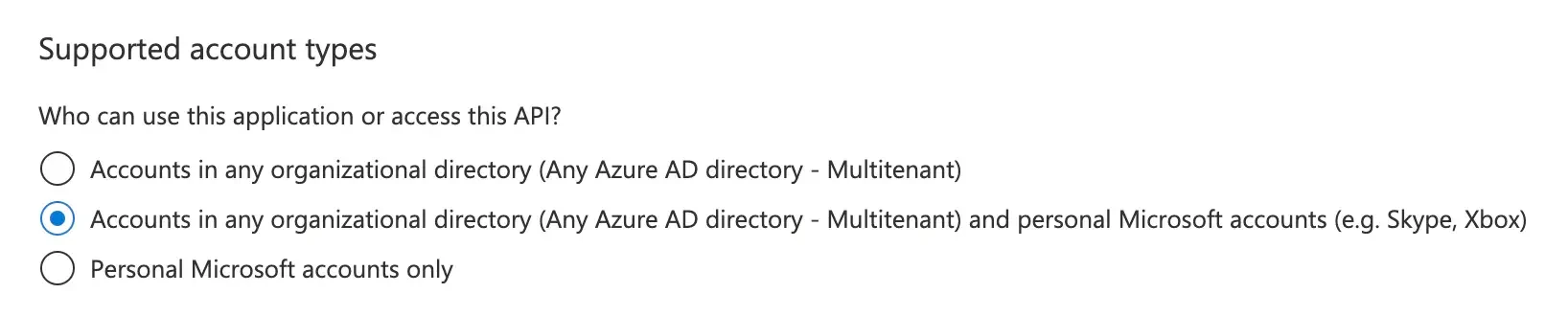 6. Under the **Redirect URI** section, select **Web** and then copy-paste the Stytch redirect URI from the [OAuth page](https://stytch.com/dashboard/oauth) into the URI field.
  7. Click **Register** to save the configuration.
***
*Follow these steps if you already have an existing Microsoft OAuth client.*
1. Navigate to [Azure Active Directory](https://portal.azure.com/#blade/Microsoft%5FAAD%5FIAM/ActiveDirectoryMenuBlade/RegisteredApps) and select your Microsoft application.
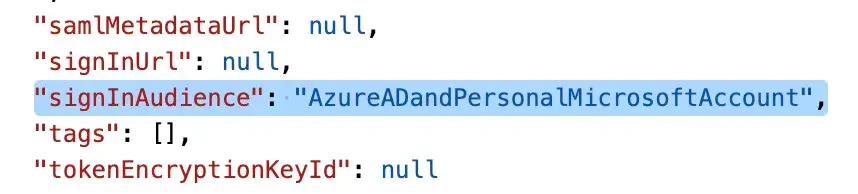
2. Ensure that the **Supported account types** section is set to "All Microsoft account users". If it's not, navigate to the **Manifest** tab, set the "signInAudience" value to "AzureADandPersonalMicrosoftAccount", and save.
7. Click **Register** to save the configuration.
***
*Follow these steps if you already have an existing Microsoft OAuth client.*
1. Navigate to [Azure Active Directory](https://portal.azure.com/#blade/Microsoft%5FAAD%5FIAM/ActiveDirectoryMenuBlade/RegisteredApps) and select your Microsoft application.
2. Ensure that the **Supported account types** section is set to "All Microsoft account users". If it's not, navigate to the **Manifest** tab, set the "signInAudience" value to "AzureADandPersonalMicrosoftAccount", and save. 
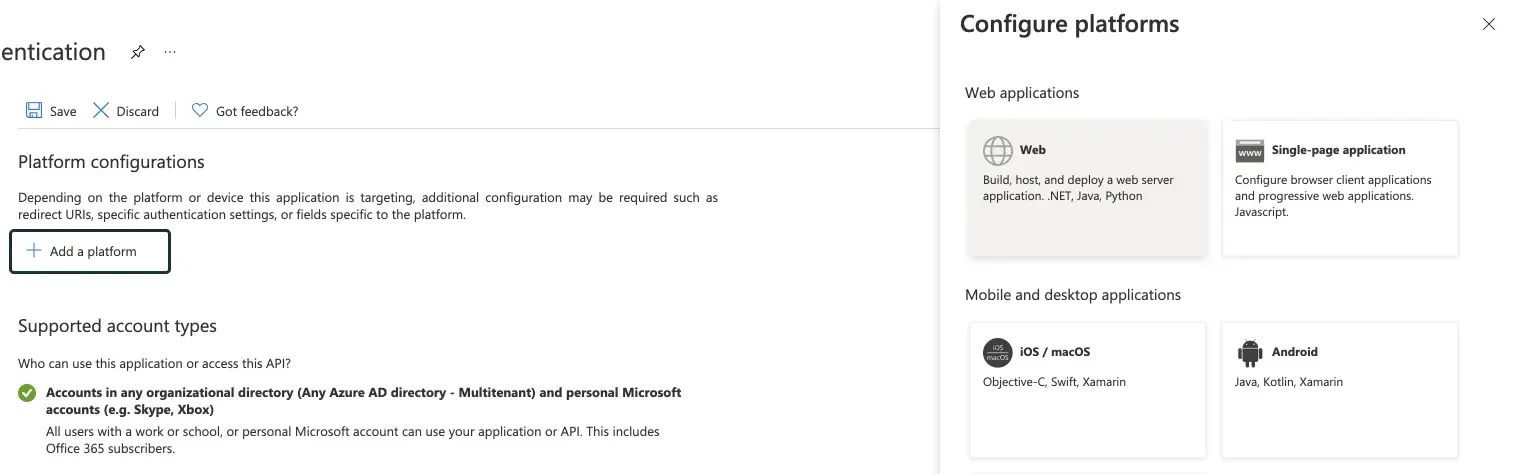
 3. In your OAuth client configuration, select the link next to the **Redirect URIs** section. Then select **Add a platform** and finally select **Web**.
 4. Copy-paste the Stytch redirect URI from the [Dashboard](https://stytch.com/dashboard/oauth) into the URI field.
 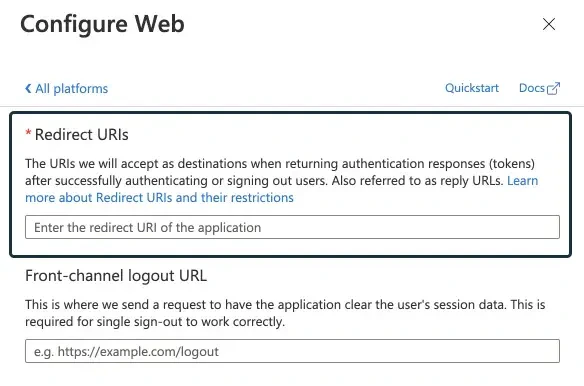 5. Click **Configure** to save the URI.