> ## Documentation Index
> Fetch the complete documentation index at: https://stytch.com/docs/llms.txt
> Use this file to discover all available pages before exploring further.
# Google One Tap
> Configure Google One Tap as an OAuth provider for Multi-Tenant Authentication.
export const discovery = "Centralized login flow that allows users to view all Organizations they have access to, including pending invites and Organizations they are allowed to automatically join based on their verified email domain.";
Google One Tap is a popular, low-friction authentication method that allows end users to select the Google account they wish to use to sign in with a single tap.
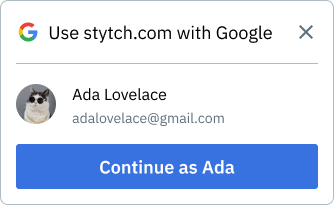
The Google One Tap prompt will appear in the top right of the end user's browser, and will look something like this:
## Summary of Key Differences
For a quick overview of the differences between Google OAuth and Google One Tap, see the table below:
| | **Standard Google OAuth** | **Google One Tap** |
| ---------------------------------------- | ------------------------------------------------------------------------------------------------------------------------------------------------------------------------------------------------ | --------------------------------------------------------------------------------------------------------------------------------------------------------------------------------------------------------- |
| **Issued OAuth Tokens** | `access_token` and `refresh_token` | None (use standard OAuth if tokens are needed) |
| **Available Stytch Integration Methods** | Backend, Headless Frontend, Pre-built UI | Headless Frontend, Pre-built UI |
| **Supported Browsers** | All | Not supported in Arc or Brave; blocked by certain browser extensions |
| **Headless SDK Reference Docs** | [Discovery sign-up and login](/api-reference/b2b/frontend-sdks/react/methods/oauth/discovery-start.mdx) and [Organization login](/api-reference/b2b/frontend-sdks/react/methods/oauth/start.mdx) | [Discovery sign-up and login](/api-reference/b2b/frontend-sdks/react/methods/oauth/discovery-start.mdx) and [Organization login](/api-reference/b2b/frontend-sdks/react/methods/oauth/google-one-tap.mdx) |
## Adding One Tap to your Google OAuth integration
You'll first need to configure Google OAuth in the Stytch Dashboard, by following the steps [here](/multi-tenant-auth/authentication/oauth/adding-providers/google-oauth).
Ensure you add your application's URI as an Authorized Javascript Origin in your Google OAuth credential. For example, if you plan on showing One Tap at `https://example.com/login`, enter `https://example.com`. If you're using localhost for testing, we recommend adding both `http://localhost` and `http://locahost:[port]`.
### Headless frontend integration
If you don't already have Google OAuth set up in the headless SDK, follow the steps [here](/multi-tenant-auth/authentication/oauth/adding-to-custom-auth-flow#headless-frontend-sdk).
To use Google One Tap for the Discovery flow, call the `oauth.googleOneTap.discovery.start()` method to display the Google One Tap prompt in the upper right of the user's browser tab.
The user is redirected to the Discovery Redirect URL you configured in the [Stytch Dashboard](https://stytch.com/dashboard/redirect-urls) after a successful One Tap selection.
The examples below show how to display One Tap in response to a user action (button click). You can also show it on page load.
```tsx React icon="react" theme={null}
import { useStytchB2BClient } from '@stytch/react/b2b';
export const GoogleOneTapDiscovery = () => {
const stytchClient = useStytchB2BClient();
const showGoogleOneTapDiscovery = () =>
stytchClient.oauth.googleOneTap.discovery.start();
return ;
};
```
```html Vanilla JS icon="square-js" theme={null}
```
To prompt with One Tap for an Organization, call `oauth.googleOneTap.start()`.
After a successful One Tap selection, Stytch redirects to the Login or Signup Redirect URL configured in the Dashboard.
```jsx React SDK theme={null}
import { useStytchB2BClient } from '@stytch/react/b2b';
export const GoogleOneTap = () => {
const stytchClient = useStytchB2BClient();
const showGoogleOneTap = () =>
stytchClient.oauth.googleOneTap.start({
organization_id: '${organizationId}',
});
return ;
};
```
```javascript Vanilla JS SDK theme={null}
```
### Pre-built UI frontend integration
You'll first need to have Google OAuth set up in the pre-built UI components, following the steps [here](/multi-tenant-auth/authentication/oauth/overview).
To enable One Tap, include `one_tap` in your `providers` list in the OAuth UI configuration.
If the only product is `oauth` and the only provider is `google` with `one_tap: true`, the login form is not displayed and only the One Tap prompt will appear in the upper right of the user's browser.
Google One Tap is not supported on all browsers and may be blocked by certain extensions. If Google OAuth is your only login method, we recommend using One Tap in targeted locations rather than on your primary login page.
```tsx React icon="react" theme={null}
import { B2BProducts, StytchB2B } from '@stytch/react/b2b';
const Login = () => {
const config = {
authFlowType: 'Discovery', // or "Organization"
products: [B2BProducts.oauth],
oauthOptions: {
providers: [{ type: 'google', one_tap: true }],
},
};
return ;
};
export default Login;
```
```html Vanilla JS icon="square-js" theme={null}
 ## Summary of Key Differences
For a quick overview of the differences between Google OAuth and Google One Tap, see the table below:
| | **Standard Google OAuth** | **Google One Tap** |
| ---------------------------------------- | ------------------------------------------------------------------------------------------------------------------------------------------------------------------------------------------------ | --------------------------------------------------------------------------------------------------------------------------------------------------------------------------------------------------------- |
| **Issued OAuth Tokens** | `access_token` and `refresh_token` | None (use standard OAuth if tokens are needed) |
| **Available Stytch Integration Methods** | Backend, Headless Frontend, Pre-built UI | Headless Frontend, Pre-built UI |
| **Supported Browsers** | All | Not supported in Arc or Brave; blocked by certain browser extensions |
| **Headless SDK Reference Docs** | [Discovery sign-up and login](/api-reference/b2b/frontend-sdks/react/methods/oauth/discovery-start.mdx) and [Organization login](/api-reference/b2b/frontend-sdks/react/methods/oauth/start.mdx) | [Discovery sign-up and login](/api-reference/b2b/frontend-sdks/react/methods/oauth/discovery-start.mdx) and [Organization login](/api-reference/b2b/frontend-sdks/react/methods/oauth/google-one-tap.mdx) |
## Adding One Tap to your Google OAuth integration
You'll first need to configure Google OAuth in the Stytch Dashboard, by following the steps [here](/multi-tenant-auth/authentication/oauth/adding-providers/google-oauth).
Ensure you add your application's URI as an Authorized Javascript Origin in your Google OAuth credential. For example, if you plan on showing One Tap at `https://example.com/login`, enter `https://example.com`. If you're using localhost for testing, we recommend adding both `http://localhost` and `http://locahost:[port]`.
### Headless frontend integration
If you don't already have Google OAuth set up in the headless SDK, follow the steps [here](/multi-tenant-auth/authentication/oauth/adding-to-custom-auth-flow#headless-frontend-sdk).
## Summary of Key Differences
For a quick overview of the differences between Google OAuth and Google One Tap, see the table below:
| | **Standard Google OAuth** | **Google One Tap** |
| ---------------------------------------- | ------------------------------------------------------------------------------------------------------------------------------------------------------------------------------------------------ | --------------------------------------------------------------------------------------------------------------------------------------------------------------------------------------------------------- |
| **Issued OAuth Tokens** | `access_token` and `refresh_token` | None (use standard OAuth if tokens are needed) |
| **Available Stytch Integration Methods** | Backend, Headless Frontend, Pre-built UI | Headless Frontend, Pre-built UI |
| **Supported Browsers** | All | Not supported in Arc or Brave; blocked by certain browser extensions |
| **Headless SDK Reference Docs** | [Discovery sign-up and login](/api-reference/b2b/frontend-sdks/react/methods/oauth/discovery-start.mdx) and [Organization login](/api-reference/b2b/frontend-sdks/react/methods/oauth/start.mdx) | [Discovery sign-up and login](/api-reference/b2b/frontend-sdks/react/methods/oauth/discovery-start.mdx) and [Organization login](/api-reference/b2b/frontend-sdks/react/methods/oauth/google-one-tap.mdx) |
## Adding One Tap to your Google OAuth integration
You'll first need to configure Google OAuth in the Stytch Dashboard, by following the steps [here](/multi-tenant-auth/authentication/oauth/adding-providers/google-oauth).
Ensure you add your application's URI as an Authorized Javascript Origin in your Google OAuth credential. For example, if you plan on showing One Tap at `https://example.com/login`, enter `https://example.com`. If you're using localhost for testing, we recommend adding both `http://localhost` and `http://locahost:[port]`.
### Headless frontend integration
If you don't already have Google OAuth set up in the headless SDK, follow the steps [here](/multi-tenant-auth/authentication/oauth/adding-to-custom-auth-flow#headless-frontend-sdk).