> ## Documentation Index
> Fetch the complete documentation index at: https://stytch.com/docs/llms.txt
> Use this file to discover all available pages before exploring further.
# SSO Provider Setup
> Instructions for setting up SSO connections with various Identity Providers (IdPs) in Stytch.
This guide provides step-by-step instructions for setting up SSO connections with various Identity Providers (IdPs) in Stytch. Use this to set up a test connection or collect required information from your customers to enable their SSO connections.
Manually create an SSO connection for an Organization in your Stytch Dashboard.
Create an SSO Connection programmatically via API.
Enable your customers to add their own SSO connections with our pre-built UI.
## Generic SAML (most IdPs)
If you're configuring a SAML connection, you'll need to perform the following steps:
* Ensure you have your `organization_id` and a SAML connection created in Stytch.
* Ensure you have admin access to your IdP.
* `acs_url` and `audience_uri` from your SAML connection.
Create an application in your IdP.
* Enter the `acs_url` and `audience_uri` in their respective fields. Some IdPs call these SP SSO URL and SP Entity ID.
* Set up attribute mapping so the IdP returns at least email and name fields. We recommend passing a unique identifier as well.
* Metadata URL, **or**...
* IdP SSO URL, IdP Entity ID, and X.509 Certificate.
Configure your IdP metadata with Stytch using one of two ways.
* If your IdP provides a metadata URL, add that via the Stytch Dashboard or the [Update SAML Connection by Metadata URL](/api-reference/b2b/api/sso/saml/update-saml-connection-by-metadata-url) route.
* If your IdP does not provide a metadata URL, add the IdP SSO URL, IdP Entity ID, and X.509 certificate via the Stytch Dashboard or the [Update SAML Connection](/api-reference/b2b/api/sso/saml/update-saml-connection) route.
Configure your attribute mapping in Stytch. Map the `email` field to the email, `first_name` to the first name, `last_name` to the last name, and `full_name` to the full name. You only need either `full_name` or both `first_name` and `last_name`. You can do this in the Dashboard or via [Update SAML Connection](/api-reference/b2b/api/sso/saml/update-saml-connection).
Example attribute mapping:
```js theme={null}
{
"email": "NameID",
"first_name": "firstName",
"last_name": "lastName"
}
```
**Common pitfalls:**
* NameID format mismatch -- if your IdP lets you configure a NameID, set it to the field with the user's email address.
* Stale IdP metadata in Stytch.
* Certificate paste errors -- if your IdP uses multiple certs, ensure the active signing cert is used.
**Expected result:** Your SAML connection shows as Active in Stytch.
## Generic OIDC (most IdPs)
If you're configuring an OIDC connection, you'll need to perform the following steps:
* Ensure you have your `organization_id` and an OIDC connection created in Stytch.
* Ensure you have admin access to your IdP.
* `redirect_url` from your OIDC connection.
Create a web application in your IdP.
* Select Authorization Code as the grant type and add the Stytch `redirect_url` as a Sign-in Redirect URI.
* Optionally add a Sign-out Redirect URI pointing to your app's logout handler.
* Client ID and Secret, as well as your Issuer URL (generally this is your IdP hostname).
Configure your IdP client with Stytch.
* Add your Client ID, Secret, and Issuer URL via the Stytch Dashboard or the [Update OIDC Connection](/api-reference/b2b/api/sso/oidc/update-oidc-connection) route.
**Common pitfalls:**
* Redirect URI mismatch.
* Using a discovery URL instead of the Issuer base URL.
* Missing client secret.
* Ensure Issuer is the exact issuer value your IdP expects.
**Expected result:** Your OIDC connection shows as Active in Stytch.
## Okta SAML
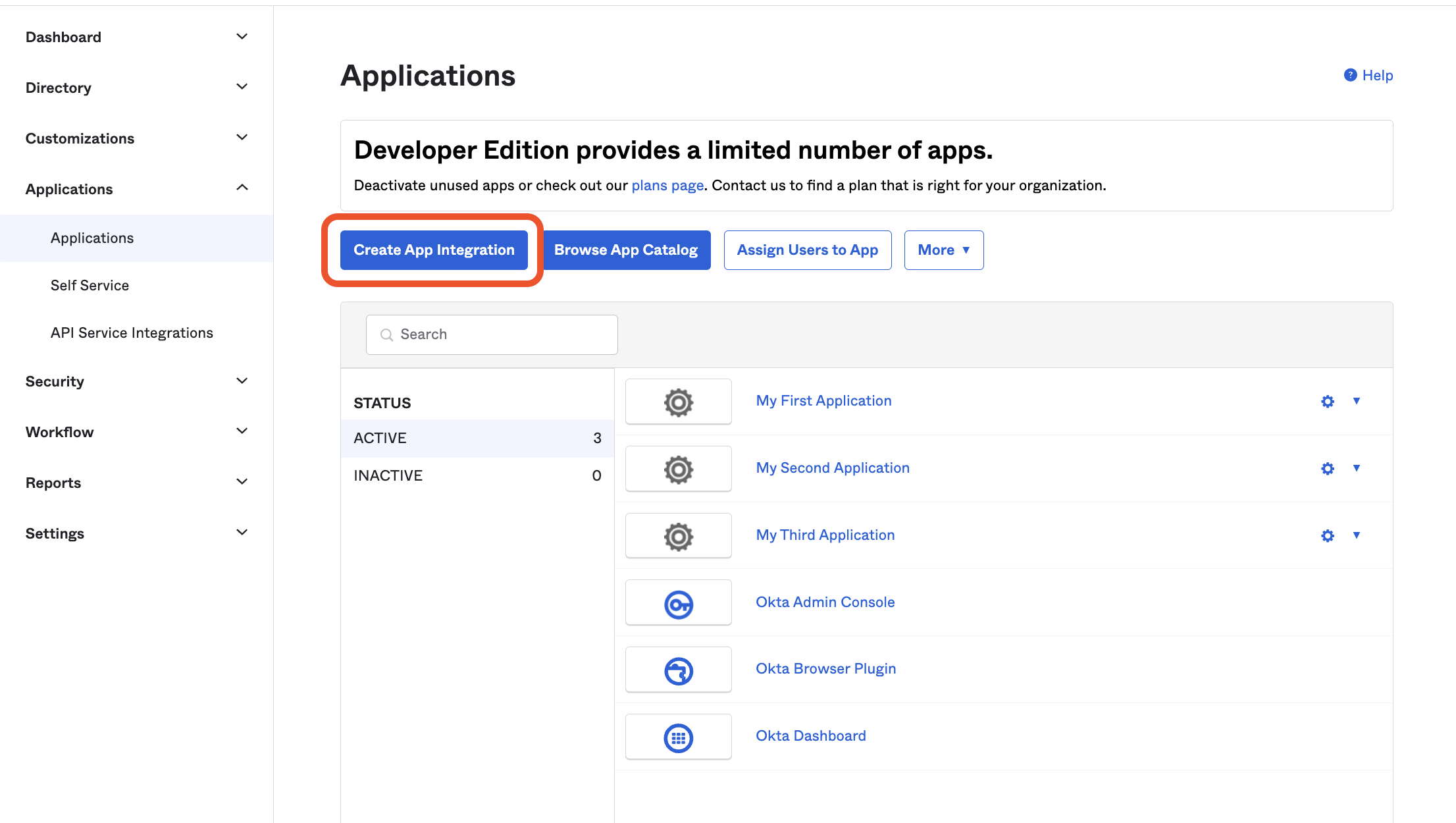
If you don't already have an Okta admin account, the easiest way to do this is by creating an [Okta Workforce Identity Cloud Developer Edition](https://developer.okta.com/signup/) account. Once you're logged in to the Okta Admin Dashboard click **Create App Integration** in the **Applications** tab:
 Select **SAML 2.0** and continue to the **General Settings** form, enter the name of your application and (optionally) your application's logo.
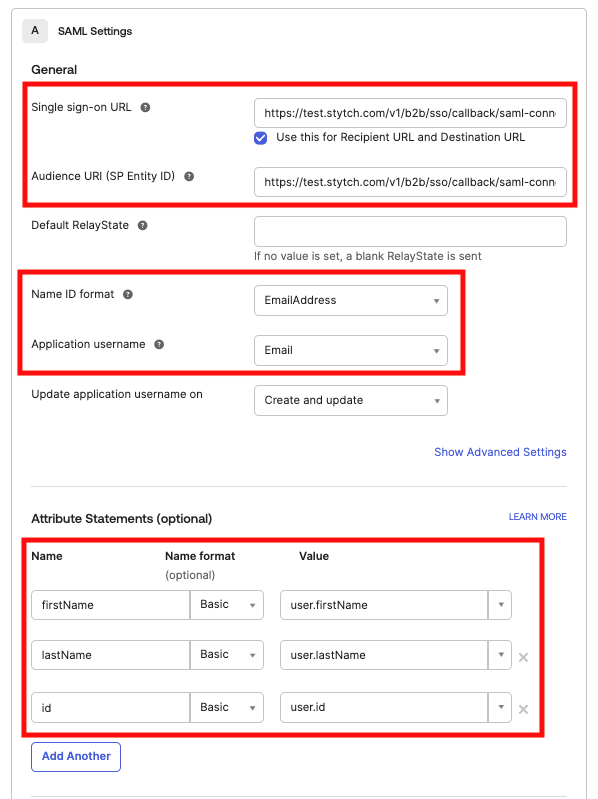
In the **Configure SAML** form:
* Input the `acs_url` from your Stytch SSO Connection as the **Single sign-on URL**
* Input the `audience_uri` from your Stytch SSO Connection as the **Audience URI (SP Entity ID)**
* For **Name ID format** select **EmailAddress**
* For **Application username** select **Email**
* In **Attribute Statements** create three inputs:
* Name: `firstName`; Name format: `Basic`; Value: `user.firstName`
* Name: `lastName`; Name format: `Basic`; Value: `user.lastName`
* Name: `id`; Name format: `Basic`; Value: `user.id`
Your configuration page should look like the following:
Select **SAML 2.0** and continue to the **General Settings** form, enter the name of your application and (optionally) your application's logo.
In the **Configure SAML** form:
* Input the `acs_url` from your Stytch SSO Connection as the **Single sign-on URL**
* Input the `audience_uri` from your Stytch SSO Connection as the **Audience URI (SP Entity ID)**
* For **Name ID format** select **EmailAddress**
* For **Application username** select **Email**
* In **Attribute Statements** create three inputs:
* Name: `firstName`; Name format: `Basic`; Value: `user.firstName`
* Name: `lastName`; Name format: `Basic`; Value: `user.lastName`
* Name: `id`; Name format: `Basic`; Value: `user.id`
Your configuration page should look like the following:
 Save and continue, indicating that this is an internal application on the last screen.
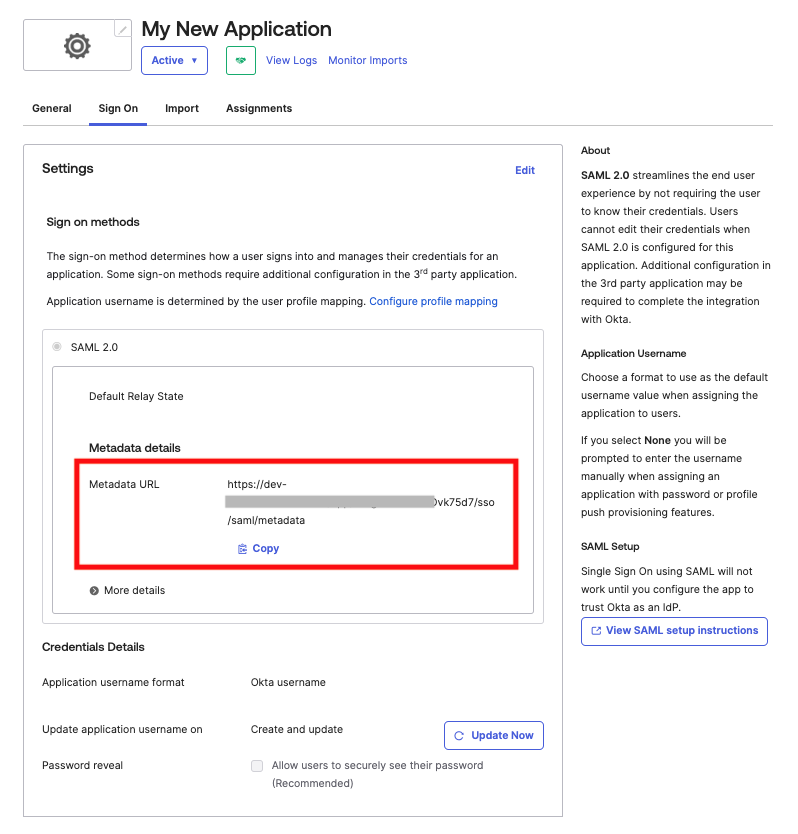
Copy the **Metadata URL** from the Sign On Settings tab in your newly created Okta application.
Save and continue, indicating that this is an internal application on the last screen.
Copy the **Metadata URL** from the Sign On Settings tab in your newly created Okta application.
 In the Stytch Dashboard, click "configure" on your SSO Connection, and in the modal input the Metadata URL you just copied, and the following JSON for the Attribute Mapping.
```js theme={null}
{
"email": "NameID",
"first_name": "firstName",
"last_name": "lastName",
"idp_user_id": "id"
}
```
Click save. You should now see the SSO Connection as "Active". In the SSO Connections JIT Provisioning settings section above, select "Anyone" can JIT Provision through SSO Connections and save.
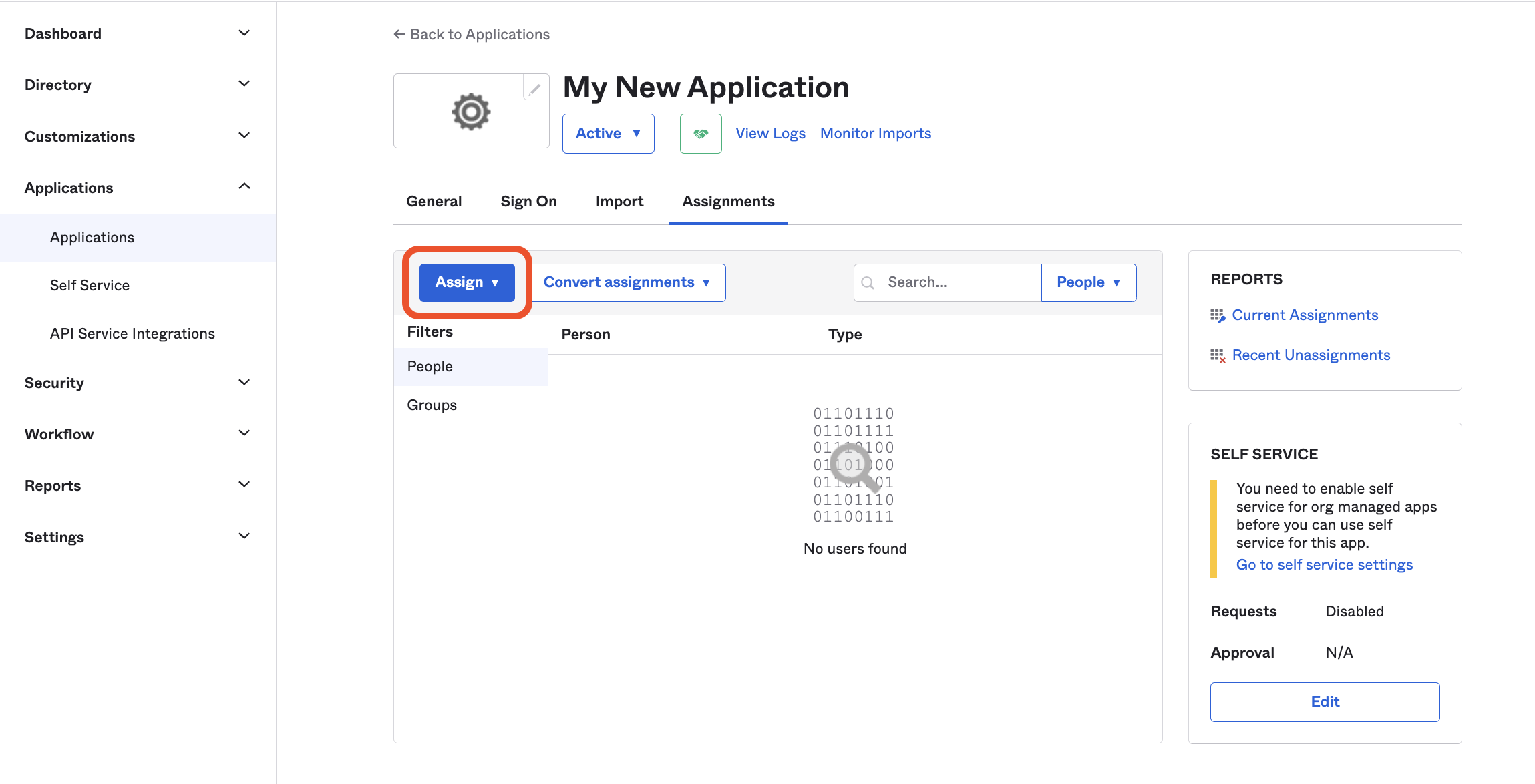
On the **Assignments** tab under your application in Okta, assign the application to team members who should have access to it by clicking **Assign**:
In the Stytch Dashboard, click "configure" on your SSO Connection, and in the modal input the Metadata URL you just copied, and the following JSON for the Attribute Mapping.
```js theme={null}
{
"email": "NameID",
"first_name": "firstName",
"last_name": "lastName",
"idp_user_id": "id"
}
```
Click save. You should now see the SSO Connection as "Active". In the SSO Connections JIT Provisioning settings section above, select "Anyone" can JIT Provision through SSO Connections and save.
On the **Assignments** tab under your application in Okta, assign the application to team members who should have access to it by clicking **Assign**:
 ## Okta OIDC
If you don't already have an Okta admin account, the easiest way to do this is by creating an [Okta Workforce Identity Cloud Developer Edition](https://developer.okta.com/signup/) account. Once you're logged in to the Okta Admin Dashboard and click **Create App Integration** in the **Applications** tab:
Select **OIDC - OpenID Connect** and **Web Application**:
## Okta OIDC
If you don't already have an Okta admin account, the easiest way to do this is by creating an [Okta Workforce Identity Cloud Developer Edition](https://developer.okta.com/signup/) account. Once you're logged in to the Okta Admin Dashboard and click **Create App Integration** in the **Applications** tab:
Select **OIDC - OpenID Connect** and **Web Application**:  Enter the name of your application and (optionally) your application's logo.
Under **Grant type**, select **Authorization Code**:
Enter the name of your application and (optionally) your application's logo.
Under **Grant type**, select **Authorization Code**:  In the **Sign-in redirect URIs** section, add the `redirect_url` value from the Stytch connection object.
For the purposes of this guide, you do not need to add any **Sign-out redirect URIs**. In the future, you can (optionally) add a URI corresponding to a page in your application that logs the user out by [revoking their Stytch session](/api-reference/b2b/api/sessions/revoke-session).
Under **Controlled access**, select **Allow everyone in your organization to access** and **Enable immediate access with Federation Broker Mode** and save. You may change these settings later, if desired.
In the **Sign-in redirect URIs** section, add the `redirect_url` value from the Stytch connection object.
For the purposes of this guide, you do not need to add any **Sign-out redirect URIs**. In the future, you can (optionally) add a URI corresponding to a page in your application that logs the user out by [revoking their Stytch session](/api-reference/b2b/api/sessions/revoke-session).
Under **Controlled access**, select **Allow everyone in your organization to access** and **Enable immediate access with Federation Broker Mode** and save. You may change these settings later, if desired.  In the **General** tab of your newly created Okta application, locate the **Client ID** in the **Client Credentials** section and **Secret** in the **Client Secrets** section:
  In the Stytch Dashboard, click "configure" on your SSO Connection and input the **Client ID** and **Secret** from above and set the Issuer value to your Okta instance URL. This URL should look like `https://dev-111111.okta.com` and is viewable in the top right hand corner drop down under your email address. You can alternatively call the [Update OIDC Connection](/api-reference/b2b/api/sso/oidc/update-oidc-connection) endpoint with the `client_id`, `client_secret` and `issuer` fields.
Click save. You should now see the SSO Connection as "Active". In the SSO Connections JIT Provisioning settings section above, select "Anyone" can JIT Provision through SSO Connections and save.
## Google Workspace SAML
Log into the [Google Workspace Admin Console](https://admin.google.com). Navigate to the **Web and mobile apps** tab under **Apps**:
In the Stytch Dashboard, click "configure" on your SSO Connection and input the **Client ID** and **Secret** from above and set the Issuer value to your Okta instance URL. This URL should look like `https://dev-111111.okta.com` and is viewable in the top right hand corner drop down under your email address. You can alternatively call the [Update OIDC Connection](/api-reference/b2b/api/sso/oidc/update-oidc-connection) endpoint with the `client_id`, `client_secret` and `issuer` fields.
Click save. You should now see the SSO Connection as "Active". In the SSO Connections JIT Provisioning settings section above, select "Anyone" can JIT Provision through SSO Connections and save.
## Google Workspace SAML
Log into the [Google Workspace Admin Console](https://admin.google.com). Navigate to the **Web and mobile apps** tab under **Apps**:  Select **Add custom SAML app** from the **Add app** dropdown:
  Enter the name of your application and (optionally) a description and your application's logo. Click **Continue**.
Copy the following information under **Option 2** and input into your Stytch SSO Connection by clicking "configure":
Enter the name of your application and (optionally) a description and your application's logo. Click **Continue**.
Copy the following information under **Option 2** and input into your Stytch SSO Connection by clicking "configure":
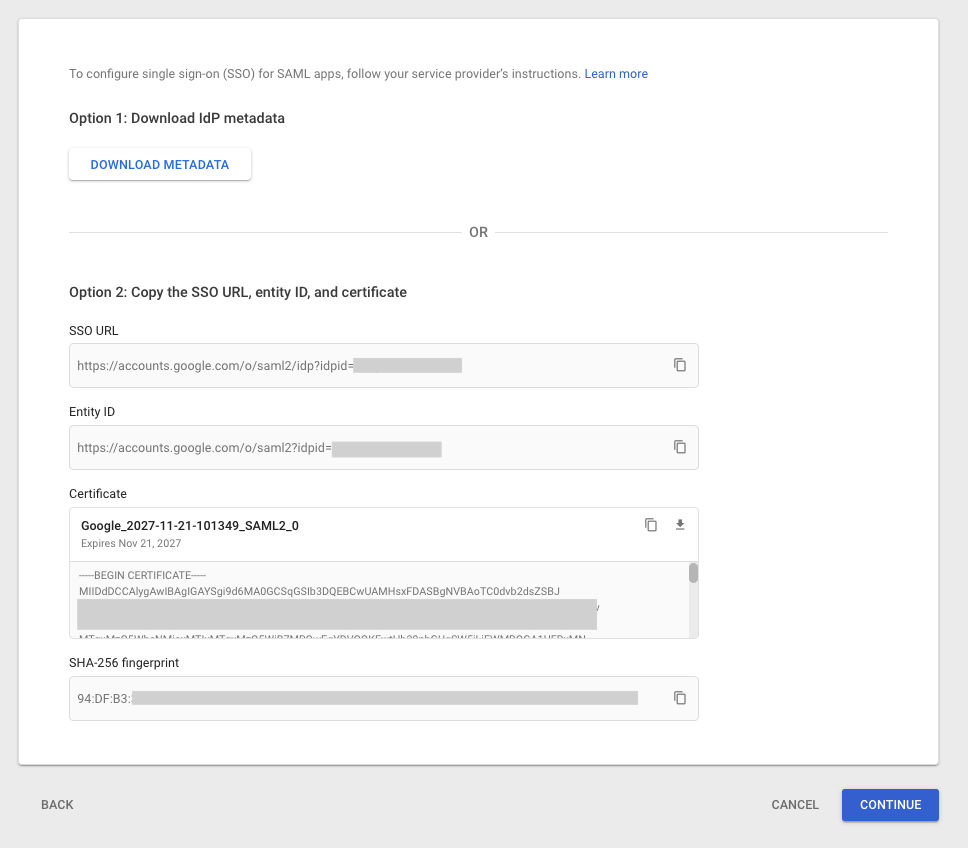 * **IdP Entity ID**: the **Entity ID** from Google
* **IdP SSO URL**: the **SSO URL** from Google
* **X.509 certificate**: the **Certificate** from Google
* **Attribute Mapping**: input the below JSON:
```js theme={null}
{
"email": "NameID",
"first_name": "firstName",
"last_name": "lastName"
}
```
Your Stytch SSO configuration view should look like the following:
* **IdP Entity ID**: the **Entity ID** from Google
* **IdP SSO URL**: the **SSO URL** from Google
* **X.509 certificate**: the **Certificate** from Google
* **Attribute Mapping**: input the below JSON:
```js theme={null}
{
"email": "NameID",
"first_name": "firstName",
"last_name": "lastName"
}
```
Your Stytch SSO configuration view should look like the following:
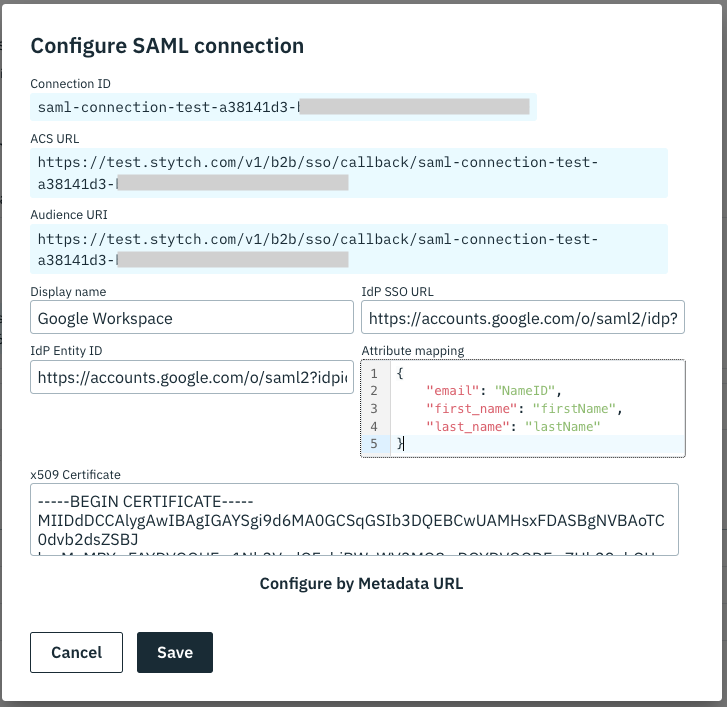 Click save. You should now see the SSO Connection as "Active". In the SSO Connections JIT Provisioning settings section above, select "Anyone" can JIT Provision through SSO Connections and save.
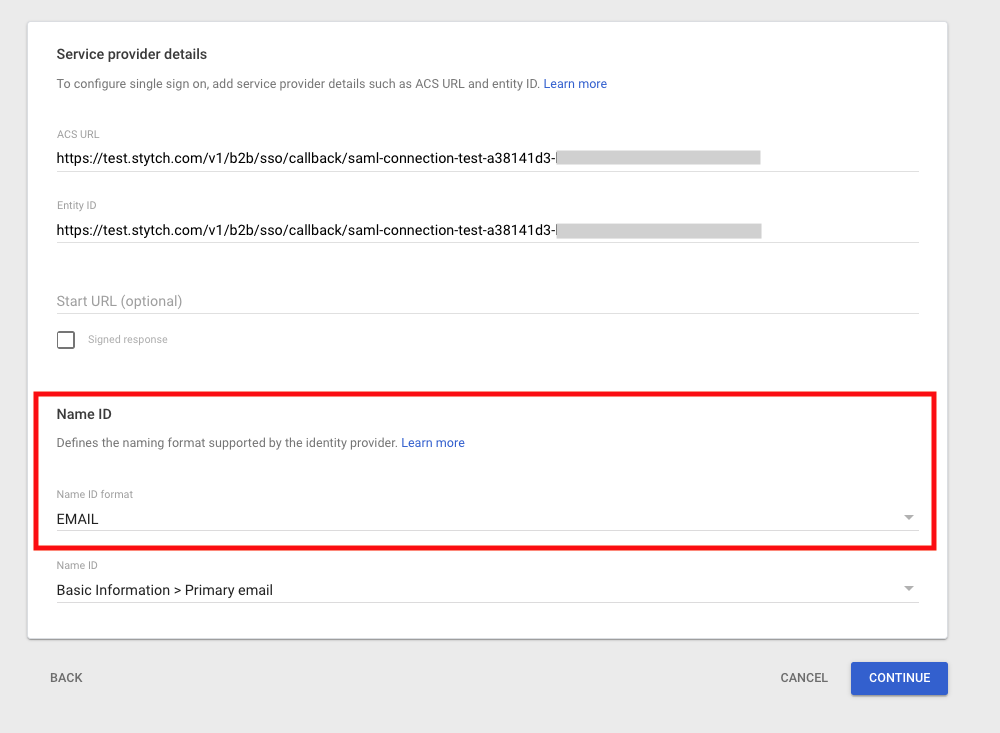
In the Google Admin Console, enter the following information from the Stytch SSO Connection into the **Service provider details** form and then click **Continue**:
* **ACS URL**: `acs_url` from the Stytch SSO Connection
* **Entity ID**: `audience_uri` from the Stytch SSO Connection
* **Name ID format**: EMAIL
* **Name ID**: Basic Information > Primary email
Click save. You should now see the SSO Connection as "Active". In the SSO Connections JIT Provisioning settings section above, select "Anyone" can JIT Provision through SSO Connections and save.
In the Google Admin Console, enter the following information from the Stytch SSO Connection into the **Service provider details** form and then click **Continue**:
* **ACS URL**: `acs_url` from the Stytch SSO Connection
* **Entity ID**: `audience_uri` from the Stytch SSO Connection
* **Name ID format**: EMAIL
* **Name ID**: Basic Information > Primary email
 On the next screen add the following two **Attributes**:
* Google Directory attributes: First name; App attributes: `firstName`
* Google Directory attributes: Last name; App attributes: `lastName`
Click **Finish**.
Navigate to the **User access** page for your new Google Workspace app:
On the next screen add the following two **Attributes**:
* Google Directory attributes: First name; App attributes: `firstName`
* Google Directory attributes: Last name; App attributes: `lastName`
Click **Finish**.
Navigate to the **User access** page for your new Google Workspace app:
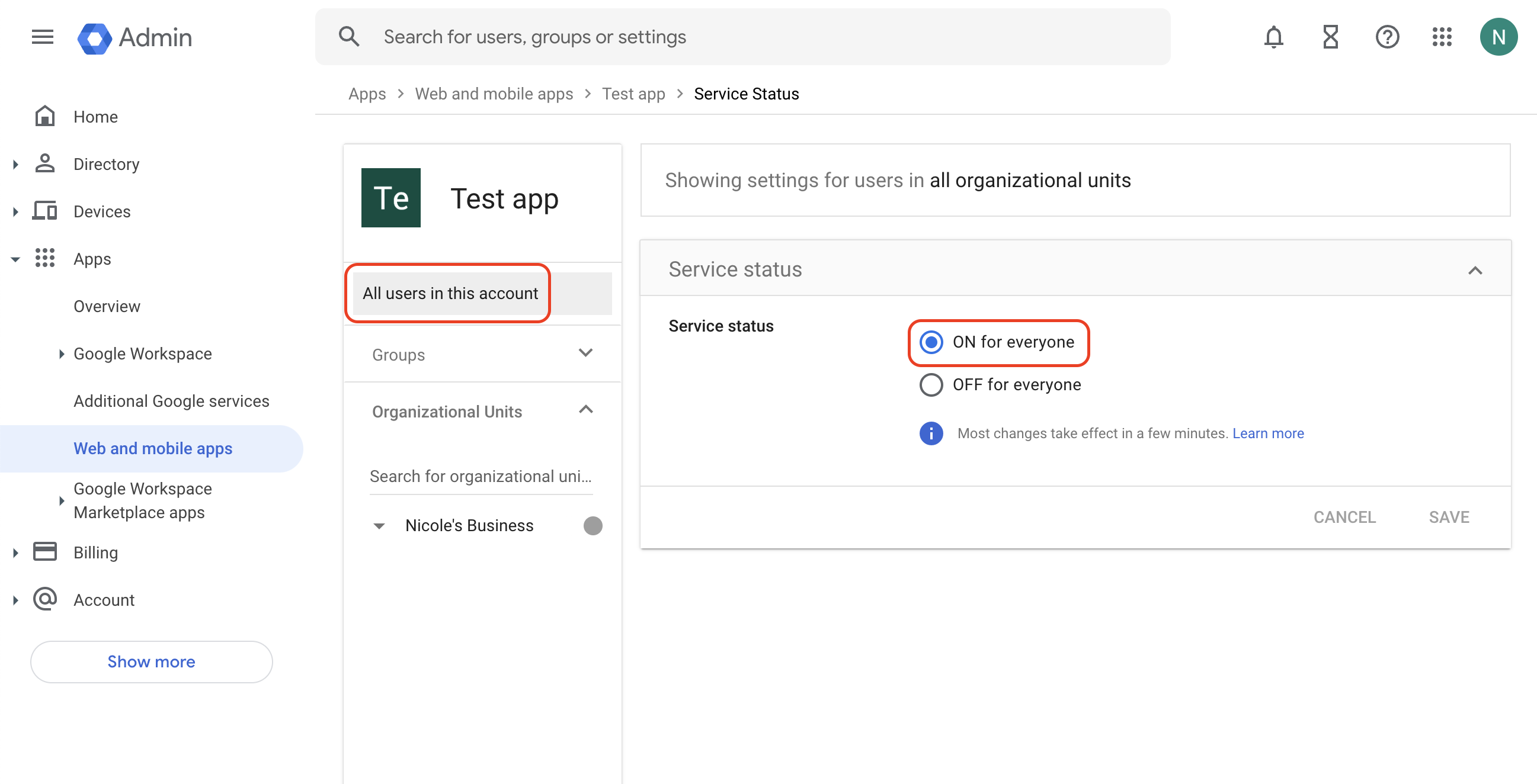
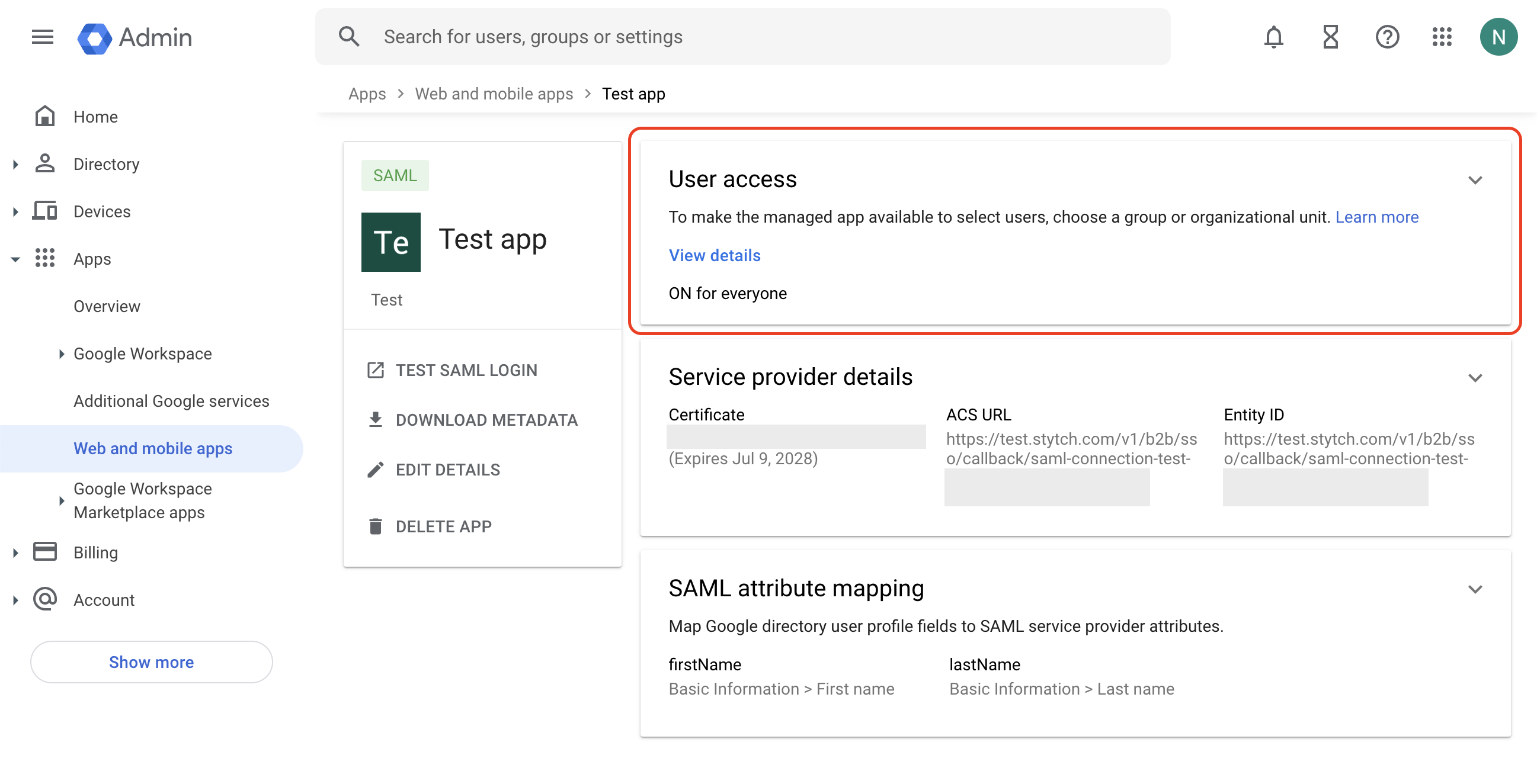 Grant access to the Groups or Organizational Units of your choice. For the purposes of this guide, you can also simply set the **Service status** to **ON for everyone** in the **All users in this account** tab:
 ## Microsoft Entra SAML
Log into Microsoft Entra Admin Center, navigate to Enterprise applications and select to create a new application.
## Microsoft Entra SAML
Log into Microsoft Entra Admin Center, navigate to Enterprise applications and select to create a new application.
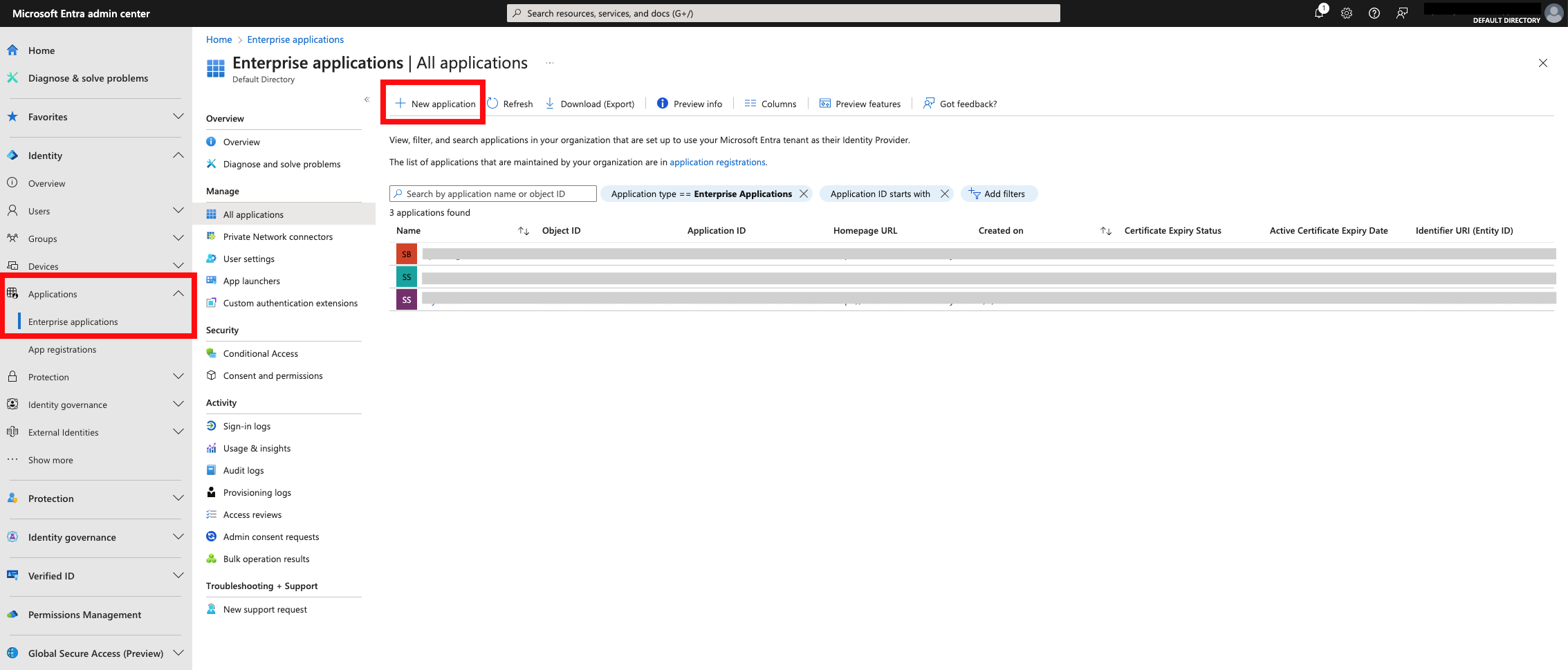 Select create your own application at the top.
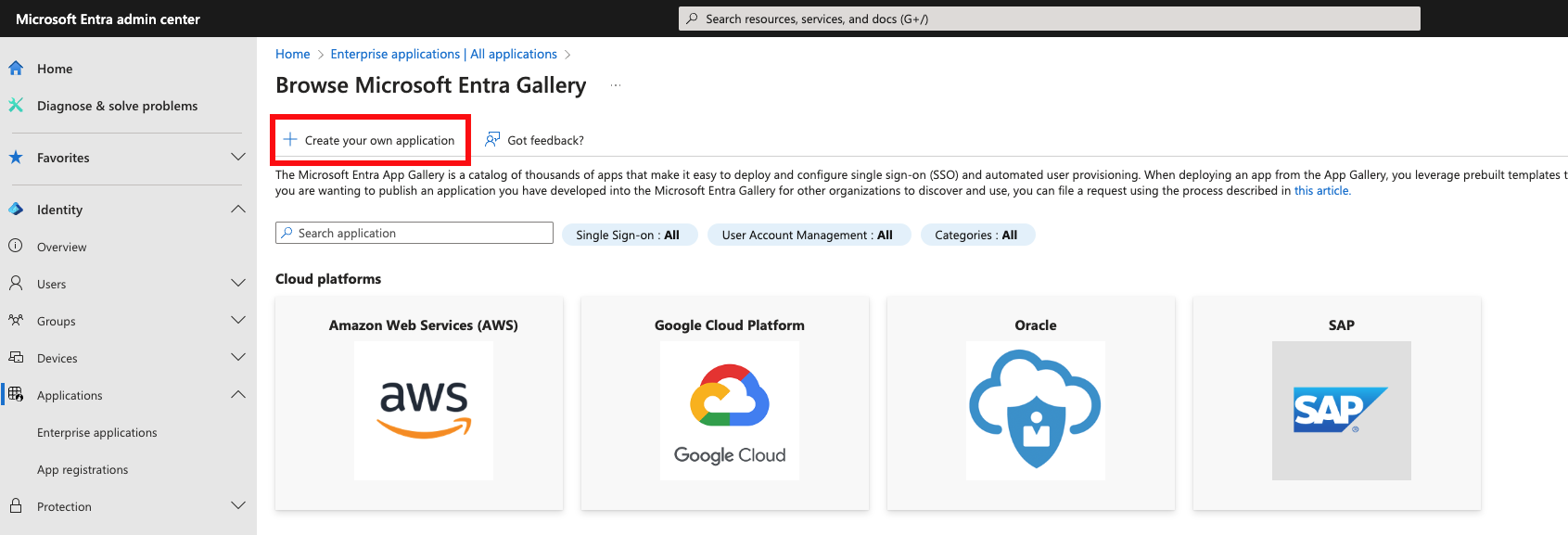 Name your application and select **Integrate any other application you don't find in the gallery (Non-gallery)** and then click **Create**.
Once your application is created, navigate to the Single Sign-On setup page and select SAML.
Name your application and select **Integrate any other application you don't find in the gallery (Non-gallery)** and then click **Create**.
Once your application is created, navigate to the Single Sign-On setup page and select SAML.
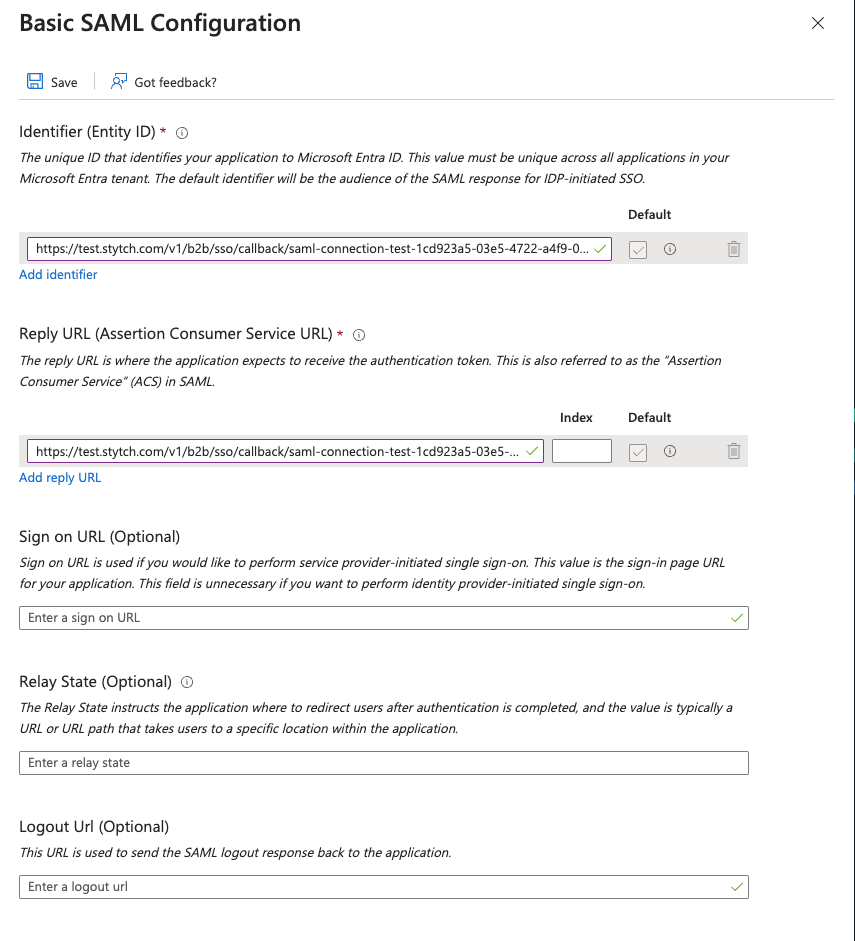
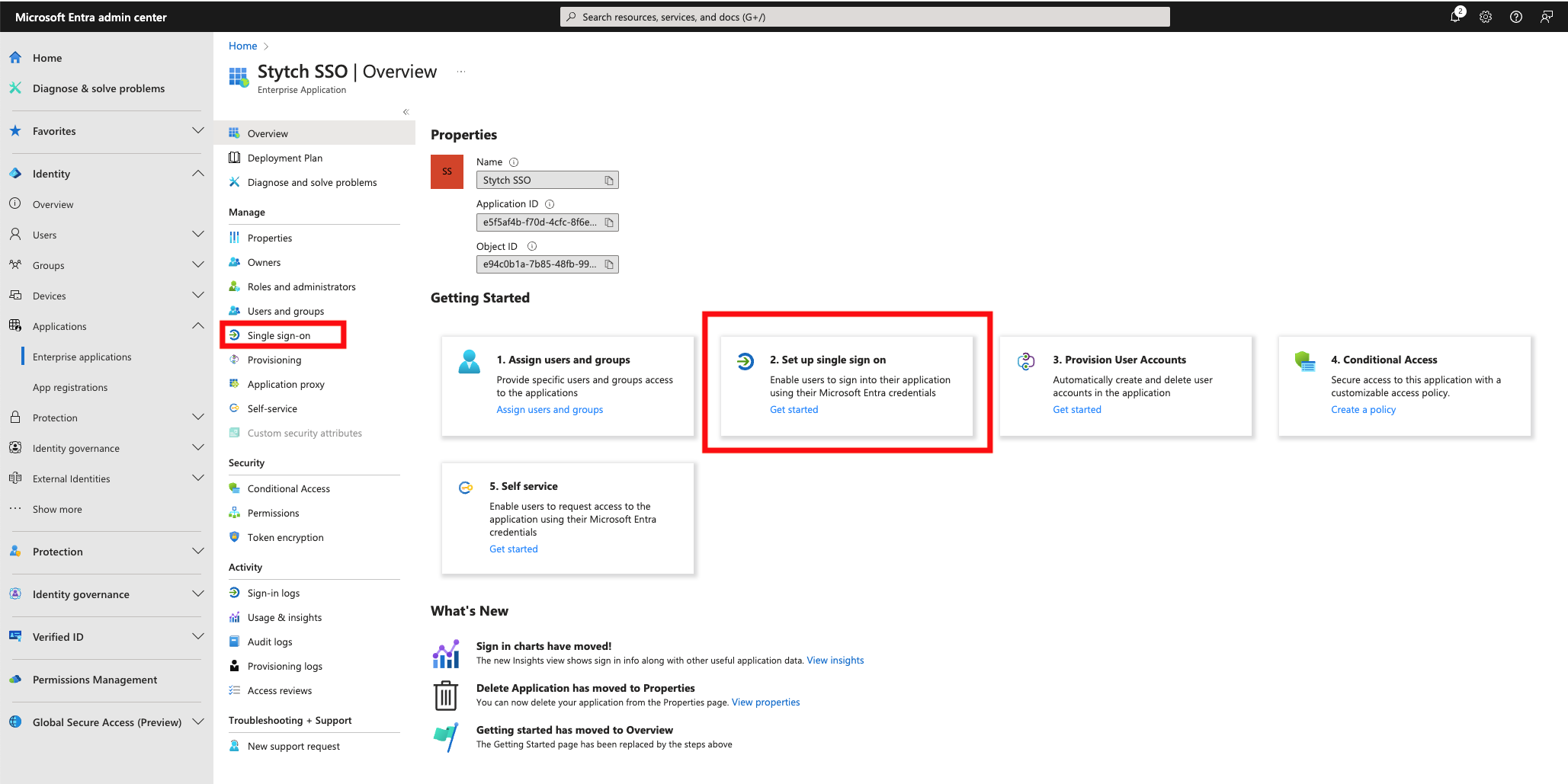 Click Edit on **Basic SAML Configuration** and add the following values from the SSO Connection you created in Stytch:
* **Identifier (Entity ID):** the Audience URI from your Stytch SSO Connection
* **Reply URL (Assertion Consumer Service URL):** the ACS URL from your Stytch SSO Connection
Click Edit on **Basic SAML Configuration** and add the following values from the SSO Connection you created in Stytch:
* **Identifier (Entity ID):** the Audience URI from your Stytch SSO Connection
* **Reply URL (Assertion Consumer Service URL):** the ACS URL from your Stytch SSO Connection
 Leave the other values blank and click **Save**.
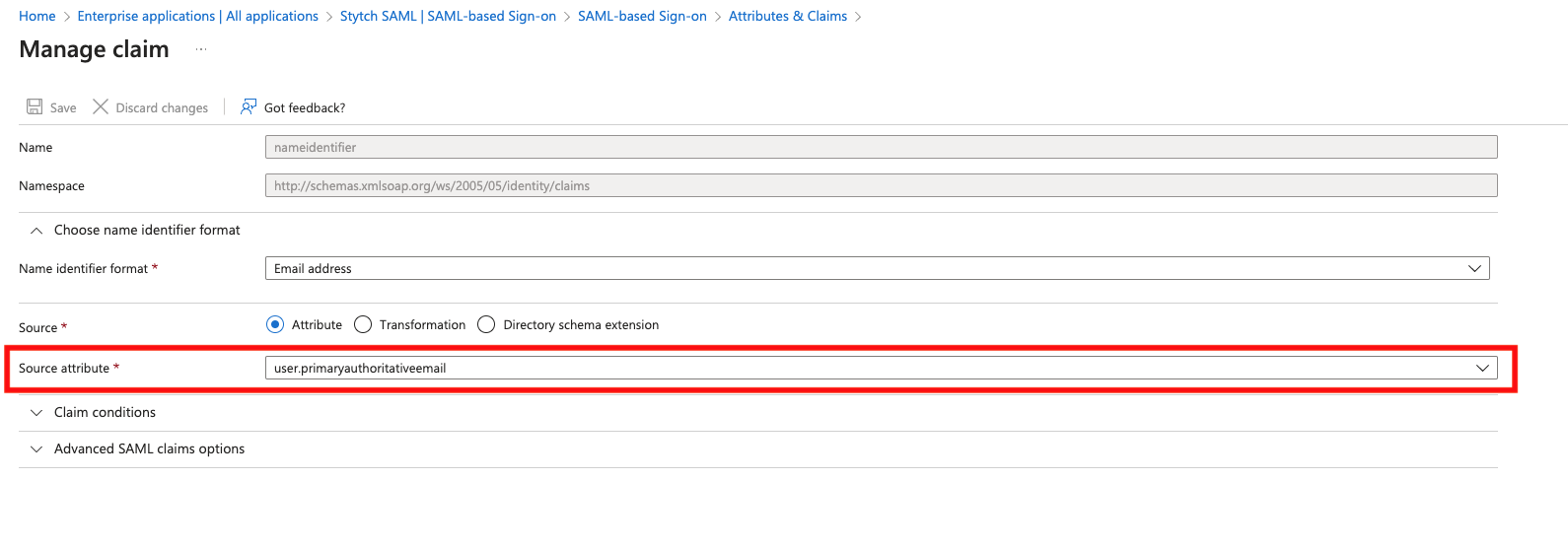
Next, edit the **Attributes & Claims** section. Click on the **Unique User Identifier (Name ID)** under Required Claim, and change the Source attribute to use **user.primaryauthoritativeemail**
Leave the other values blank and click **Save**.
Next, edit the **Attributes & Claims** section. Click on the **Unique User Identifier (Name ID)** under Required Claim, and change the Source attribute to use **user.primaryauthoritativeemail**
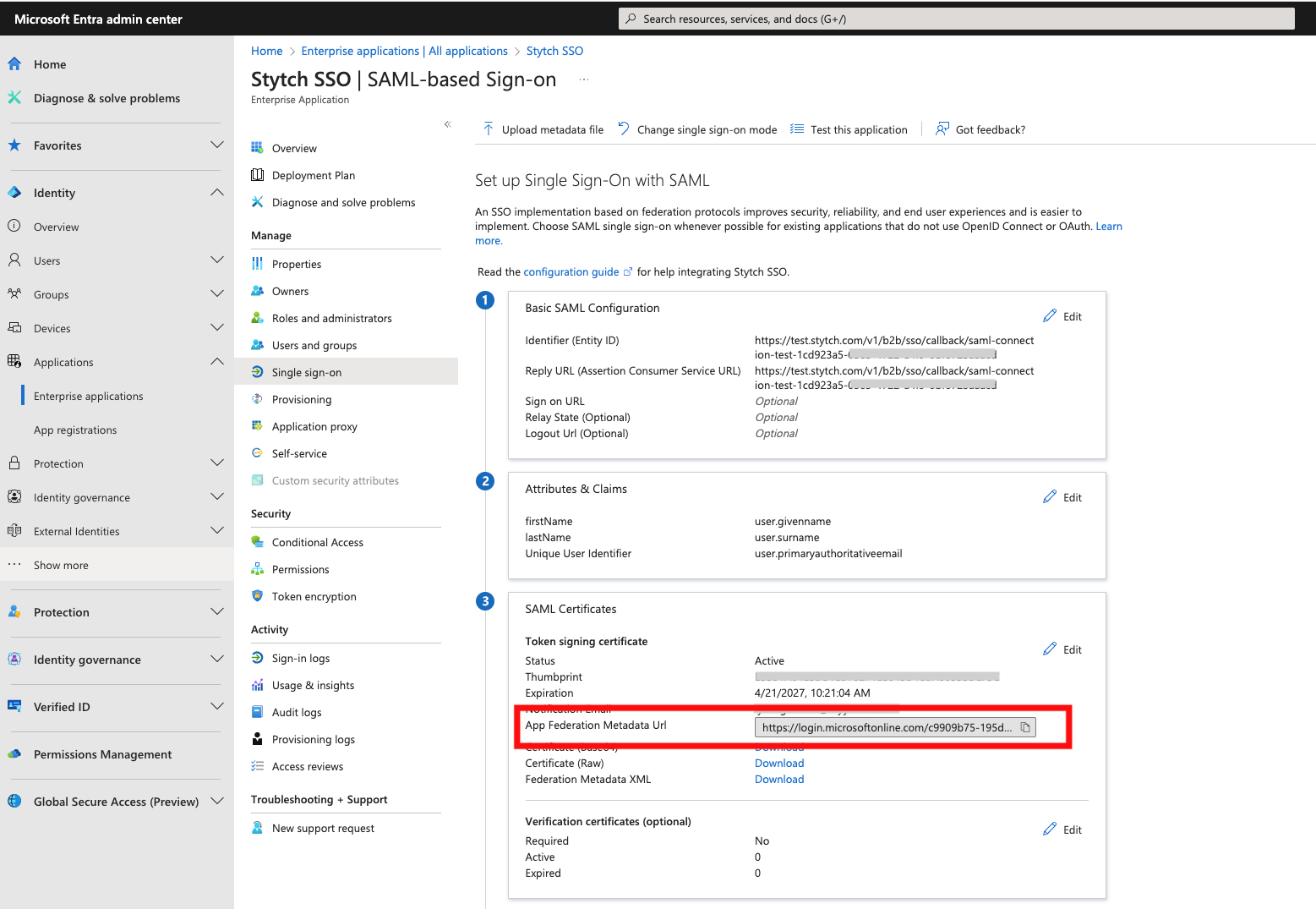
 Under Additional claims, delete the preconfigured options and create the following three claims:
* Claim Name: **firstName** Value: **user.givenname**
* Claim Name: **lastName** Value: **user.surname**
* Claim Name: **id** Value: **user.objectid**
Click **Save**.
Under Additional claims, delete the preconfigured options and create the following three claims:
* Claim Name: **firstName** Value: **user.givenname**
* Claim Name: **lastName** Value: **user.surname**
* Claim Name: **id** Value: **user.objectid**
Click **Save**.
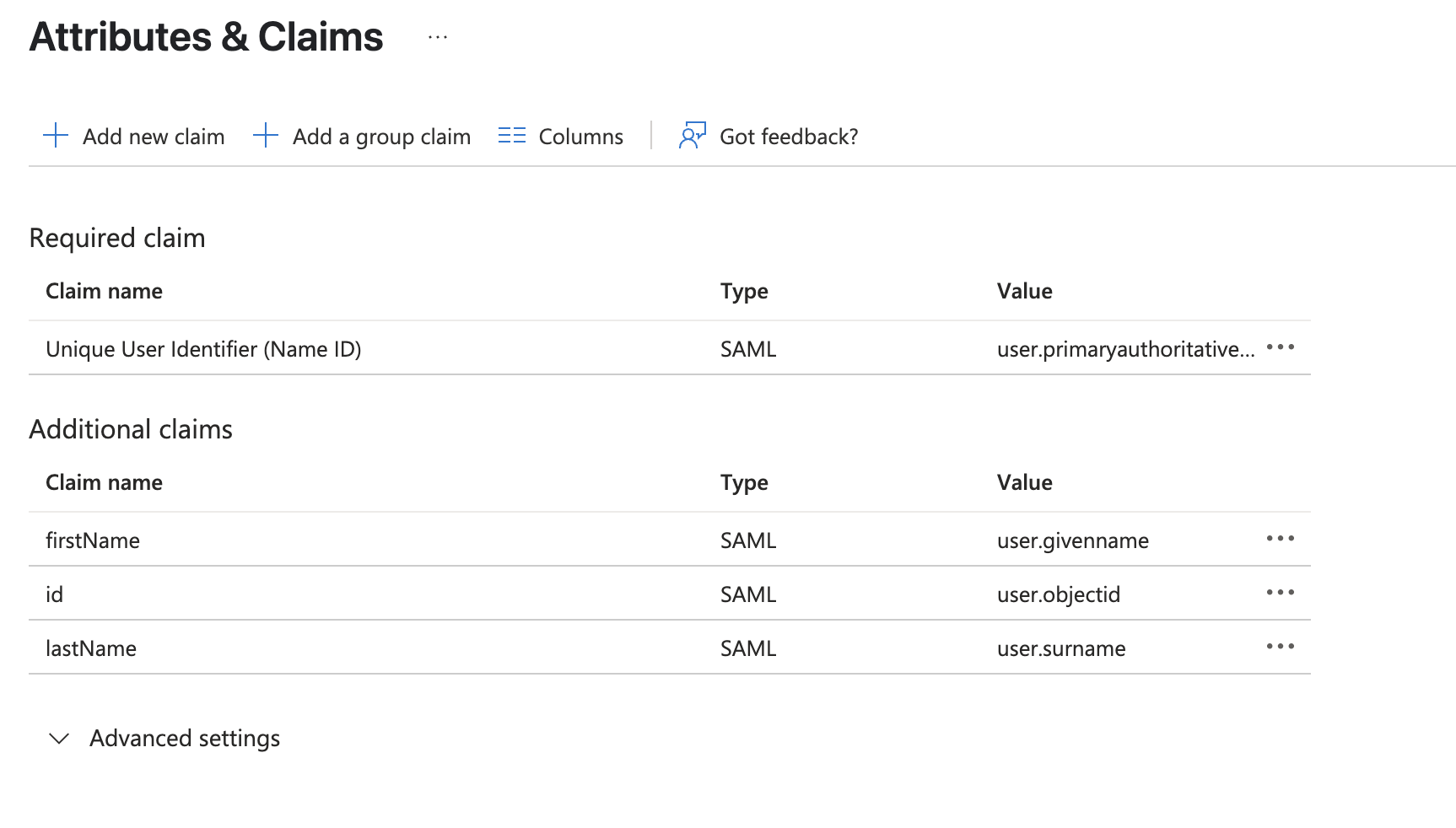 In the Stytch Dashboard (or with the UpdateSAMLConnection API) click "configure" on your SSO Connection and set the Metadata URL as the **App Federation Metadata Url** from the SAML Certificates section in your Entra app.
 For Attribute Mapping on your Stytch SSO Connection set the following JSON:
```js theme={null}
{
"email": "NameID",
"first_name": "firstName",
"last_name": "lastName",
"idp_user_id": "id"
}
```
Click save on your Stytch SSO Connection, and you should now see the status as "Active". In the SSO Connections JIT Provisioning settings section above, select "Anyone" can JIT Provision through SSO Connections and save.
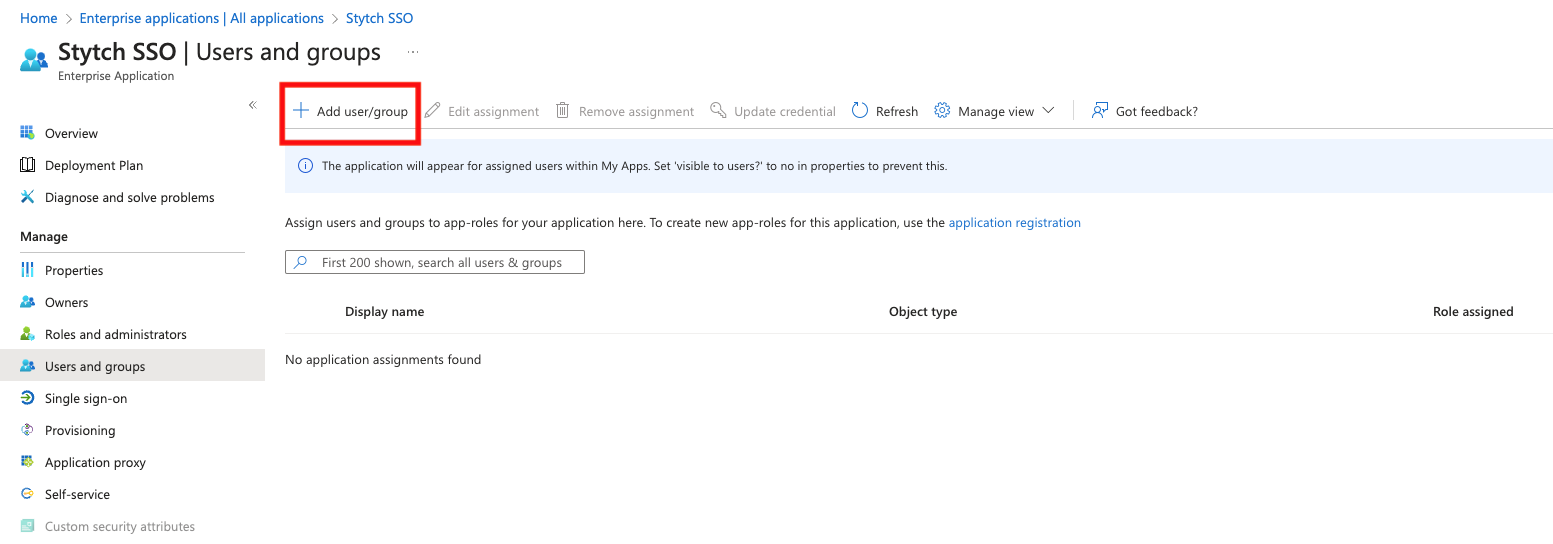
The last step is to add users to your application in Entra, which you can do by navigating to **Users and groups** and selecting "Add user/group".
For Attribute Mapping on your Stytch SSO Connection set the following JSON:
```js theme={null}
{
"email": "NameID",
"first_name": "firstName",
"last_name": "lastName",
"idp_user_id": "id"
}
```
Click save on your Stytch SSO Connection, and you should now see the status as "Active". In the SSO Connections JIT Provisioning settings section above, select "Anyone" can JIT Provision through SSO Connections and save.
The last step is to add users to your application in Entra, which you can do by navigating to **Users and groups** and selecting "Add user/group".
 ## Microsoft Entra OIDC
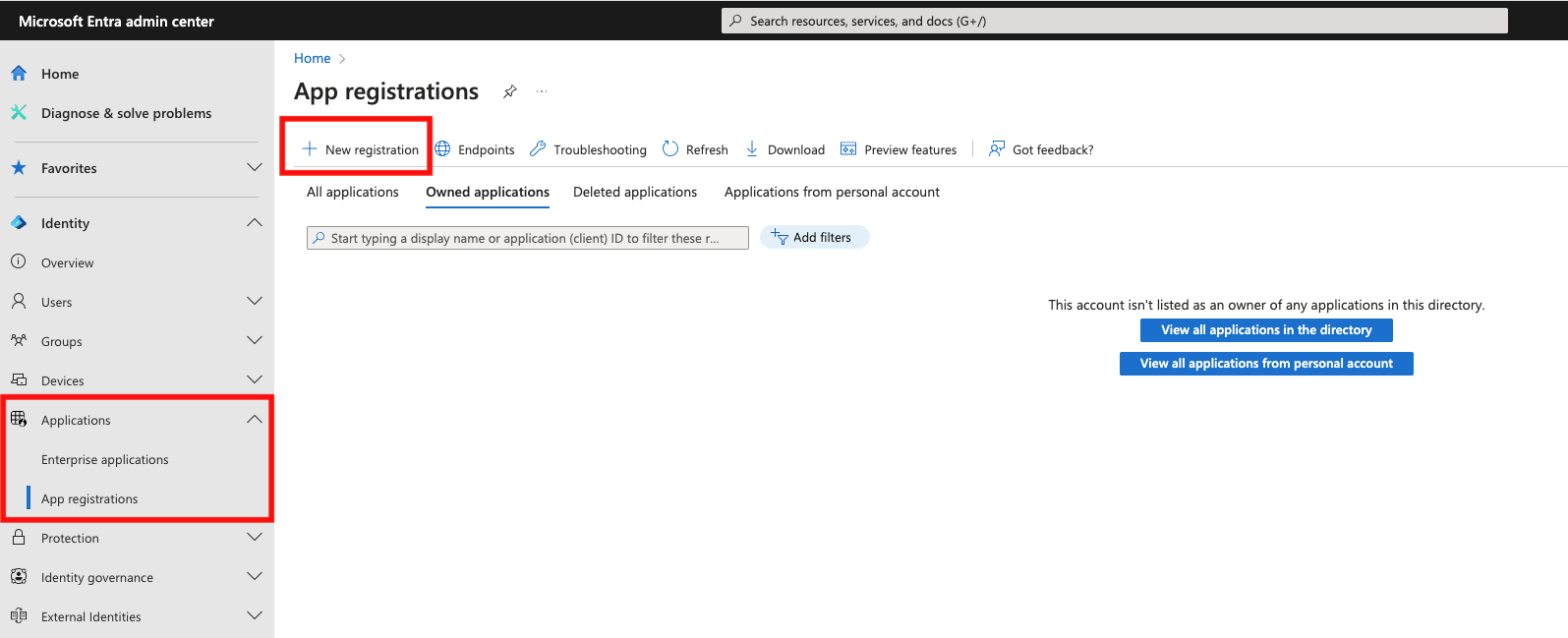
Log into Microsoft Entra Admin Center, navigate to **App registrations** and select to create a New registration
## Microsoft Entra OIDC
Log into Microsoft Entra Admin Center, navigate to **App registrations** and select to create a New registration
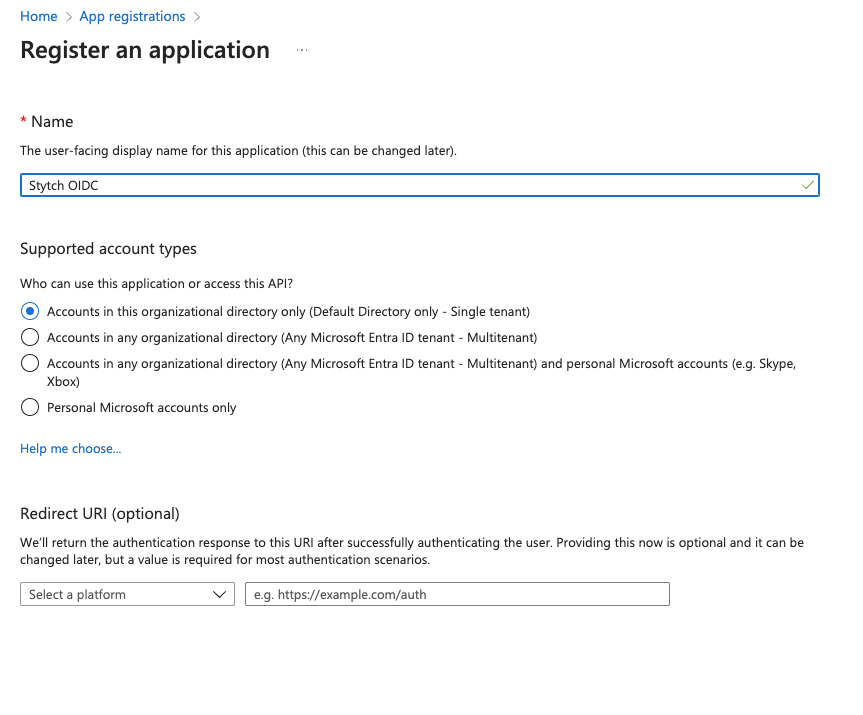
 Input a name and select **Accounts in this organizational directory only** for Supported account types and click Register
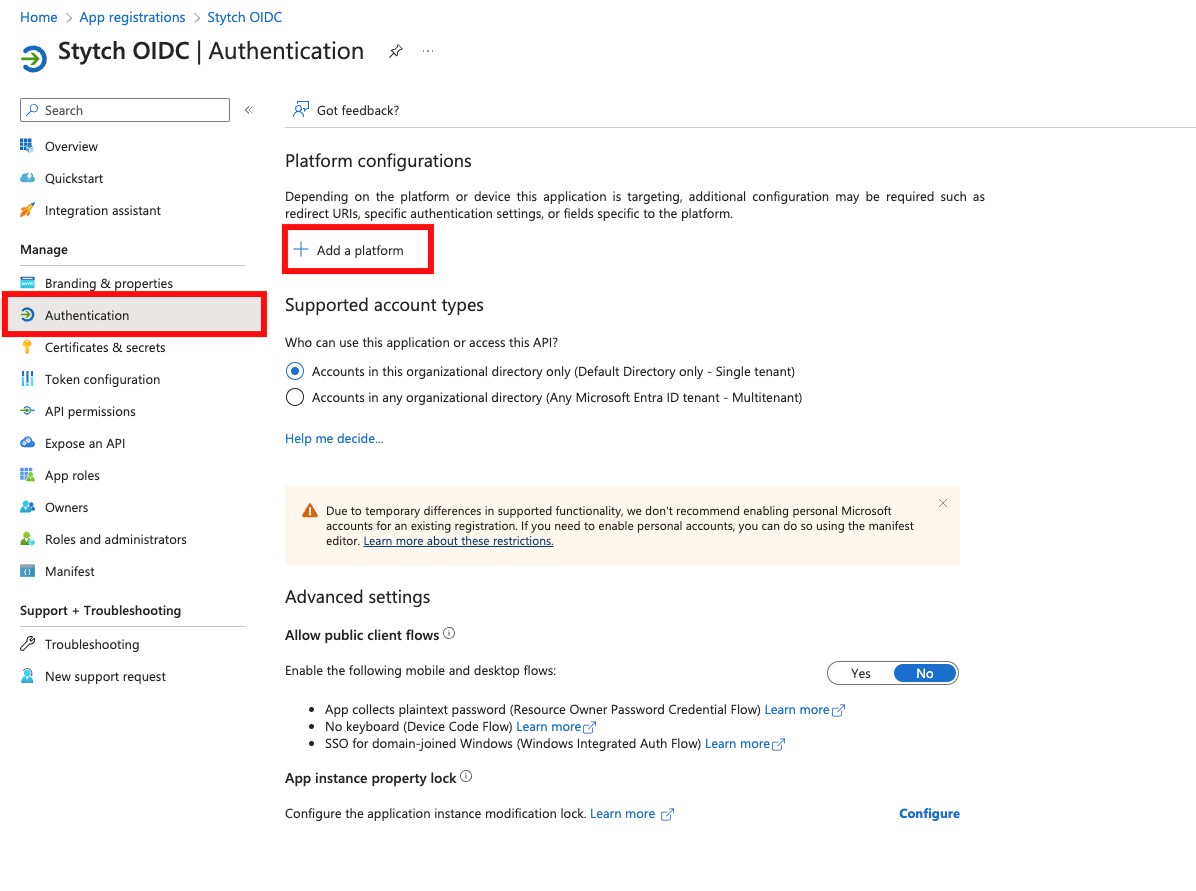
 Navigate to the Authentication section and select "Add a platform" under Platform configurations
 Select web and input the Redirect URI from the Stytch SSO Connection you created earlier. Leave the rest blank and click "Configure"
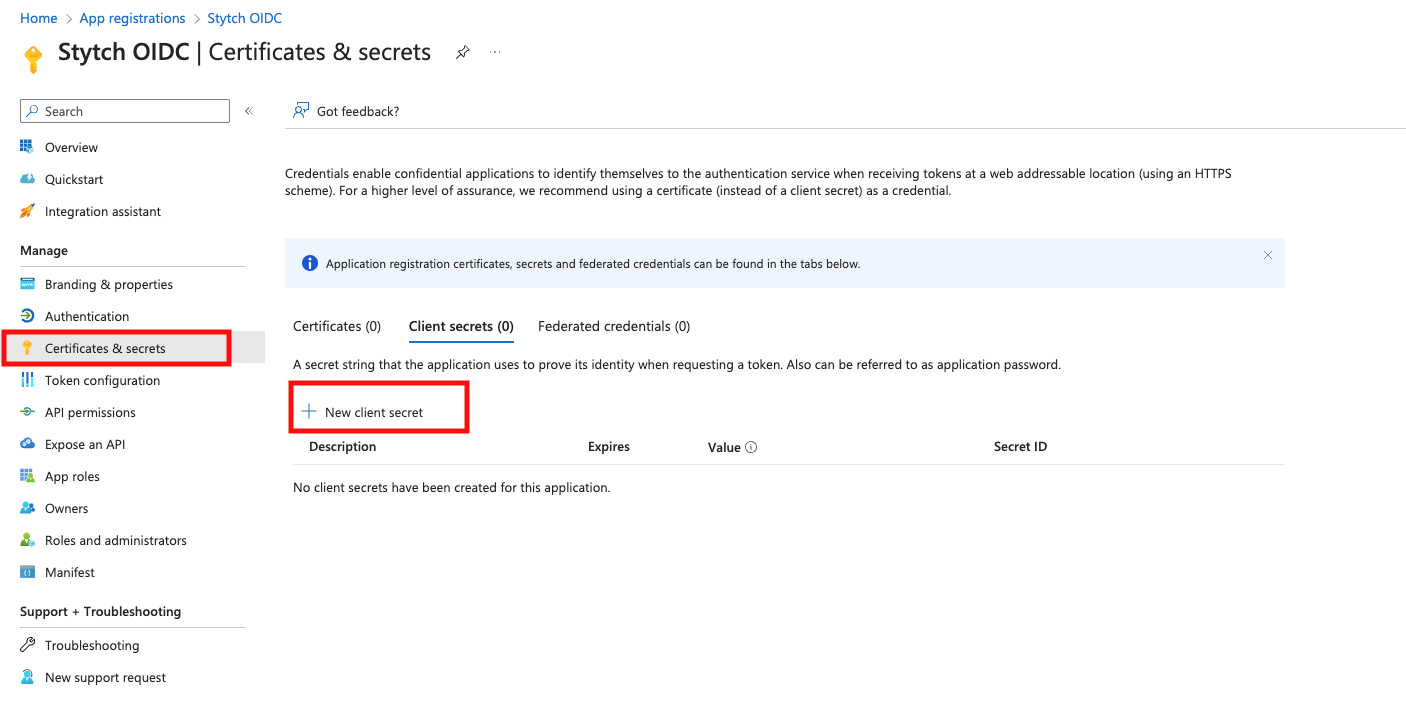
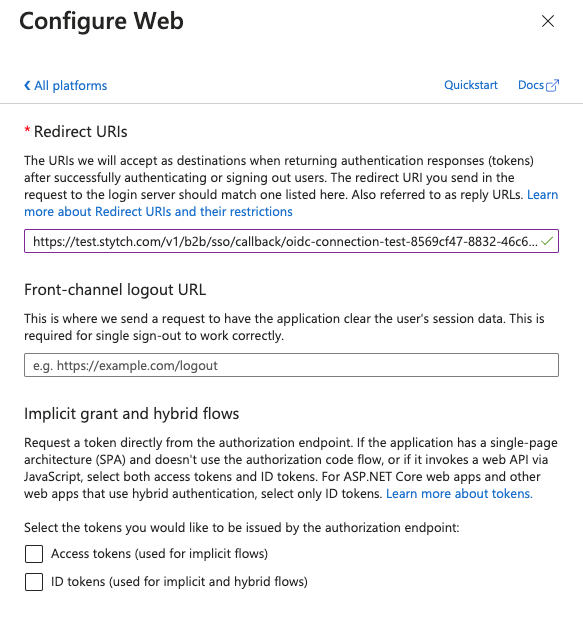 Navigate to Certificates & secrets and select "New client secret". Enter a description of your new secret key, select your desired secret expiration length, and click Add.
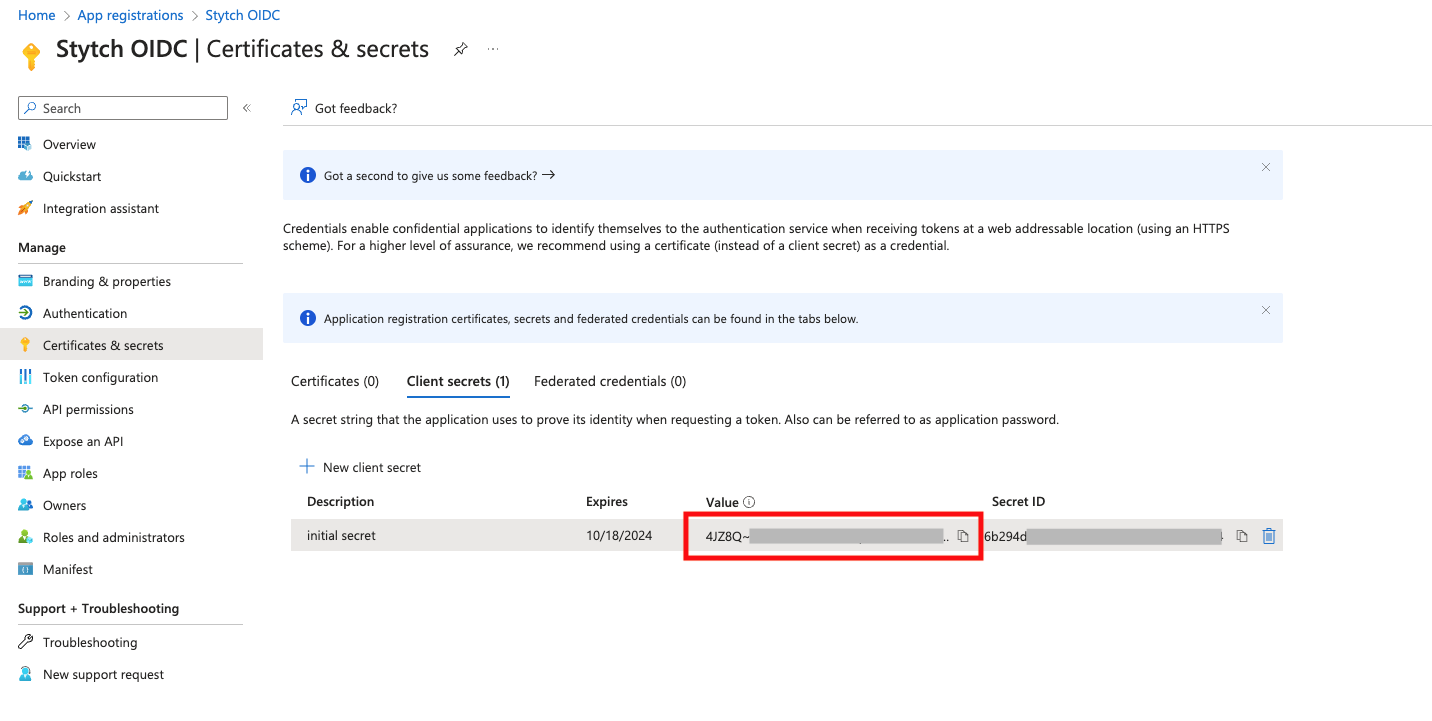
 In the Stytch Dashboard, click "configure" on your SSO Connection and input the secret value as the Client Secret in Stytch
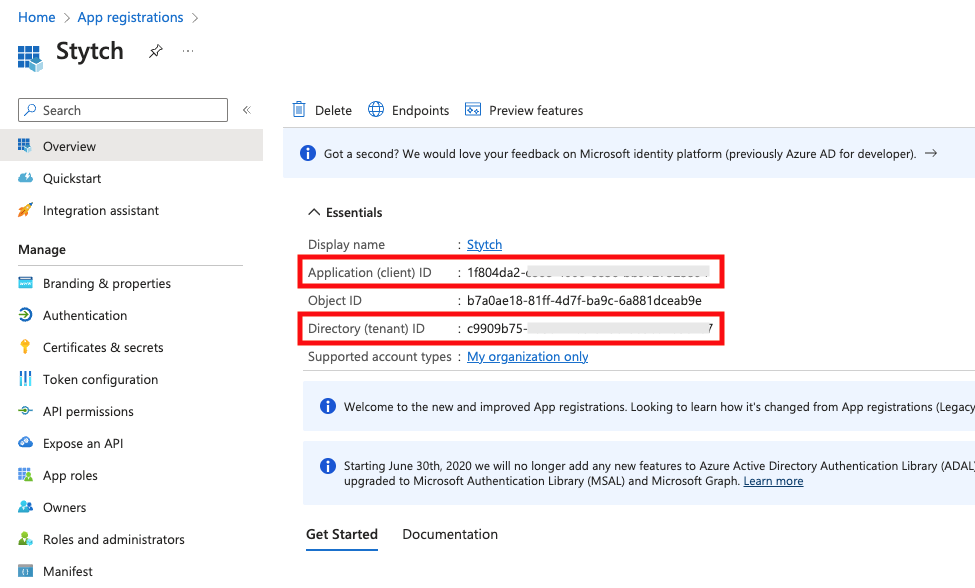
 For Client ID and Issuer, navigate back to the Entra Overview section and copy over the following values into the Stytch OIDC Connection you are configuring:
* **Client ID** in Stytch: set to the **Application (client) ID** from Entra
* **Issuer** in Stytch: set to URL format `https://login.microsoftonline.com//v2.0` where `` is replaced with the **Directory (tenant) ID** from the Overview section
For Client ID and Issuer, navigate back to the Entra Overview section and copy over the following values into the Stytch OIDC Connection you are configuring:
* **Client ID** in Stytch: set to the **Application (client) ID** from Entra
* **Issuer** in Stytch: set to URL format `https://login.microsoftonline.com//v2.0` where `` is replaced with the **Directory (tenant) ID** from the Overview section
 Click save. You should now see the SSO Connection as "Active". In the SSO Connections JIT Provisioning settings section above, select "Anyone" can JIT Provision through SSO Connections and save.