> ## Documentation Index
> Fetch the complete documentation index at: https://stytch.com/docs/llms.txt
> Use this file to discover all available pages before exploring further.
# Custom email templates
> Set up custom email templates to use in your Stytch authentication requests.
Custom email templates require purchasing the **Full email customization and Stytch brand removal** add-on. See Stytch's [Pricing page](https://stytch.com/pricing) for more details.
## Setting up custom email templates
Complete the following steps to set up and use a custom email template in your Stytch requests.
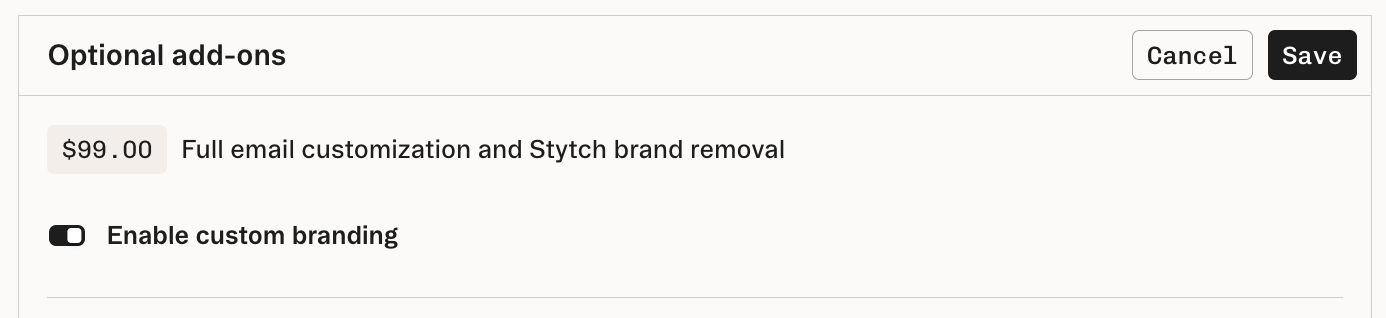
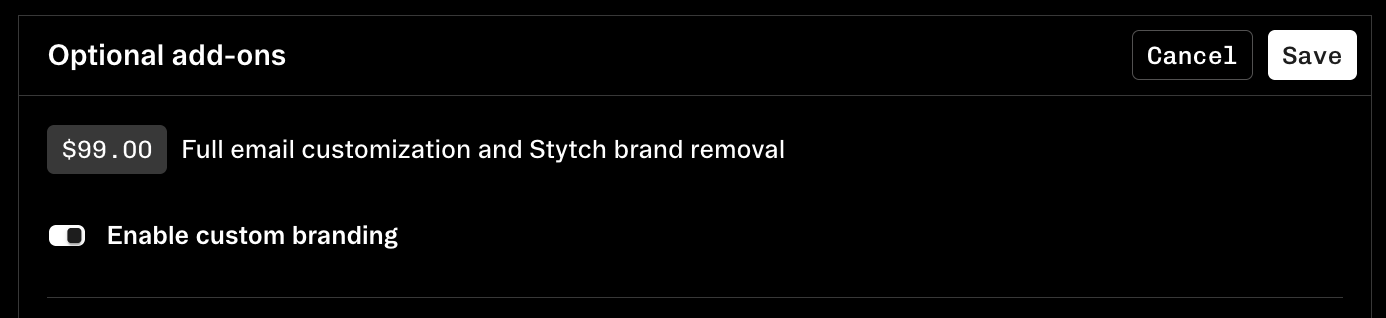
Stytch's **Full email customization and Stytch brand removal** add-on is required in order to use custom email templates. You can enable this add-on in the **Optional Add-Ons** section of [the Billing page](https://stytch.com/dashboard/settings/billing) in the Stytch Dashboard.
 Next, set up a custom email domain for sending Stytch emails by following the setup steps in the **Custom email domains** section of the [Stytch Dashboard.](https://stytch.com/dashboard/custom-domains).
Make sure that you set up a **Custom email domain**, rather than a **Custom auth domain**, which serves a different purpose.
Note that in order to protect our domain reputation, it is not possible to send custom email templates from the default Stytch sender domains. Learn more about [custom email domains here](/resources/branding/custom-email-domains).
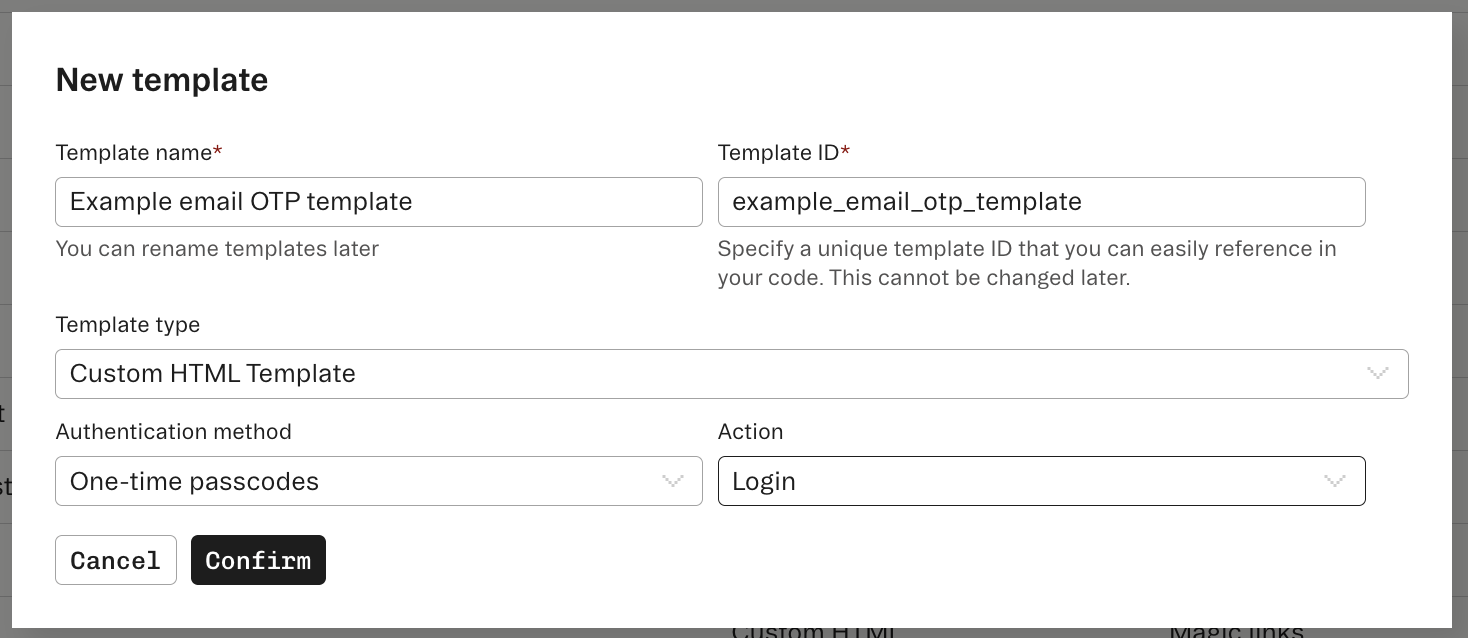
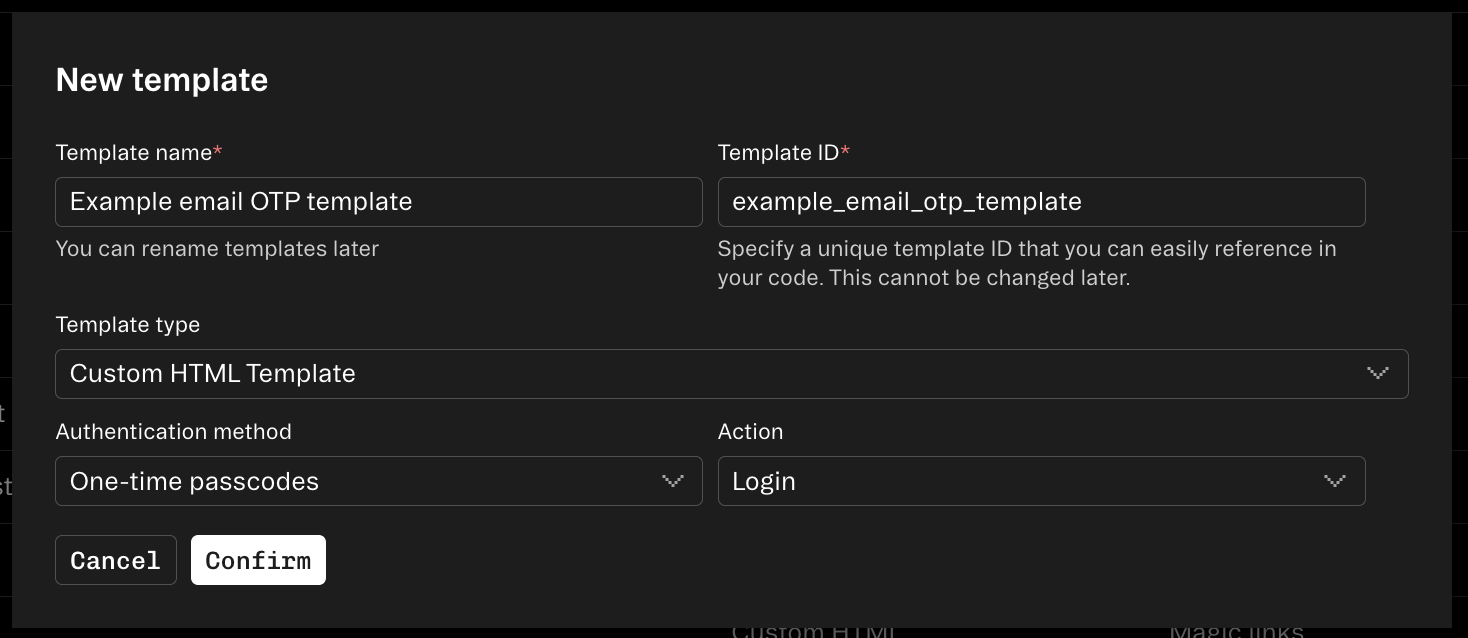
Now that your custom email domain is set up, you can create a custom email template by navigating to [the Branding tab](https://stytch.com/dashboard/templates) in the Stytch Dashboard and clicking **Create new template**.
In the **Template type** dropdown, select **Custom HTML template**.
Next, set up a custom email domain for sending Stytch emails by following the setup steps in the **Custom email domains** section of the [Stytch Dashboard.](https://stytch.com/dashboard/custom-domains).
Make sure that you set up a **Custom email domain**, rather than a **Custom auth domain**, which serves a different purpose.
Note that in order to protect our domain reputation, it is not possible to send custom email templates from the default Stytch sender domains. Learn more about [custom email domains here](/resources/branding/custom-email-domains).
Now that your custom email domain is set up, you can create a custom email template by navigating to [the Branding tab](https://stytch.com/dashboard/templates) in the Stytch Dashboard and clicking **Create new template**.
In the **Template type** dropdown, select **Custom HTML template**.
 You can now use the email template editor to edit the email subject line, the email body HTML, and the sender information such as the sender address, sender display name, and the reply-to address.
You can also insert variables such as the `magic_link_url`, `otp_code`, `user_email`, etc. into your template. Note that the available variables depend on the email template type and specific authentication flow, and not all variables are available in all contexts.
Alternatively, you can use our [Programmatic Workspace Actions endpoints](/api-reference/pwa/api/v3/overview) or our [Terraform provider](https://registry.terraform.io/providers/stytchauth/stytch/latest/docs/resources/email%5Ftemplate) to create and manage your custom email templates.
Once you've finished creating your custom email template, you can instruct Stytch to use it by specifying its `template_id` in your authentication requests. Stytch endpoints that trigger an email include parameters like `login_template_id`, `signup_template_id`, and `reset_password_template_id` where you can specify the `template_id` of your custom email template.
Here are some example requests that specify a custom email template via the `login_template_id` parameter:
For [Send OTP by Email](/api-reference/consumer/api/otp/via-email/send) in Consumer auth:
```sh cURL theme={null}
curl --request POST \
--url https://test.stytch.com/v1/otps/email/send \
-u '${projectId}:${secret}' \
-H 'Content-Type: application/json' \
-d '{
"email": "email@example.com",
"login_template_id": "yourCustomEmailTemplateId"
}'
```
```javascript Frontend JavaScript SDK theme={null}
stytchClient.otps.email.send('email@example.com', {
login_template_id: 'yourCustomEmailTemplateId',
});
```
For [Send Discovery Email OTP](/api-reference/b2b/api/email-otp/discovery/send-discovery-otp) in B2B auth:
```sh cURL theme={null}
curl --request POST \
--url https://test.stytch.com/v1/b2b/otps/email/discovery/send \
-u 'PROJECT_ID:SECRET' \
-H 'Content-Type: application/json' \
-d '{
"email_address": "email@example.com",
"login_template_id": "yourCustomEmailTemplateId"
}'
```
```javascript Frontend JavaScript SDK theme={null}
stytchClient.otps.email.discovery.send({
email_address: 'email@example.com',
login_template_id: 'yourCustomEmailTemplateId'
});
```
You can also set a custom email template as the **default template** for its specific template type. When an email template is set as the default, we'll send that template to the user if you don't specify a `template_id` in your request.
You can now use the email template editor to edit the email subject line, the email body HTML, and the sender information such as the sender address, sender display name, and the reply-to address.
You can also insert variables such as the `magic_link_url`, `otp_code`, `user_email`, etc. into your template. Note that the available variables depend on the email template type and specific authentication flow, and not all variables are available in all contexts.
Alternatively, you can use our [Programmatic Workspace Actions endpoints](/api-reference/pwa/api/v3/overview) or our [Terraform provider](https://registry.terraform.io/providers/stytchauth/stytch/latest/docs/resources/email%5Ftemplate) to create and manage your custom email templates.
Once you've finished creating your custom email template, you can instruct Stytch to use it by specifying its `template_id` in your authentication requests. Stytch endpoints that trigger an email include parameters like `login_template_id`, `signup_template_id`, and `reset_password_template_id` where you can specify the `template_id` of your custom email template.
Here are some example requests that specify a custom email template via the `login_template_id` parameter:
For [Send OTP by Email](/api-reference/consumer/api/otp/via-email/send) in Consumer auth:
```sh cURL theme={null}
curl --request POST \
--url https://test.stytch.com/v1/otps/email/send \
-u '${projectId}:${secret}' \
-H 'Content-Type: application/json' \
-d '{
"email": "email@example.com",
"login_template_id": "yourCustomEmailTemplateId"
}'
```
```javascript Frontend JavaScript SDK theme={null}
stytchClient.otps.email.send('email@example.com', {
login_template_id: 'yourCustomEmailTemplateId',
});
```
For [Send Discovery Email OTP](/api-reference/b2b/api/email-otp/discovery/send-discovery-otp) in B2B auth:
```sh cURL theme={null}
curl --request POST \
--url https://test.stytch.com/v1/b2b/otps/email/discovery/send \
-u 'PROJECT_ID:SECRET' \
-H 'Content-Type: application/json' \
-d '{
"email_address": "email@example.com",
"login_template_id": "yourCustomEmailTemplateId"
}'
```
```javascript Frontend JavaScript SDK theme={null}
stytchClient.otps.email.discovery.send({
email_address: 'email@example.com',
login_template_id: 'yourCustomEmailTemplateId'
});
```
You can also set a custom email template as the **default template** for its specific template type. When an email template is set as the default, we'll send that template to the user if you don't specify a `template_id` in your request.