

The Stytch B2B Microsoft OAuth product limits access to only verified Azure Active Directory accounts. Personal accounts, including personal Xbox Live, Skype, or Outlook accounts, are not allowed. Accounts managed by Azure Active Directory B2C are not allowed.By default, Stytch will deduplicate users by treating their
UserPrincipalName as an email address.Create a new Microsoft OAuth client
1
Create a Microsoft Azure account
If you don’t have one already, create a Microsoft Azure account.
2
Navigate to Azure Active Directory
Go to Azure Active Directory to create a Microsoft application.
3
Create a new registration
Click New registration.
4
Enter application details
Enter a name for your OAuth client.
5
Select account type
Select Accounts in any organizational directory (Any Azure AD directory - Multitenant).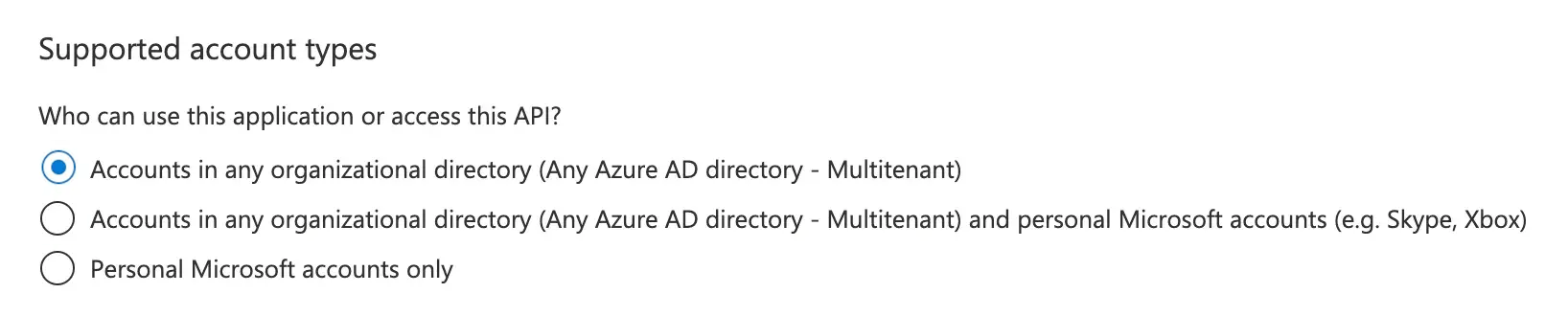
6
Configure the Redirect URI
Under the Redirect URI section, select Web and then copy the Stytch redirect URI from the OAuth page and paste it into the URI field.
7
Register the application
Click Register to save the configuration.
Configure your Microsoft OAuth client in Stytch
1
Navigate to your Microsoft application
Go to Azure Active Directory and select your Microsoft application.
2
Add a redirect URI
In your OAuth client configuration, select the link next to the Redirect URIs section. Then select Add a platform and finally select Web.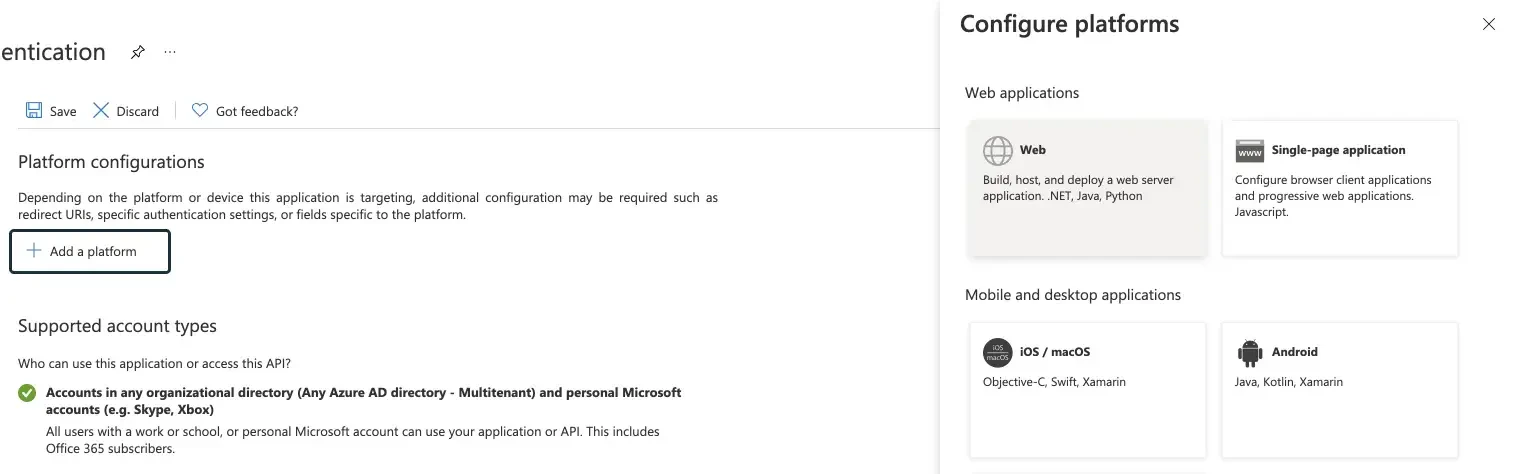
3
Configure the Stytch redirect URI
Copy the Stytch redirect URI from the Dashboard and paste it into the URI field.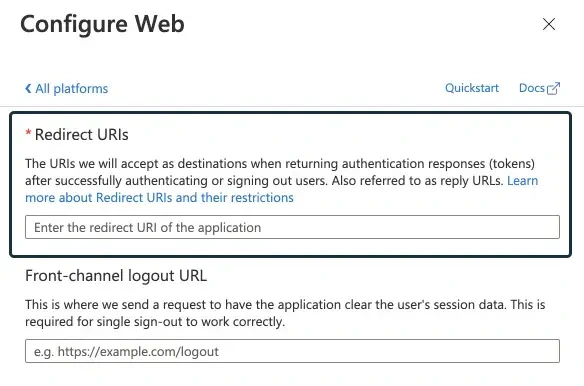
4
Save the configuration
Click Configure to save the URI.