

Props
object
required
The configuration object for the StytchB2B pre-built UI component.
Show properties
Show properties
array
required
The products array allows you to specify the authentication methods that you would like to expose to your users.The order of the products that you include here will also be the order in which they appear in the login form, with the first product specified appearing at the top of the login form.Currently the JavaScript B2B SDK supports our
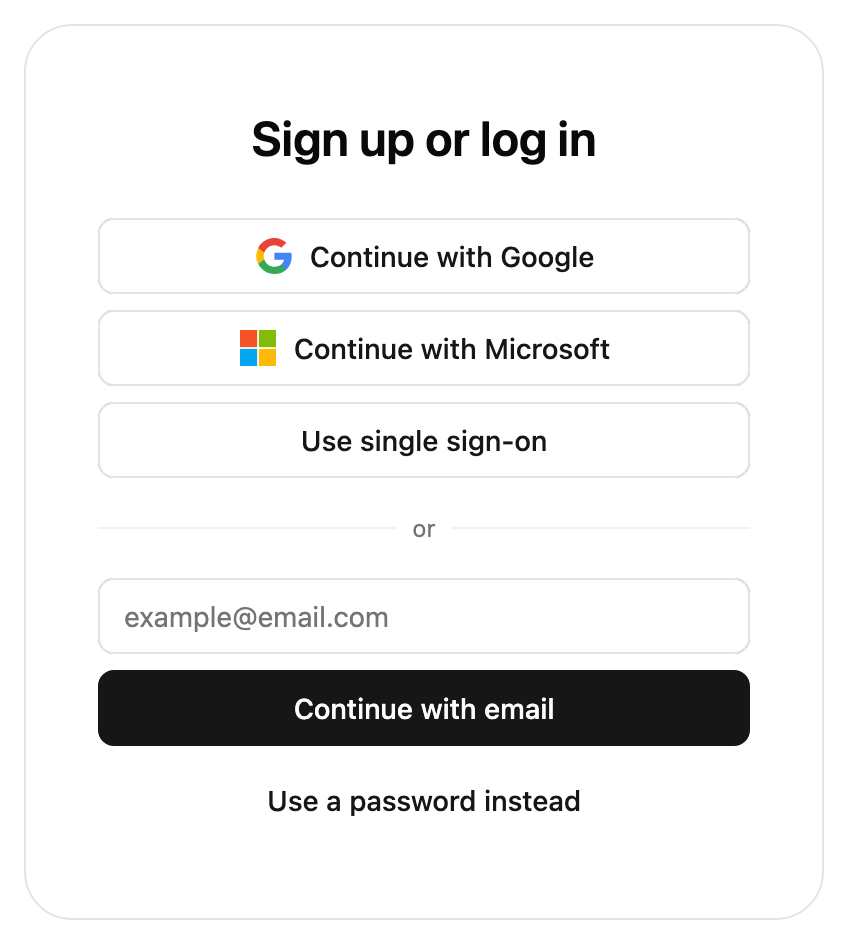
emailMagicLinks, oauth, sso, and passwords products.emailMagicLinks and oauth are supported in both authentication flow types, whereas sso is only supported in the Organization authentication flow type. passwords is always supported in the Organization authentication flow type, but is also supported in the Discovery flow if cross-org passwords are enabled for the project.If the only product specified is oauth, and the only OAuth provider specified is google with one_tap set to true, the login form will not be displayed. Instead, we will only show the Google One Tap prompt in the upper right of the user’s browser.string
required
The authFlowType lets you specify the authentication flow type that you wish to enable in the SDK. The options are
Discovery to let Members log into any Organization they are a part of; Organization to let Members log into a specific Organization; and PasswordReset to handle password reset flows (after the user clicks the password reset redirect URL). To enable the Organization flow type, you also must add a slug pattern to the authorized domain through the Frontend SDK page in the Dashboard.string
required
The slug of the Organization to present login options for. This is only used when the authFlowType is set to Organization. If you do not specify an
organizationSlug value, the UI component will use the Organization URL template set up in the Frontend SDK page of the Stytch Dashboard in order to infer the Organization from the URL that the component is hosted on.object
The options for email magic links. This is required if
emailMagicLinks is present in the products array.Show properties
Show properties
string
The URL that will appear in your email template and accepts a token (ex: you implement ‘https://example.com/authenticate?token=123’ in your app and pass ‘https://example.com/authenticate’ as the redirect URL). This link should route to an endpoint that authenticates your user via Stytch’s authenticate endpoint and redirect to your app’s experience for existing users.
string
The URL that will appear in your email template and accepts a token (ex: you implement ‘https://example.com/authenticate?token=123’ in your app and pass ‘https://example.com/authenticate’ as the redirect URL). This link should route to an endpoint that authenticates your user via Stytch’s authenticate endpoint and redirect to your app’s experience for new users.
string
The URL that will appear in your email template and accepts a token (ex: you implement ‘https://example.com/authenticate?token=123’ in your app and pass ‘https://example.com/authenticate’ as the redirect URL). This link should route to an endpoint that authenticates your user via Stytch’s discovery authenticate endpoint and redirect to your app’s experience for users logging into the discovery flow.
number
The expiration of the Magic Link sent in the login email, in minutes. Defaults to 60 minutes. The minimum expiration is 5 minutes and the maximum is 10080 mins (7 days).
number
The expiration of the Magic Link sent in the signup email, in minutes. Defaults to 60 minutes. The minimum expiration is 5 minutes and the maximum is 10080 mins (7 days).
number
The expiration of the Magic Link sent in the Discovery email, in minutes. Defaults to 60 minutes. The minimum expiration is 5 minutes and the maximum is 10080 mins (7 days).
string
Custom template ID for login emails. By default, it will use your default email template. Templates can be added in the Stytch dashboard using our built-in customization options or custom HTML templates with type “Magic links - Login”.
string
Custom template ID for sign-up emails. By default, it will use your default email template. Templates can be added in the Stytch dashboard using our built-in customization options or custom HTML templates with type “Magic links - Sign-up”.
string
Used to determine which language to use when sending the user this delivery method. Parameter is an IETF BCP 47 language tag, e.g. “en”.Supported languages are English (“en”), Spanish (“es”), French (“fr”) and Brazilian Portuguese (“pt-br”); if no value is provided, the copy defaults to English.
string
A hint indicating which domain the email will be sent from used in the filters included in the component’s links to common email inboxes (for example, https://mail.google.com/mail/u/0/#search/from%3A%40domainHint%20in%3Aanywhere). This field is only required if your project uses more than one custom domain to send emails.
object
The options for email one time passcodes. This is required if
emailOtp is present in the products array.Show properties
Show properties
string
Custom template ID for login emails. By default, it will use your default email template. Templates can be added in the Stytch dashboard using our built-in customization options or custom HTML templates with type “OTP - Login”.
string
Custom template ID for sign-up emails. By default, it will use your default email template. Templates can be added in the Stytch dashboard using our built-in customization options or custom HTML templates with type “OTP - Sign-up”.
string
Used to determine which language to use when sending the user this delivery method. Parameter is an IETF BCP 47 language tag, e.g. “en”.Supported languages are English (“en”), Spanish (“es”), French (“fr”) and Brazilian Portuguese (“pt-br”); if no value is provided, the copy defaults to English.
object
The options for SSO. This is required if
An object with any additional parameters that you’d like to pass along to the Identity Provider in the OIDC SSO flow.For example, some Identity Providers support a
sso is present in the products array.Show properties
Show properties
string
The URL that will appear in your email template and accepts a token (ex: you implement ‘https://example.com/authenticate?token=123’ in your app and pass ‘https://example.com/authenticate’ as the redirect URL). This link should route to an endpoint that authenticates your user via Stytch’s authenticate endpoint and redirect to your app’s experience for existing users.
string
The URL that will appear in your email template and accepts a token (ex: you implement ‘https://example.com/authenticate?token=123’ in your app and pass ‘https://example.com/authenticate’ as the redirect URL). This link should route to an endpoint that authenticates your user via Stytch’s authenticate endpoint and redirect to your app’s experience for new users.
object
This query parameter currently applies to OIDC flows only. Custom parameters passed into SAML SSO flows will be ignored.
login_hint parameter that allows you to pre-populate the SSO login flow with a suggested email address. To specify the login_hint parameter in your SSO request, set the providerParams value to { 'login_hint': 'example@email.com' }.object
The options for OAuth. This is required if
oauth is present in the products array.Show properties
Show properties
object
required
Specifies which OAuth providers to display.
Show properties
Show properties
string
required
The provider type. Currently we support
'google', 'microsoft', 'hubspot', 'slack', and 'github'.boolean
required
Whether to display the Google One Tap prompt in the top right corner of the user’s browser. This parameter is only allowed (and required) if the type is set to google.
boolean
Controls whether the Google One Tap prompt is automatically dismissed when the user taps outside of it. This parameter is only allowed if the type is set to google and one_tap is set to true. Defaults to true.
array[string]
An optional array of scopes that Stytch will request for your application in addition to the base set of scopes required for login.
object
An object with any additional parameters that you’d like to pass along to the OAuth provider (for example,
login_hint, for providers that support it).string
The URL that will appear in your email template and accepts a token (ex: you implement ‘https://example.com/authenticate?token=123’ in your app and pass ‘https://example.com/authenticate’ as the redirect URL). This link should route to an endpoint that authenticates your user via Stytch’s authenticate endpoint and redirect to your app’s experience for existing users.
string
The URL that will appear in your email template and accepts a token (ex: you implement ‘https://example.com/authenticate?token=123’ in your app and pass ‘https://example.com/authenticate’ as the redirect URL). This link should route to an endpoint that authenticates your user via Stytch’s authenticate endpoint and redirect to your app’s experience for new users.
string
The URL that will appear in your email template and accepts a token (ex: you implement ‘https://example.com/authenticate?token=123’ in your app and pass ‘https://example.com/authenticate’ as the redirect URL). This link should route to an endpoint that authenticates your user via Stytch’s discovery authenticate endpoint and redirect to your app’s experience for users logging into the discovery flow.
object
The options for Passwords. This is required if
passwords is present in the products array.Show properties
Show properties
string
The URL that will appear in your email template and accepts a token (ex: you implement ‘https://example.com/authenticate?token=123’ in your app and pass ‘https://example.com/authenticate’ as the redirect URL). This link should route to an endpoint that authenticates your user via Stytch’s authenticate endpoint and redirect to your app’s experience for existing users.
string
The URL that will appear in your email template and accepts a token (ex: you implement ‘https://example.com/authenticate?token=123’ in your app and pass ‘https://example.com/authenticate’ as the redirect URL). This link should route to an endpoint that authenticates your user via Stytch’s authenticate endpoint and redirect to your app’s experience for existing users.
number
The number of minutes that the password reset token sent in password reset emails will be valid for. Defaults to 30 minutes.
string
Custom template ID for password reset emails, configured via the Branding page in the Stytch Dashboard. If this value is not specified, your default password reset template will be used.
string
The redirect URL used in password reset emails in the Discovery (cross-Organization) Passwords flow.
string
Custom template ID for email verification emails. By default, it will use your default email template. Templates can be added in the Stytch dashboard using our built-in customization options or custom HTML templates with type “Passwords - Email verification”.
string
Used to determine which language to use when sending the user this delivery method. Parameter is an IETF BCP 47 language tag, e.g. “en”.Supported languages are English (“en”), Spanish (“es”), French (“fr”) and Brazilian Portuguese (“pt-br”); if no value is provided, the copy defaults to English.
object
The options for SMS OTP MFA.
Show properties
Show properties
string
Used to determine which language to use when sending the user this delivery method. Parameter is an IETF BCP 47 language tag, e.g. “en”.Supported languages are English (“en”), Spanish (“es”), French (“fr”) and Brazilian Portuguese (“pt-br”); if no value is provided, the copy defaults to English.
object
The options for session management. We create a session for Members when they log in. You can access a Member or session using the Member or Session SDK methods.
Show properties
Show properties
number
Set the session lifetime to be this many minutes from now; minimum of 5 and a maximum of 525600 minutes (365 days). Note that a successful authentication will continue to extend the session this many minutes.
array
MFA products to include in the UI. If specified, the list of available products will be limited to those included. Defaults to all available products.Note that if an Organization restricts the available MFA methods, the Organization’s settings will take precedence. In addition, if a Member is enrolled in MFA compatible with their Organization’s policies, their enrolled methods will always be made available.Currently the JavaScript B2B SDK supports our
smsOtp and totp MFA products.array
The order to present MFA products to a Member when multiple choices are available, such as during enrollment.Currently the JavaScript B2B SDK supports our
smsOtp and totp MFA products.object
A configuration option that allows you to skip the discovery flow and log a Member in directly only if they are a Member of a single Organization.
Show properties
Show properties
boolean
Whether or not direct login for single membership is enabled. If the user has an invite or can JIT provision into an Organization the Discovery Organization select pane will still be shown unless the other two properties are also enabled.
boolean
If enabled, logs a user directly into their existing Organization even if they have one or more pending invites to a different Organization. This bypasses the Discovery Organization select pane.
boolean
If enabled, logs a user directly into their existing Organization even if they have Organizations they could join via JIT provisioning. This bypasses the Discovery Organization select pane.
boolean
Whether or not an Organization should be created directly when a user has no memberships, invitations, or Organizations they could join via JIT provisioning. This has no effect if the ability to create Organizations from the frontend SDK is disabled in the Stytch Dashboard. Defaults to false.
boolean
Whether to prevent users who are not Members of any Organization from creating a new Organization during the discovery flow. This has no effect if the ability to create Organizations from the frontend SDK is disabled in the Stytch Dashboard. Defaults to false.
object or array
The
presentation.theme object allows you to customize the look of the SDK. You can specify some of them or none at all. We’ll use our defaults for the ones you don’t specify.If you pass in an array of two themes, the first will automatically be used when the user’s OS is in light mode, and the second in dark mode.See our pre-built themes, how to write your own theme or reference for all properties.object
The
presentation.options object customizes non-style related aspects of the SDK’s appearance.You can specify some of them or none at all. We’ll use our defaults for the ones you don’t specify.object
Allows our icons to be overridden. See icon customization guide for more information.
object
Optional callbacks that are triggered by various events in the SDK. See more details about the callbacks here.
object
Specify custom strings to be used in the prebuilt UI. Consult the message catalog (messages/b2b/en.po) for the list of available strings. Each value should be specified using ICU MessageFormat.Strings that are not defined will use the default English value as a fallback.See Text Customization for more information.