

To test out SCIM, set up an Okta developer instance to use for this guide.
Configure a SCIM connection for a specific Organization
- Adding SCIM to a SAML app
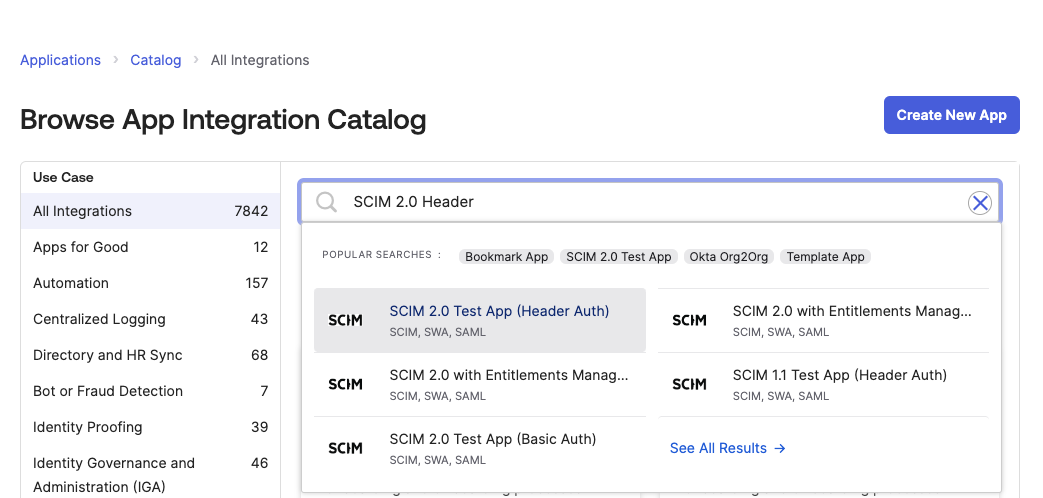
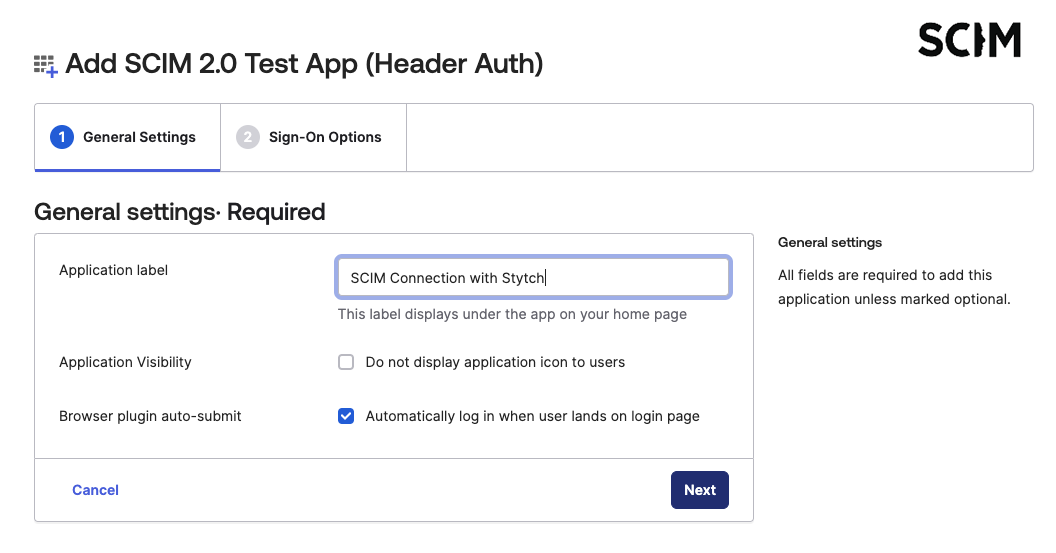
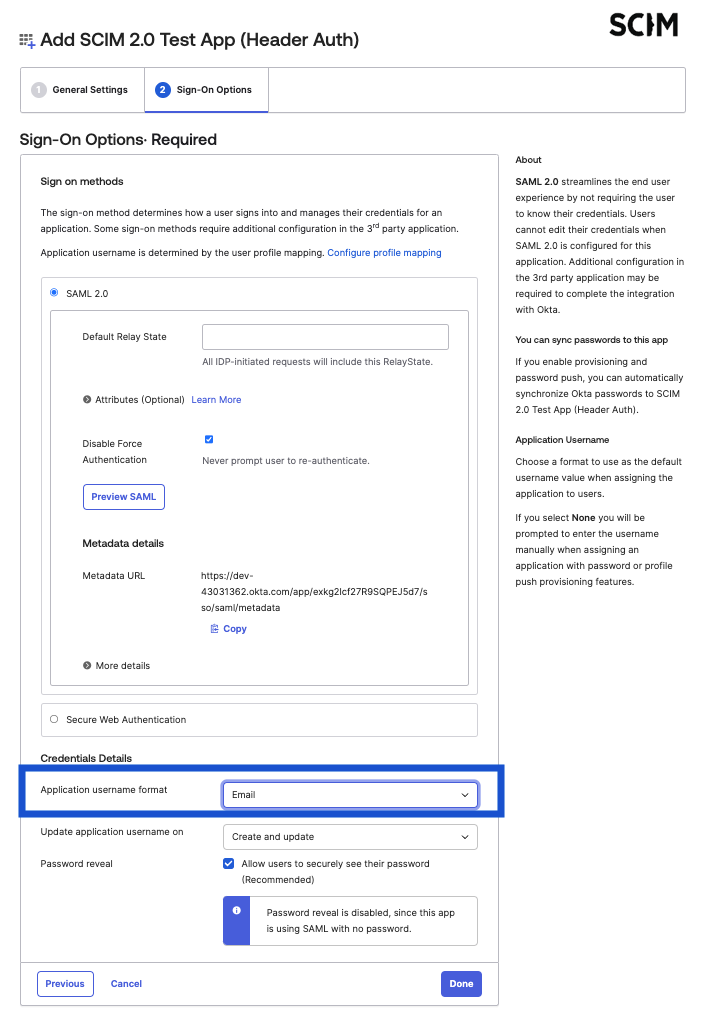
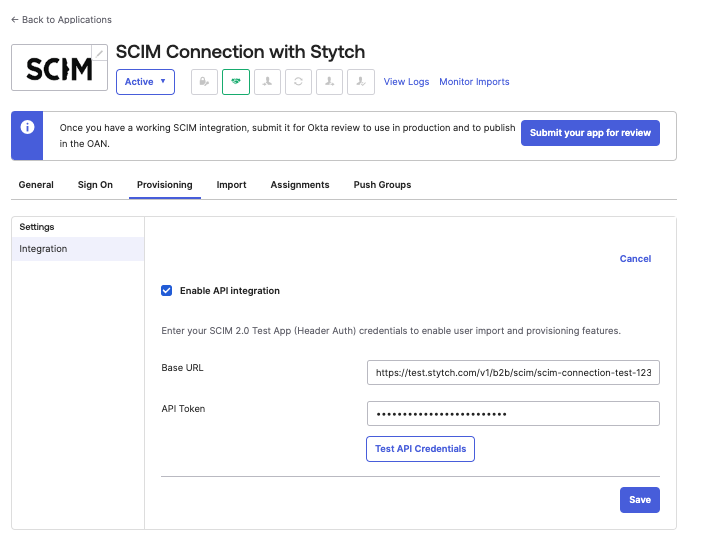
- Standalone SCIM app
1
Enable SCIM provisioning for app
On the existing SSO SAML application in Okta, enable SCIM provisioning by navigating to the General tab of the application and checking “Enable SCIM Provisioning” under “App Settings”.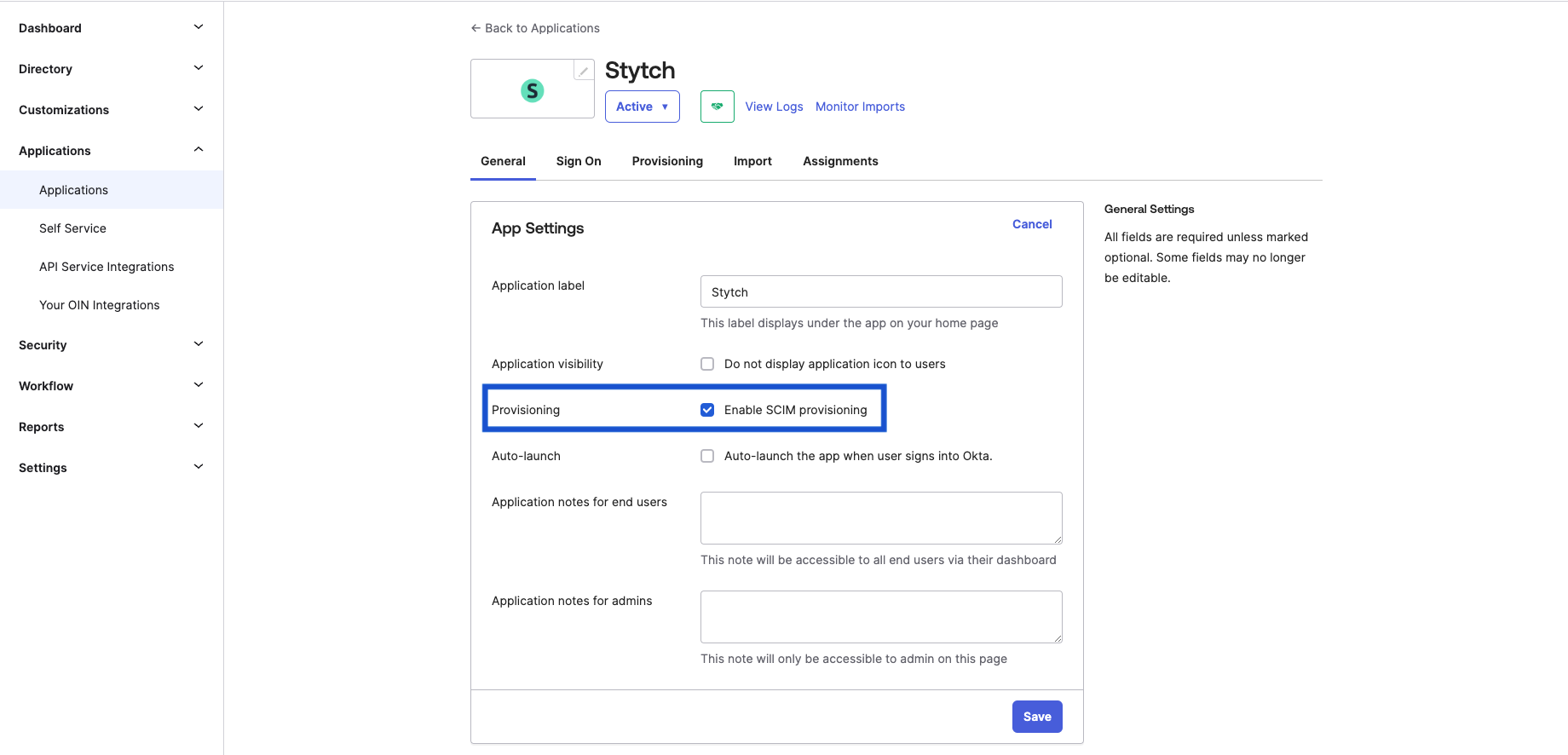
2
Create SCIM Connection in Stytch
Create a SCIM Connection on the Organization in the Stytch Dashboard or the Create SCIM Connection endpoint. Select Okta as the IdP.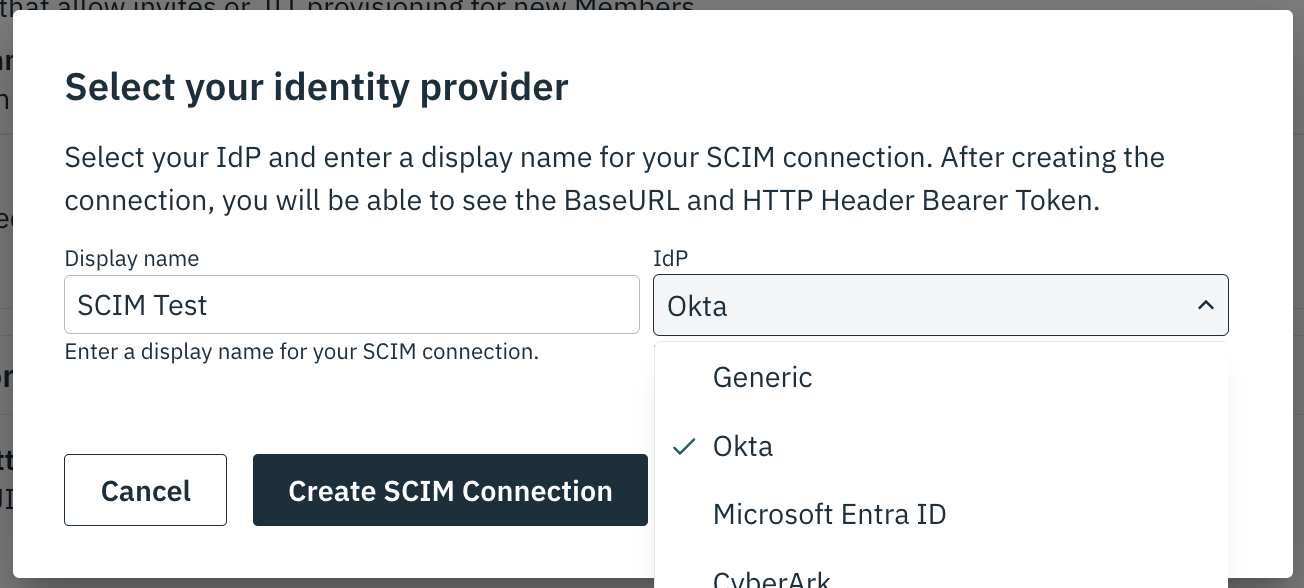
3
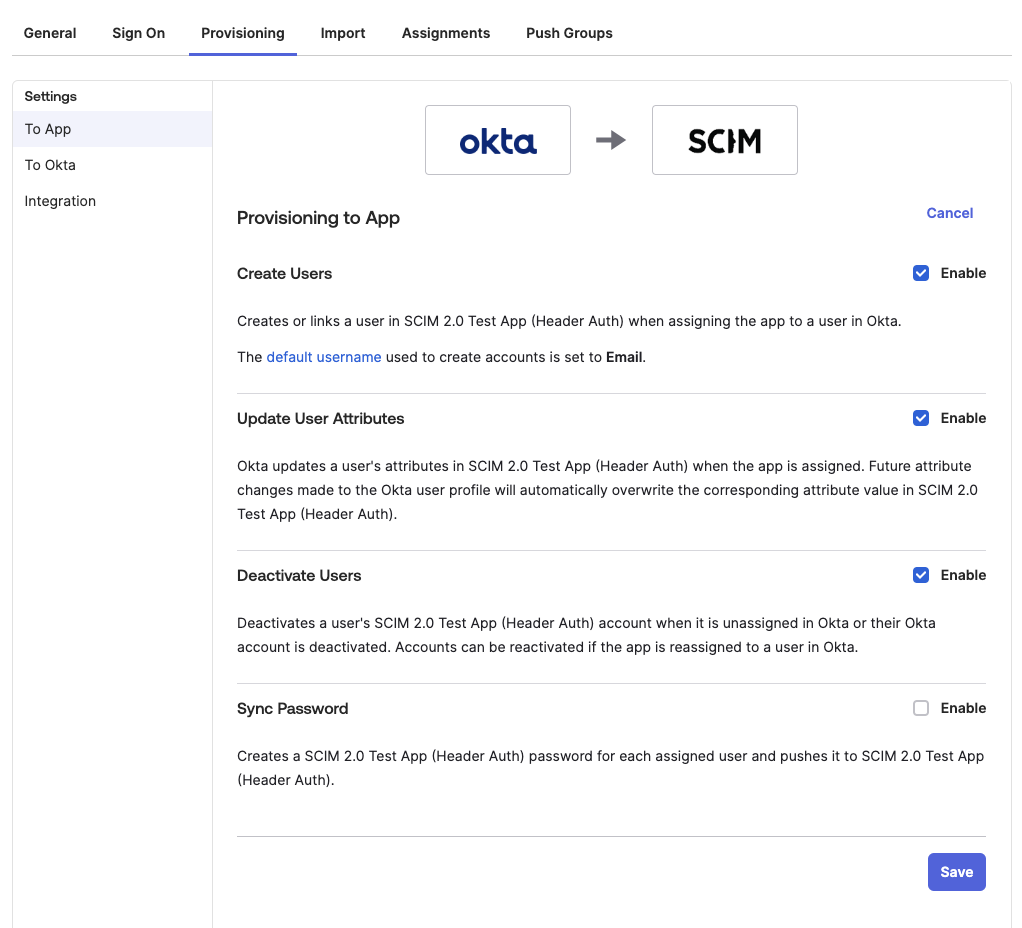
Configure Okta SCIM settings
In the application view in Okta, navigate to the new “Provisioning” tab and: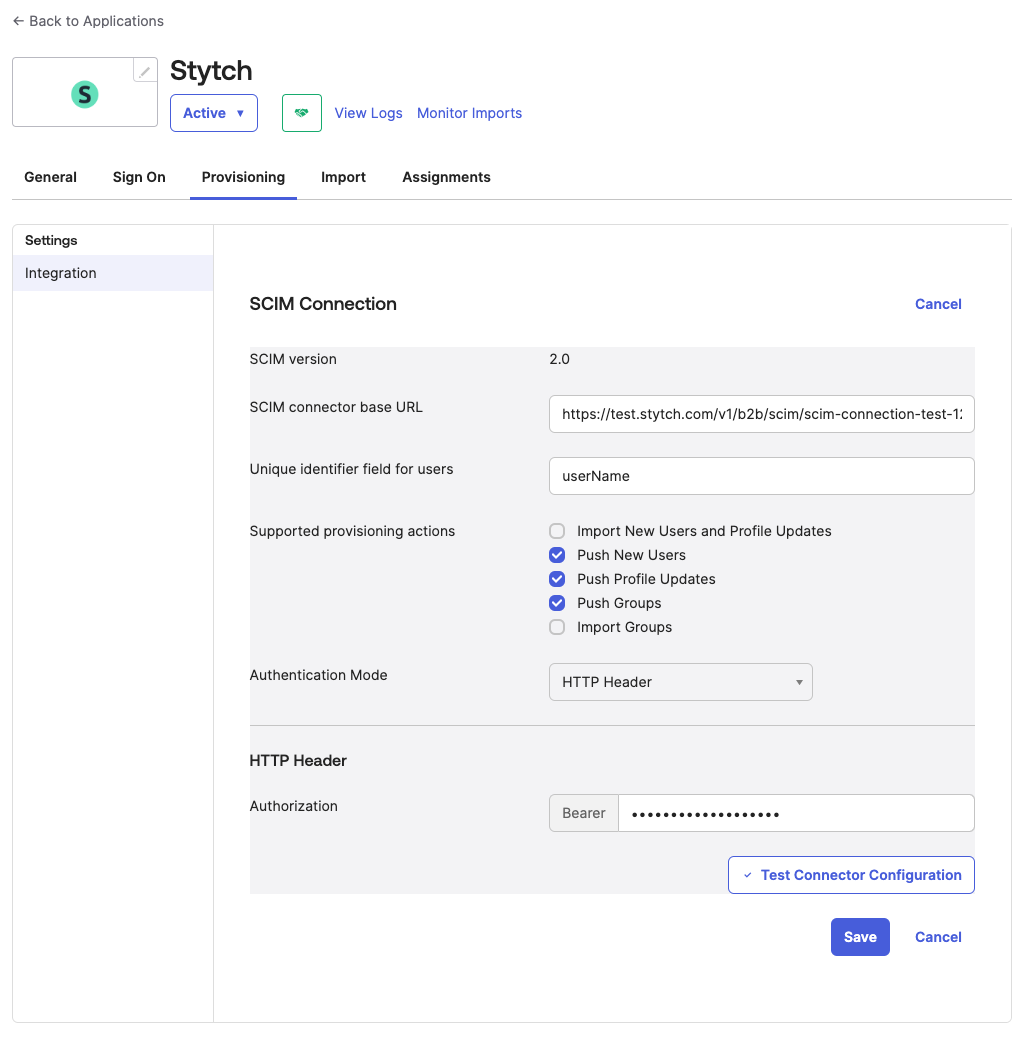
- Change the Authentication mode to HTTP Header
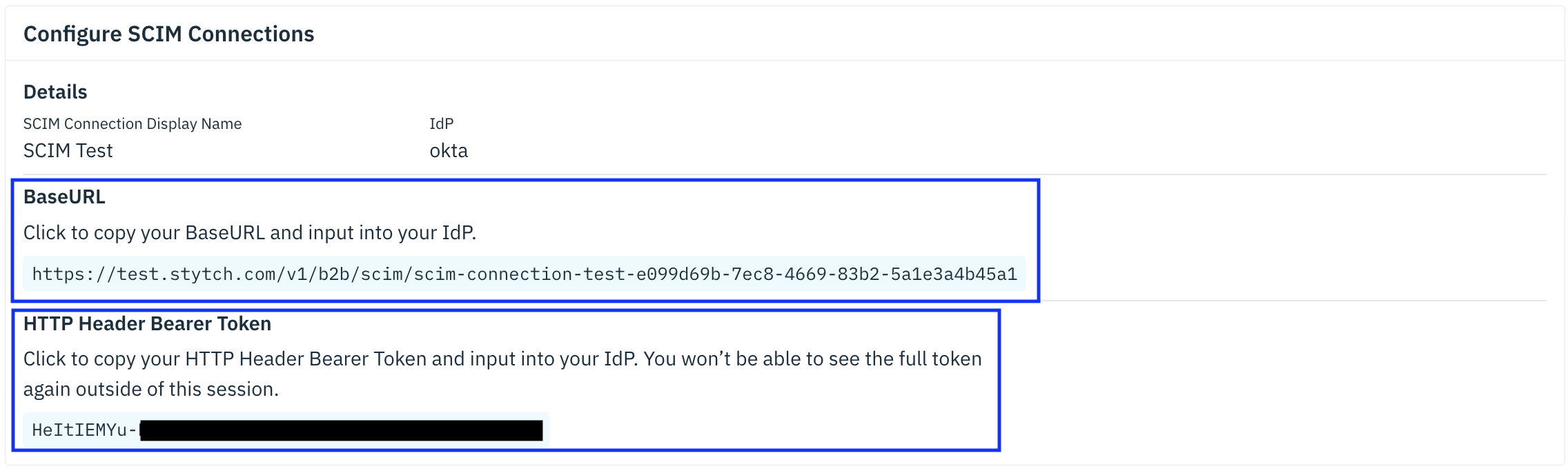
- Copy the “BaseURL” from Stytch into the “SCIM connector base URL” field
- Set the Unique identifier to
userName - Under “Supported provisioning actions”, select all the “Push..” options
- Copy the “HTTP Header Bearer Token” from Stytch into the “HTTP Header → Authorization” field
4
Provision users
Once saved, you can test the SCIM integration by assigning people to and removing people from the application.You should see the status of the member changing from
active to deactivated.5
(Optional) Configure webhooks
To notify your own system of changes that occur via SCIM, configure webhooks. See the full list of relevant webhooks here.
Next Steps
If you only have a few customers who require SCIM connections, you can manage them by hand in the Stytch Dashboard. However, as your enterprise customer base grows, you may want to build a UI in your application to allow admins of Organizations to self-serve creating and updating their own SCIM connections. The simplest way to add SCIM connection management to your application is to use Stytch’s pre-built Admin Portal component.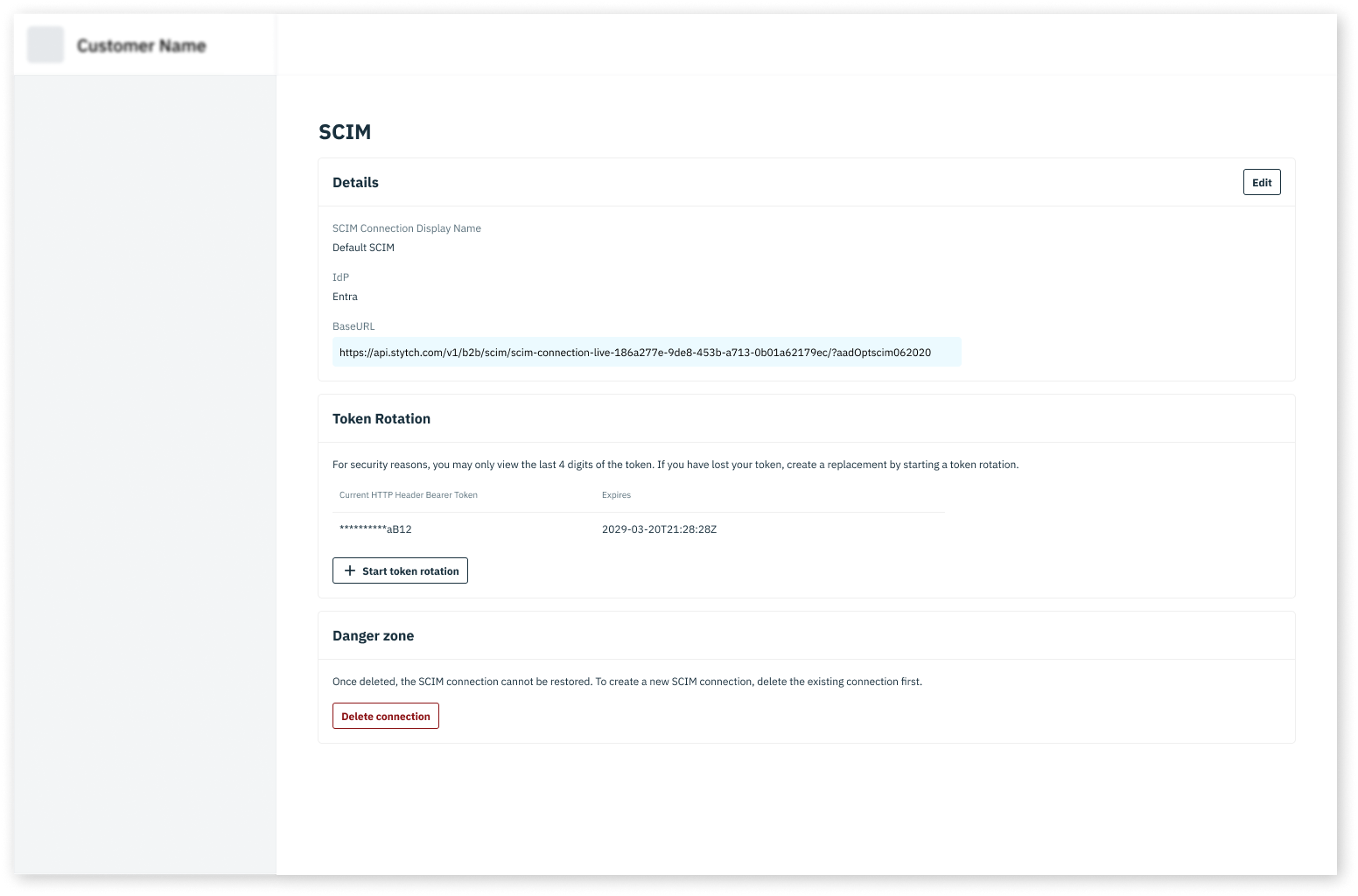
Admin Portal Guide
Read the guide on Admin Portal.
Admin Portal SDK Reference
Jump straight to the React, Next.js, or Vanilla JS SDK reference.