Documentation Index Fetch the complete documentation index at: https://stytch.com/docs/llms.txt
Use this file to discover all available pages before exploring further.
Admin Portal
The simplest way to give your customers a UI to manage their organization and member settings is using Stytch’s pre-built Admin Portal .
Admin Portal provides:
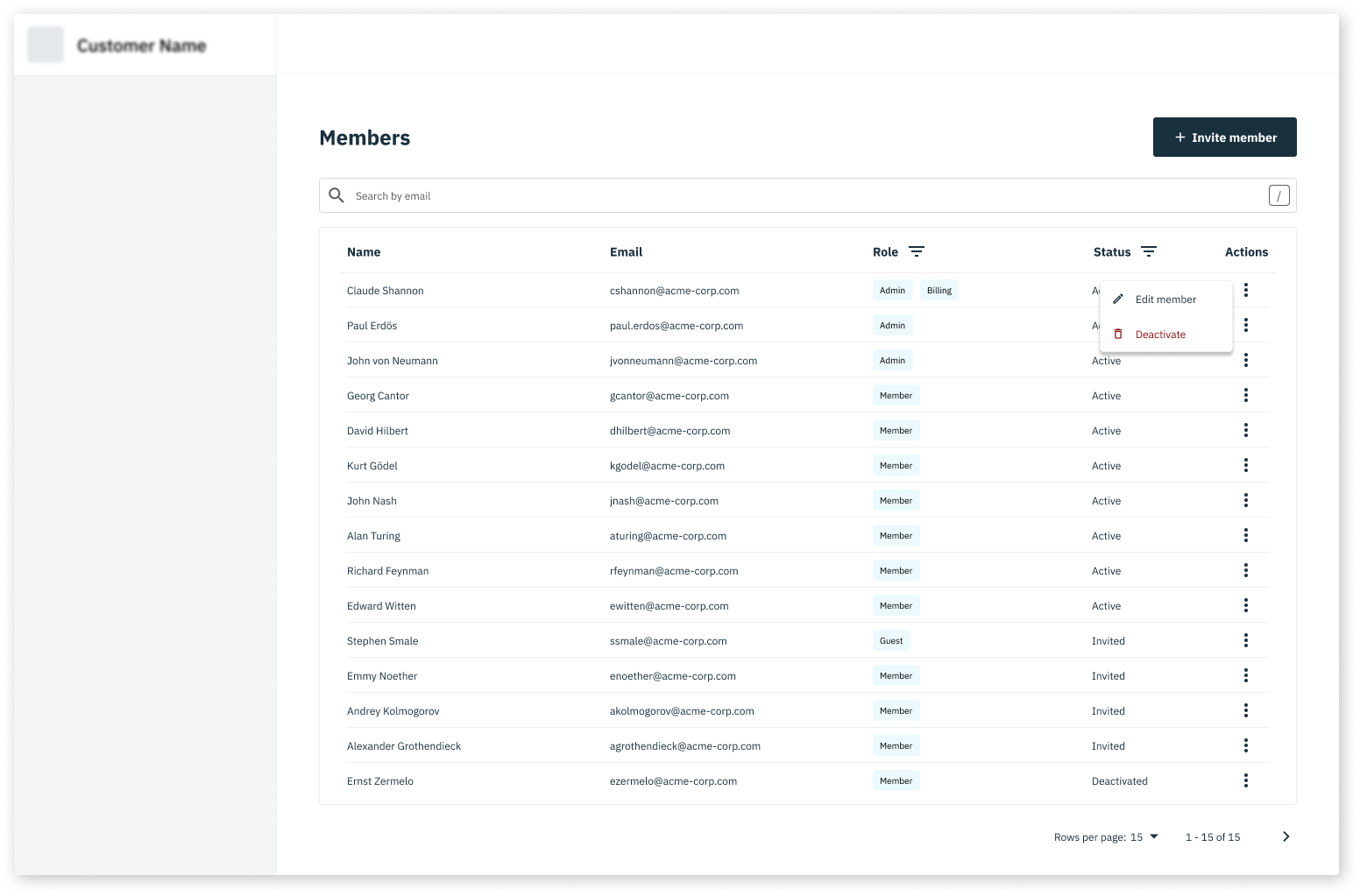
AdminPortalMemberManagement - allows Members of the Organization to invite new Members and manage existing Members
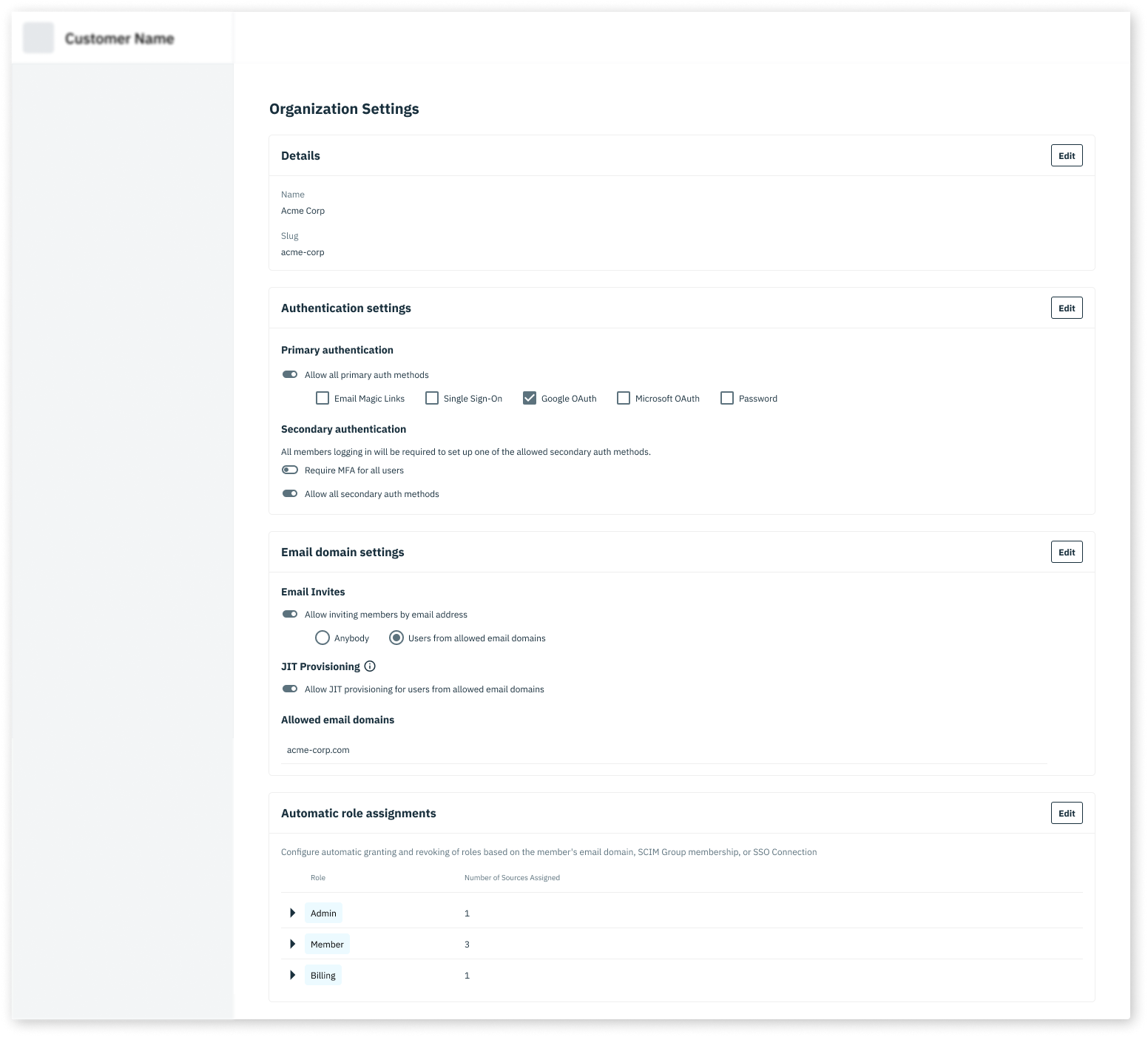
AdminPortalOrgSettings - allows Members of the Organization to manage their own Organization settings, including authentication methods and JIT provisioning settings.
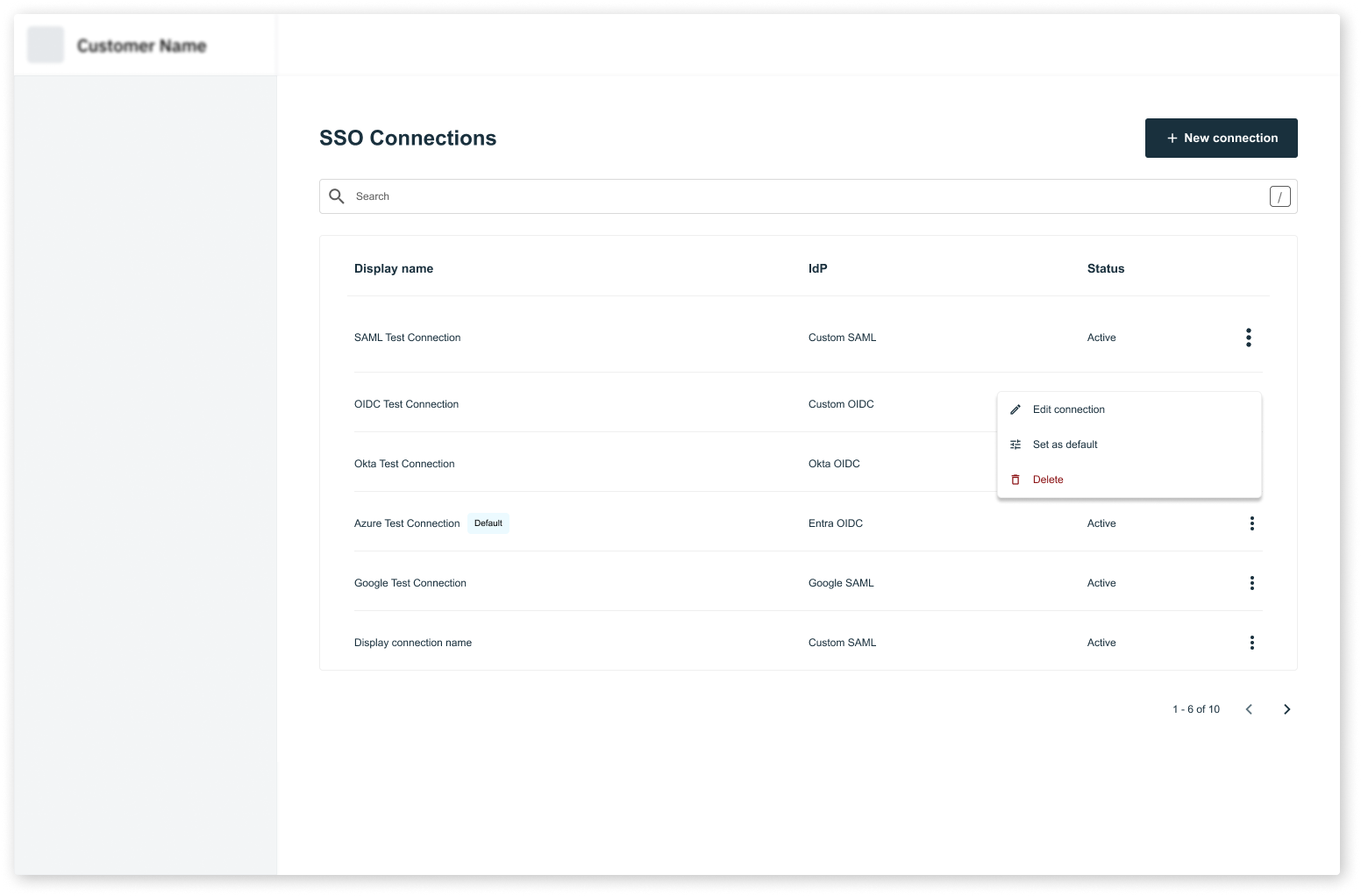
AdminPortalSSO - allows Members of the Organization to manage their own SSO connections
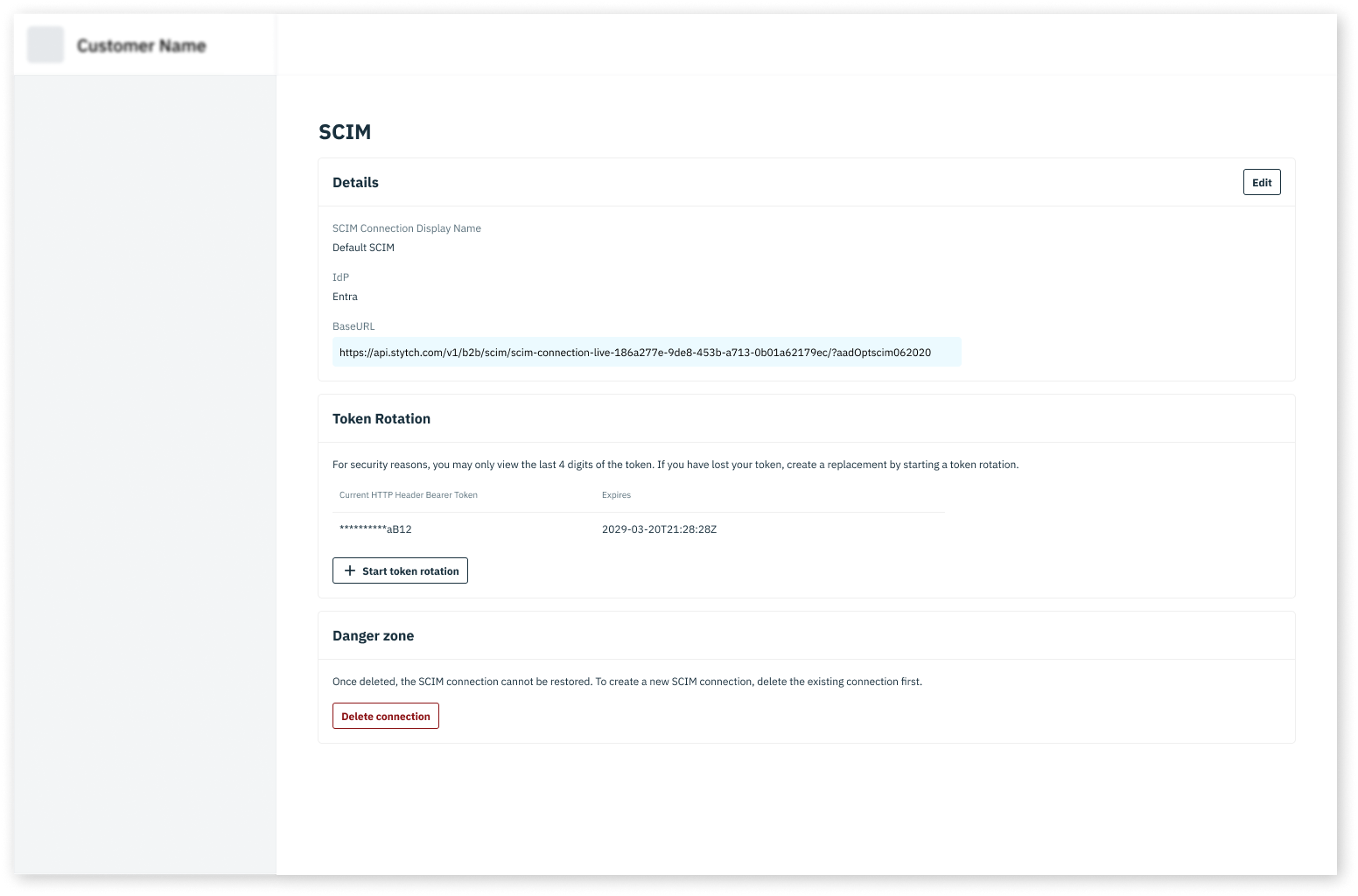
AdminPortalSCIM - allows Members of the Organization to manage their own SCIM connections
Member management
Organization settings
SSO
SCIM
Custom organization management UI
If you need more control over your org management ui, you can build custom flows for managing members and organization settings using the Stytch API.
Member management
Organization management
Search Members Use Search Members to display all Members in the Organization.
Invite a New Member Use Invite Member to invite a new Member to the Organization.
Display all Members
Use Search Members to display all Members in the Organization. import { useStytchB2BClient } from '@stytch/react/b2b' ;
const stytch = useStytchB2BClient ();
export const MemberTable = () => {
const [ members , setMembers ] = useState ([]);
const stytch = useStytchB2BClient ();
useEffect (() => {
const fetchMembers = async () => {
const response = await stytch . members . search ();
setMembers ( response . members );
};
fetchMembers ();
setMembers ( response . members );
}, [ stytch ]);
return (
< table >
< thead >
< tr >
< th > Name </ th >
< th > Email </ th >
< th > Roles </ th >
</ tr >
</ thead >
< tbody >
{ members . map (( member ) => (
< tr key = { member . member_id } >
< td > { member . name } </ td >
< td > { member . email_address } </ td >
< td > { member . roles . map (( role ) => role . role_id ). join ( ', ' ) } </ td >
</ tr >
)) }
</ tbody >
</ table >
);
};
Update a Member Information
Use Update Member to update a Member from the table. import { useStytchB2BClient } from '@stytch/react/b2b' ;
export const UpdateMember = ({ memberId }) => {
const stytch = useStytchB2BClient ();
const [ name , setName ] = useState ( '' );
const handleUpdate = async () => {
await stytch . members . update ({ member_id: memberId , name });
};
return (
< div >
< input
value = { name }
onChange = { ( e ) => setName ( e . target . value ) }
placeholder = "Enter member name"
/>
< button onClick = { handleUpdate } > Update Member </ button >
</ div >
);
};
Invite a New Member
Add an Invite Member button to allow inviting new Members to the Organization. import { useStytchB2BClient } from '@stytch/react/b2b' ;
const stytch = useStytchB2BClient ();
export const InviteMember = () => {
const stytch = useStytchB2BClient ();
const [ email , setEmail ] = useState ( '' );
const handleInvite = async () => {
await stytch . members . invite ({ email_address: email });
};
return (
< div >
< input
value = { email }
onChange = { ( e ) => setEmail ( e . target . value ) }
placeholder = "Enter email address"
/>
< button onClick = { handleInvite } > Invite Member </ button >
</ div >
);
};
Get Organization Settings Use Get Organization to get the Organization’s settings.
View Organization Settings
Use the Get Organization endpoint to display the Organization’s settings. import { useStytchB2BClient } from '@stytch/react/b2b' ;
export const OrganizationInfo = () => {
const { organization } = useStytchOrganization ();
return (
< div >
< h1 > Organization Name: { organization . organization_name } </ h1 >
< h2 > Allowed Authentication Methods: </ h2 >
{ organization . auth_methods === "RESTRICTED" ? (
< ul >
{ organization . allowed_auth_methods . map (( method ) => (
< li key = { method } > { method } </ li >
)) }
</ ul >
) : (
< p > All authentication methods are allowed </ p >
) }
{ ... . display other organization settings ... }
</ div >
);
};
Update Organization Settings
Use Update Organization to update the Organization. In this example, we’ll allow updating the allowed authentication methods. import { useStytchB2BClient } from '@stytch/react/b2b' ;
export const UpdateOrganization = () => {
const { organization } = useStytchOrganization ();
const [ authMethods , setAuthMethods ] = useState < 'ALL_ALLOWED' | 'RESTRICTED' >( 'ALL_ALLOWED' );
const [ allowedAuthMethods , setAllowedAuthMethods ] = useState < string []>([]);
const handleUpdate = async () => {
await stytch . organization . update ({ auth_methods: authMethods , allowed_auth_methods: allowedAuthMethods });
};
return (
< div >
< select value = { authMethods } onChange = { ( e ) => setAuthMethods ( e . target . value as 'ALL_ALLOWED' | 'RESTRICTED' ) } >
< option value = "ALL_ALLOWED" > ALL_ALLOWED </ option >
< option value = "RESTRICTED" > RESTRICTED </ option >
</ select >
< select value = { allowedAuthMethods } onChange = { ( e ) => setAllowedAuthMethods ( e . target . value as string []) } >
< option value = "magic_link" > Email Magic Links </ option >
< option value = "email_otp" > Email OTPs </ option >
< option value = "password" > Passwords </ option >
< option value = "google_oauth" > Google OAuth </ option >
</ select >
< button onClick = { handleUpdate } > Update Organization </ button >
</ div >
);