

1
Configure your project in the Stytch Dashboard
- Create Login and Reset Password redirect URLs on the redirect URL configuration page.
- In Frontend SDK, authorize your domain and enable Passwords and Email magic links → LoginOrCreate.
- From Project ID & API keys, copy your
public_token.
2
Add Stytch to your project
Install the SDK packages and initialize the client with your
public_token at the top level of your app.3
Configure sign up and login
Create a component for your signup/login page and render the Stytch UI with a config object. You’ll need the Login and Password Reset redirect URLs you configured in Step 1. See the config reference.
4
Configure password reset
Build a Reset Password page for the link in the reset email. Add that page as a Reset Password redirect in your Dashboard, then render the password reset UI there.The reset email also includes a “Login without a password” option powered by Magic Links. Capture the token from the Login redirect URL and authenticate it.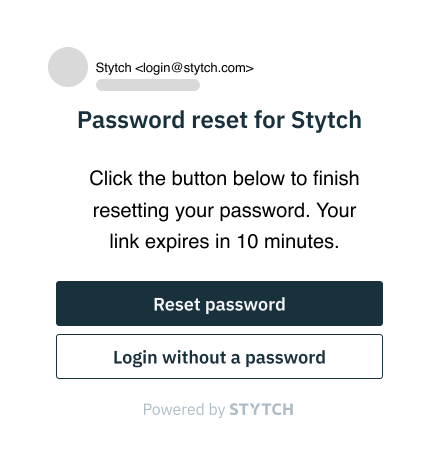
5
Tie it all together
You now have password signup, login, and reset flows with magic link fallback. The SDK manages sessions automatically. Learn more about sessions here.Have feedback after integrating? Reach out via support@stytch.com or in our Slack community.