

Setup
Follow these steps if you have not created a Google OAuth client yet.- Create a Google Cloud account and project if you have not already done so.
- Configure your OAuth consent screen if you have not already done so. More info
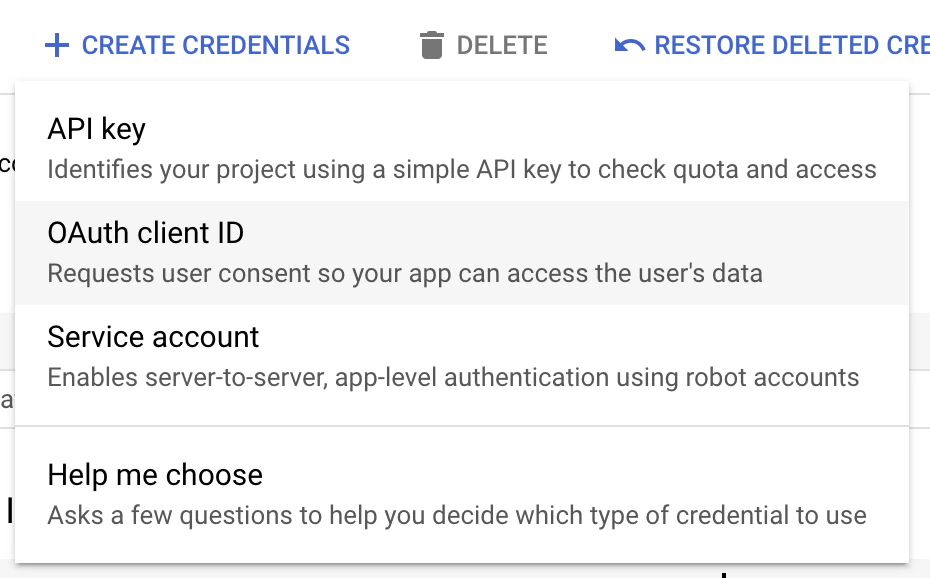
- Go to the Google Credentials page for your application. Click on CREATE CREDENTIALS and then select OAuth Client ID.
- Select Web Application as the application type (regardless of if it is a mobile or non-web application) and enter a name for your OAuth client.
- Copy-paste the Stytch redirect URI from the Dashboard into your OAuth configuration under the Authorized redirect URIs section.
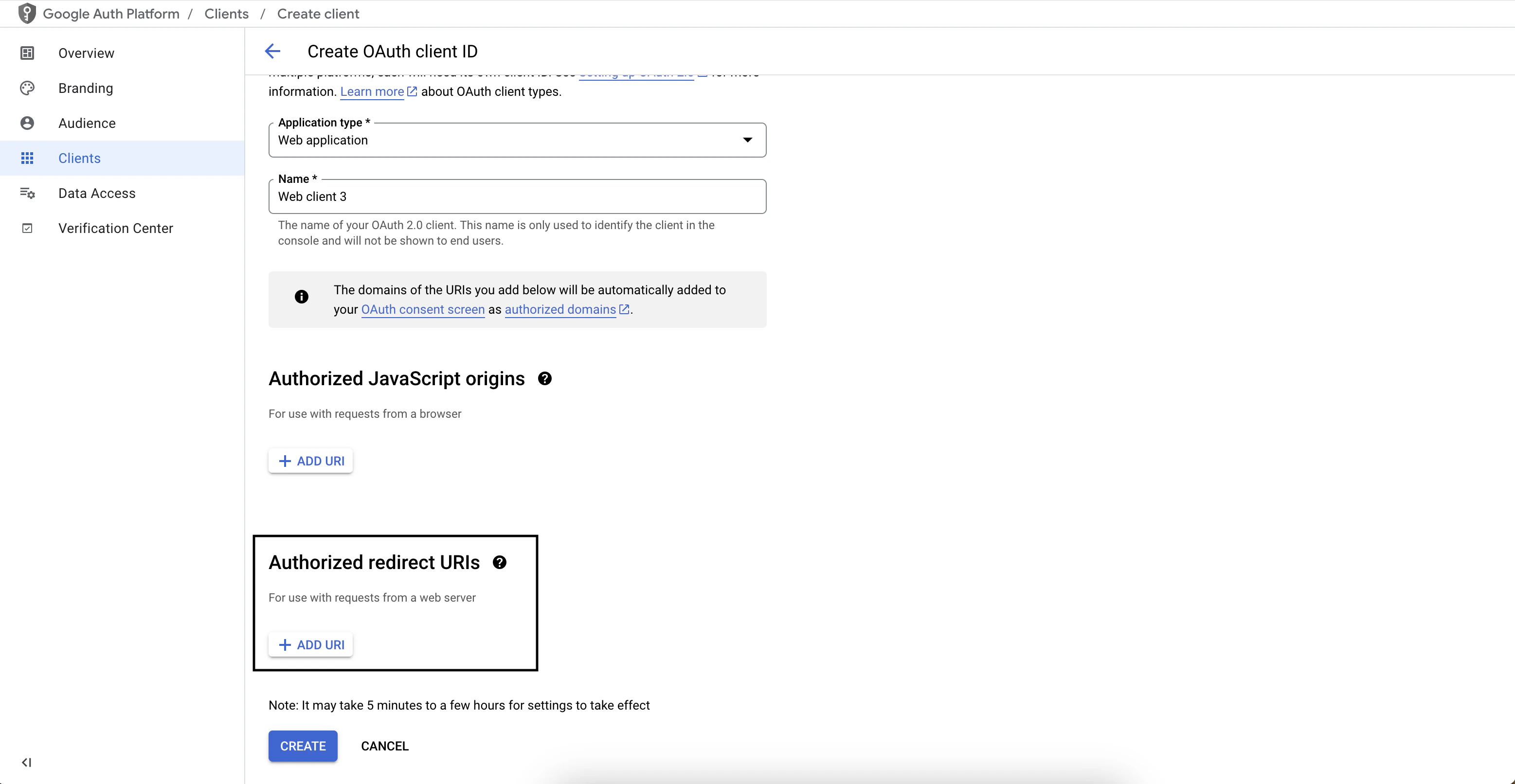
- Click create to save the configuration.
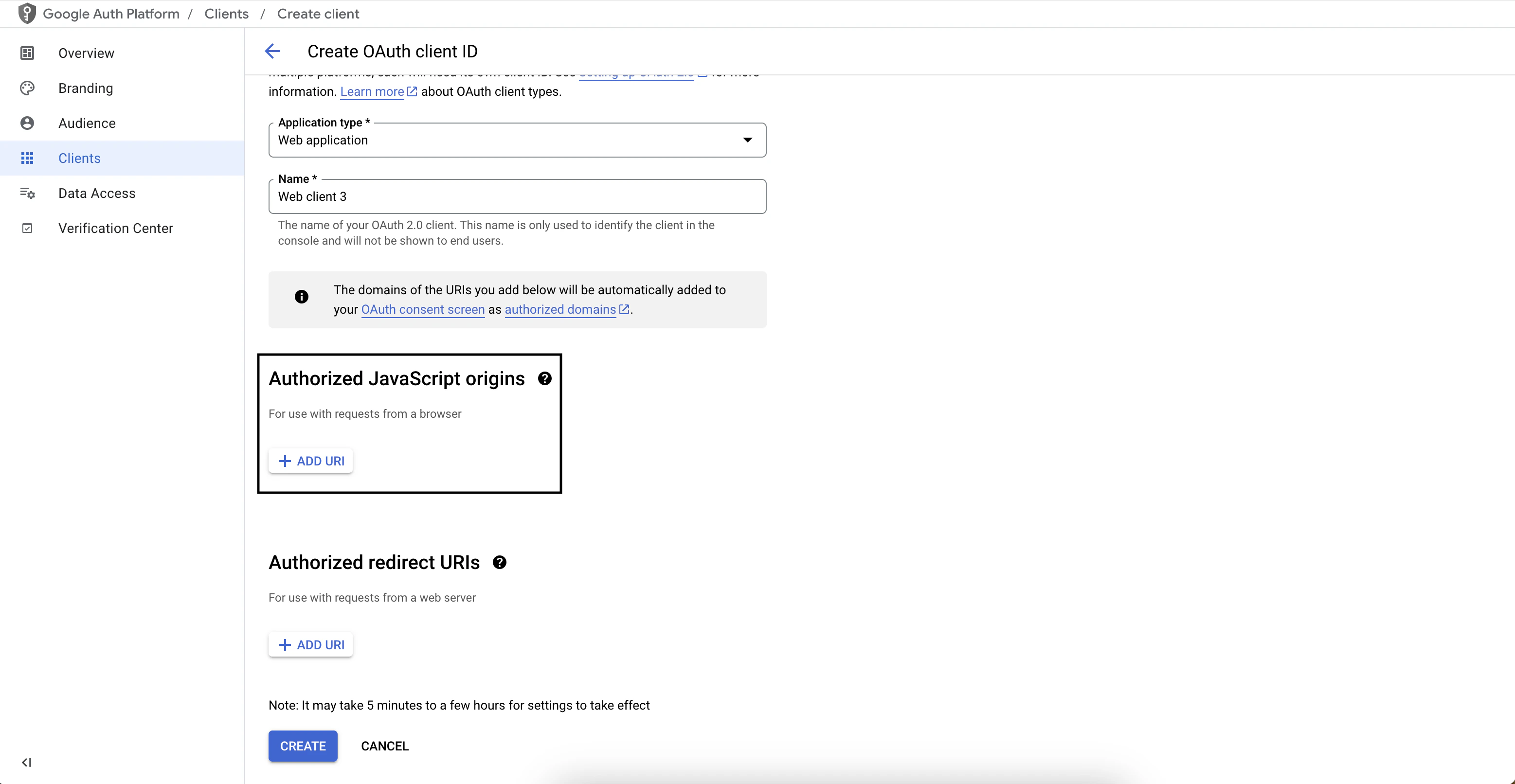
- Optional: If you want the Stytch SDK to support Google One Tap, add your application’s URI as an Authorized JavaScript Origin. Read more about One Tap.
Follow these steps if you already have an existing Google OAuth client.
- Go to the Google Credentials page for your application. You should see your OAuth client under the OAuth 2.0 Client IDs section.
- Click on the OAuth client to edit its configuration.
- Copy-paste the Stytch redirect URI from the Dashboard into your OAuth configuration under the Authorized redirect URIs section.
- Click to save the configuration.
- Optional: If you want the Stytch SDK to support Google One Tap, add your application’s URI as an Authorized JavaScript Origin. Read more about One Tap.